
🪄 AI Summary
Heading 1
Heading 2
Heading 3
Heading 4
Heading 5
Heading 6
Lorem ipsum dolor sit amet, consectetur adipiscing elit, sed do eiusmod tempor incididunt ut labore et dolore magna aliqua. Ut enim ad minim veniam, quis nostrud exercitation ullamco laboris nisi ut aliquip ex ea commodo consequat. Duis aute irure dolor in reprehenderit in voluptate velit esse cillum dolore eu fugiat nulla pariatur.
Block quote
Ordered list
- Item 1
- Item 2
- Item 3
Unordered list
- Item A
- Item B
- Item C
Bold text
Emphasis
Superscript
Subscript
If you want to create a professional AI avatar video without spending a buck, you're in the right place. In this step-by-step guide, I'll show you exactly how I used Google Gemini to generate a hyper-realistic AI image of myself and then turned it into a talking avatar video using HeyGen's free plan - no expensive software, no professional camera needed.
This is the exact workflow I use for my own video content creation.
What You'll Need
- A Google account (to access Google Gemini)
- A HeyGen free account (heygen.com)
- A reference photo of yourself (clear, front-facing)
- 30–45 minutes of your time
Why Use AI Avatars for Content Creation?
Before we jump in, here's why this method is a game-changer for creators:
- No camera setup needed, your AI avatar does the talking
- Consistent brand look, same outfit, same lighting, every time
- Saves hours of filming and editing
- Perfect for YouTube, LinkedIn, Instagram Reels, and explainer videos
- 100% free to start with the tools in this guide
Step 1: Generate Your AI Avatar Image Using Google Gemini
The first thing you need is a high-quality, hyper-realistic image of your AI avatar. Google Gemini (available at gemini.google.com) is now powerful enough to generate near-photorealistic images and it's completely free.
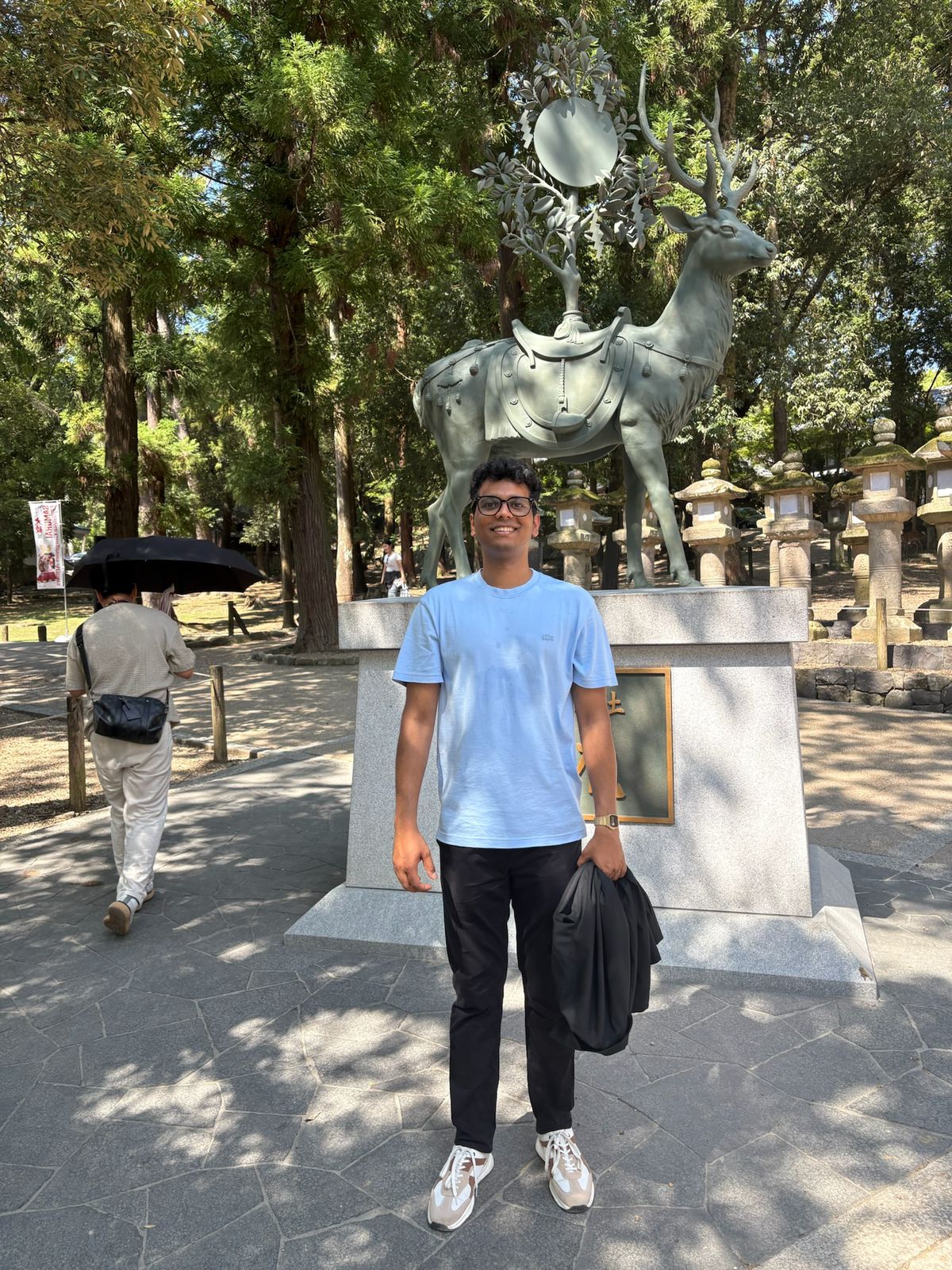
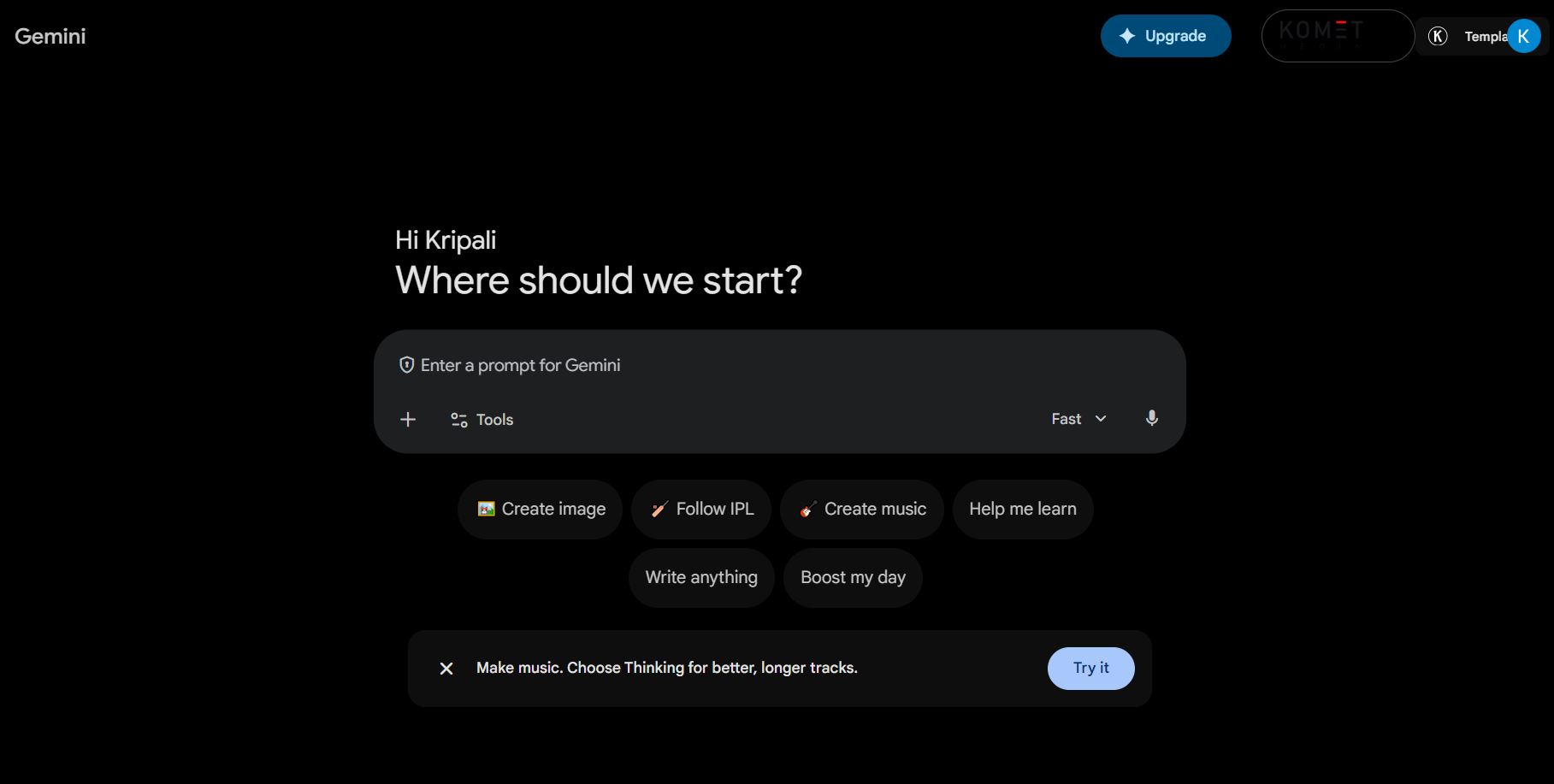
How to Access Google Gemini Image Generation
1. Go to gemini.google.com
2. Sign in with your Google account
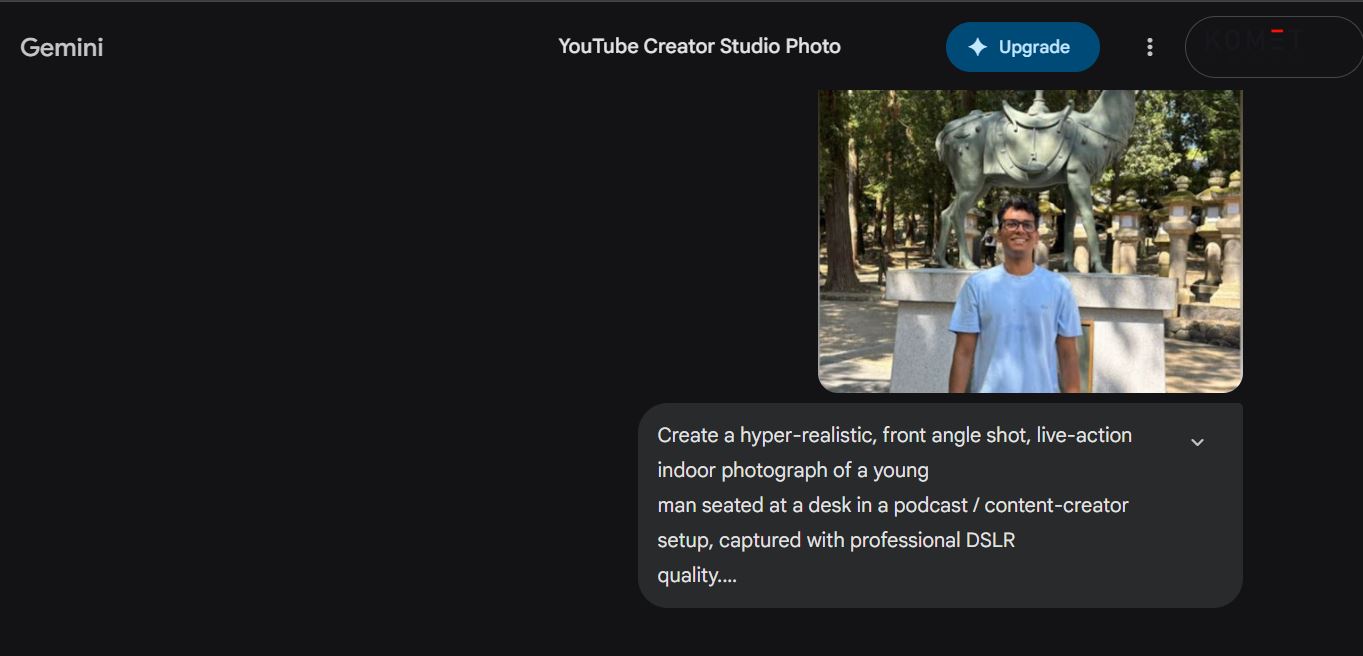
3. Upload your reference photo if you want your face matched (use the attachment icon) and simply type your prompt in the chat
4. And you'll get the desired output as shown below
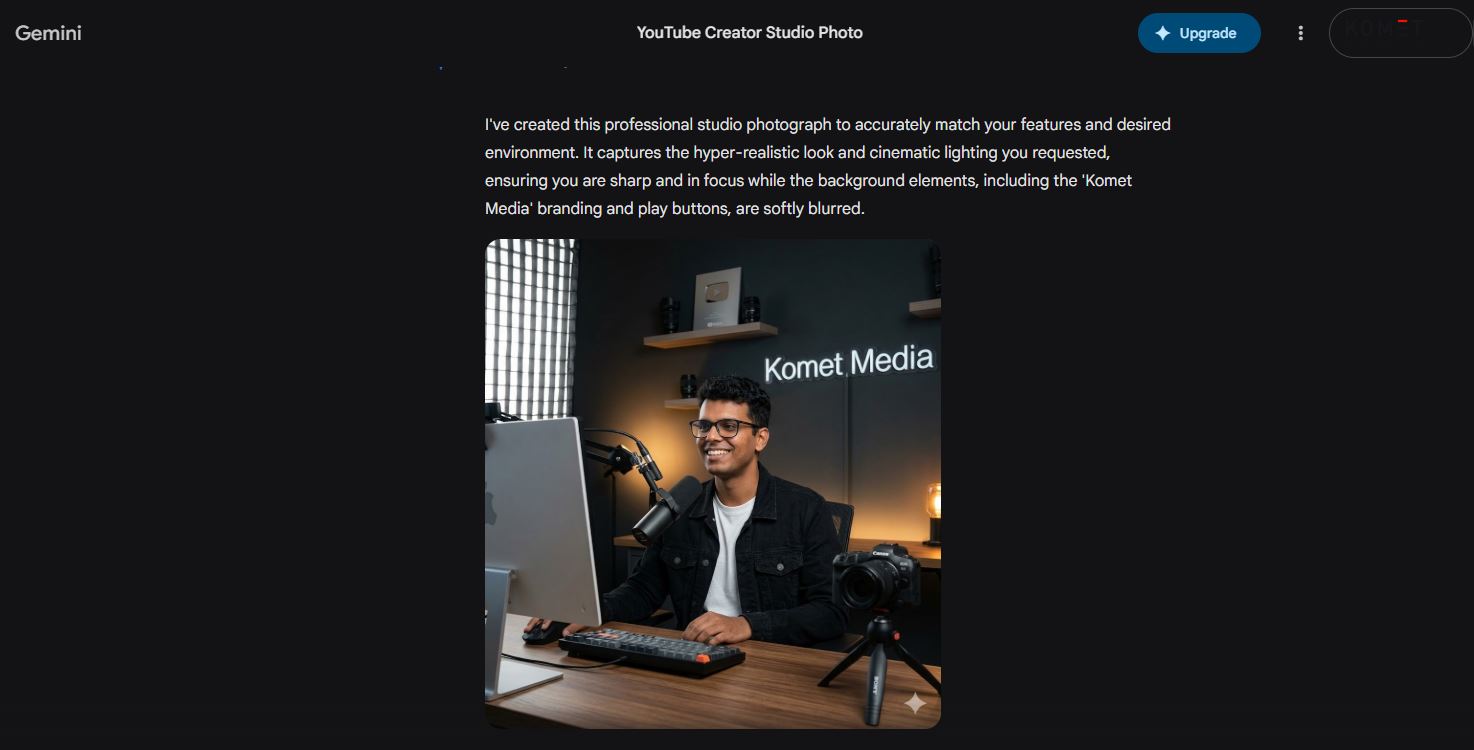
The Exact Prompts I Used -
Here are the two prompts I used to create my AI avatar images. Copy these, customize them to your style, and paste them into Gemini.
Prompt 1 - Dark YouTube Studio Look (White Linen Shirt + Black Blazer)
Create a hyper-realistic, front angle shot, live-action indoor photograph of a young man seated at a desk in a content-creator setup with Komet Media written in the background, captured with professional DSLR quality. Match my face one-to-one with the reference image, preserving exact facial structure, skin tone, proportions, and natural asymmetry.
Subject & Pose: Sitting on a chair, mid-conversation/talk, little smile, confident, focused, approachable expression.
Clothing: White Linen Shirt and Black Blazer. Realistic fabric texture, folds, and stitching.
Desk & Tech Setup: Wooden or matte desk surface. Desktop monitor placed in front (screen on, minimal interface). Professional camera mounted on a tripod. Shotgun or condenser microphone on boom arm. Mechanical keyboard and mouse neatly placed. Clean cable management.
Background: Dark, premium YouTube studio aesthetic. Matte black or dark charcoal walls. Soft grid-style studio light panel visible. Floating wall shelves with cameras, lenses, small decorative items, minimal plants. Warm accent lamp (soft amber glow). Gold YouTube play-button style decor (no readable text). Moody, cinematic, modern, tech-focused.
Lighting: Soft key light on face, subtle fill light for balance, rim/hair light for separation. Warm + cool balance. Natural skin tones. No harsh shadows.
Camera & Composition: Medium shot (waist-up), eye-level angle, shallow depth of field, subject sharp, background softly blurred. Clean cinematic framing for YouTube thumbnails.
Style: Ultra-realistic, live-action look. Visible skin texture and pores. Accurate hand anatomy. Realistic reflections on screens. No AI artifacts. No illustration or CGI look. No text overlays or watermarks.
Output Image is as below -

Prompt 2 - Modern Tech Studio Look (White T-Shirt + Black Denim Jacket)
Create a hyper-realistic, front angle shot, live-action indoor photograph of a young man seated at a desk in a podcast/content-creator setup, captured with professional DSLR quality. Match my face one-to-one with the reference image.
Subject & Pose: Sitting comfortably, upper body slightly leaning forward, forearms resting on table, hands relaxed or lightly clasped, mid-conversation style, looking slightly toward the camera.
Clothing: White T-Shirt and Black Denim Jacket. Realistic fabric texture, folds, and stitching.
Desk & Tech Setup: Studio desk in front. Laptop or desktop monitor open. Professional microphone (dynamic or condenser) on a boom arm. Optional audio interface or small mixer. Smartphone on a mini tripod. Clean cable management.
Background: Modern YouTube tech studio. LED accent lights (soft blue, purple, or white glow). Shelves or wall panels with tech gadgets, camera lenses, minimal decor (no readable text). Soft RGB lighting behind the subject. Background slightly blurred.
Lighting: Soft key light on face, subtle fill light, gentle rim/hair light. Balanced exposure, natural skin tones. No harsh lighting.
Camera & Composition: Medium shot (waist-up), eye-level angle, shallow depth of field, sharp subject with blurred background. DSLR-quality sharpness.
Style: Ultra-realistic, live-action look. Visible skin texture. Accurate hand anatomy. Realistic reflections on screens and microphone. No AI artifacts, no cartoon look, no watermarks.
Output Image is as below -

Pro Tips for Better Gemini Results
- Always upload a clear, front-facing reference photo of yourself alongside the prompt
- If the face doesn't match perfectly, add: "Match my face exactly - same jawline, eye shape, skin tone, and nose as the reference photo"
- Generate 3–5 variations and pick the most realistic one
- If it adds weird backgrounds or artifacts, add: "No AI artifacts, no distortions, ultra-realistic only"
- Save your final image as a high-resolution PNG or JPG
Step 2: Create Your Free HeyGen Account
Once your AI avatar image is ready, it's time to bring it to life with HeyGen.
- Go to heygen.com
- Click Sign Up Free
- Create your account using Google or email
- You'll get free credits on the free plan to generate short videos
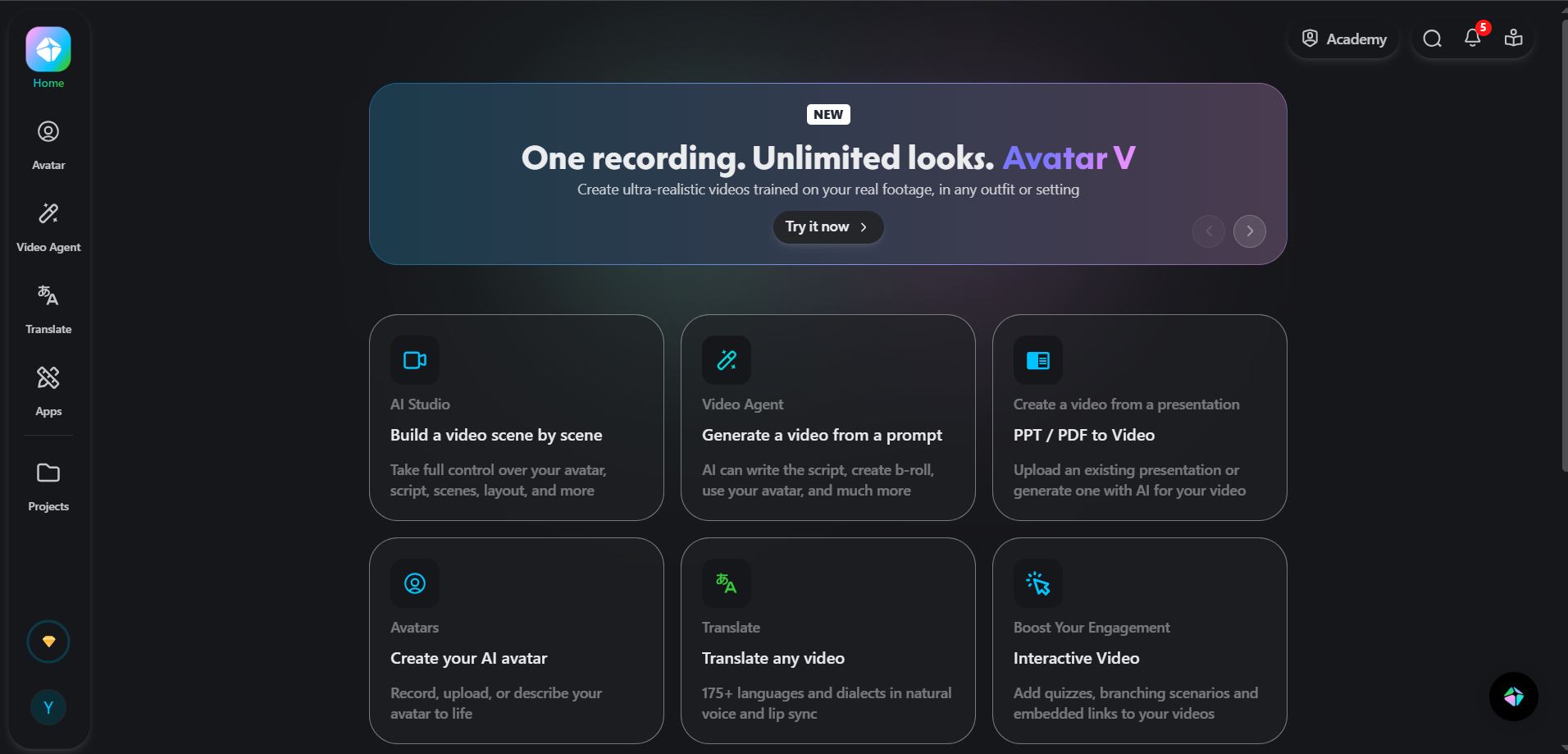
Step 3: Upload Your Avatar Image to HeyGen
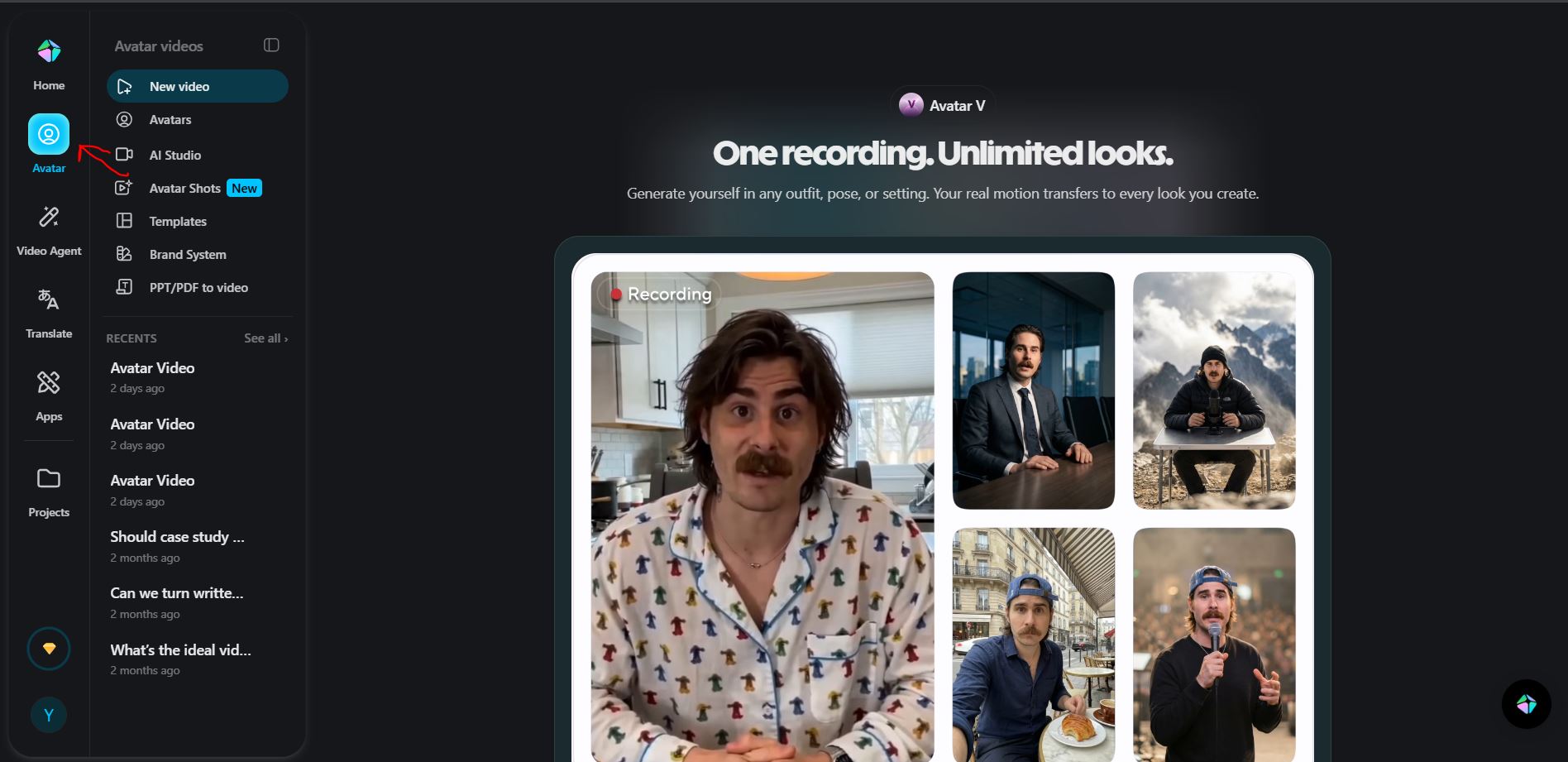
1. After logging in, go to "Avatars" in the left sidebar
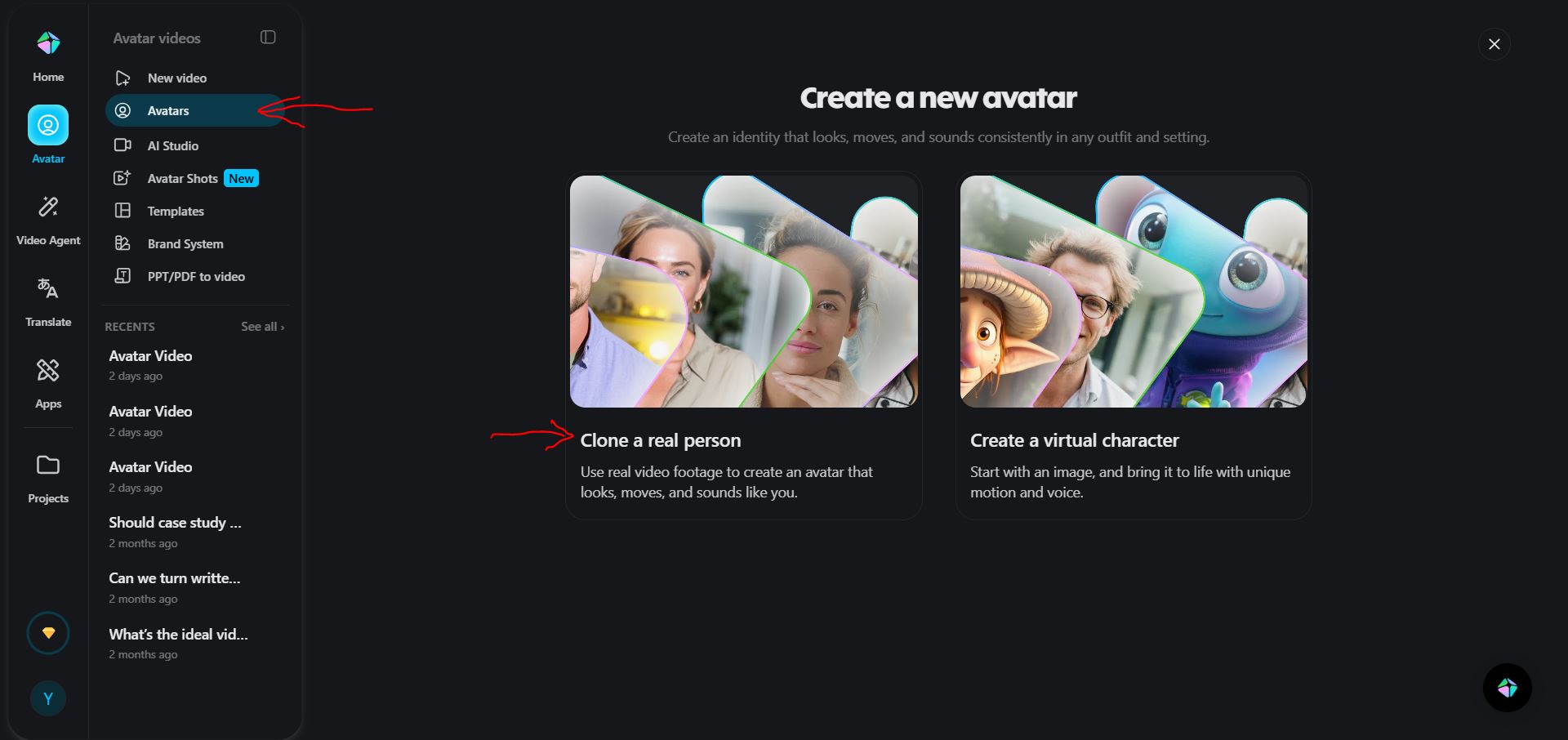
2. Click "Create Avatar" → select "Clone a real person"
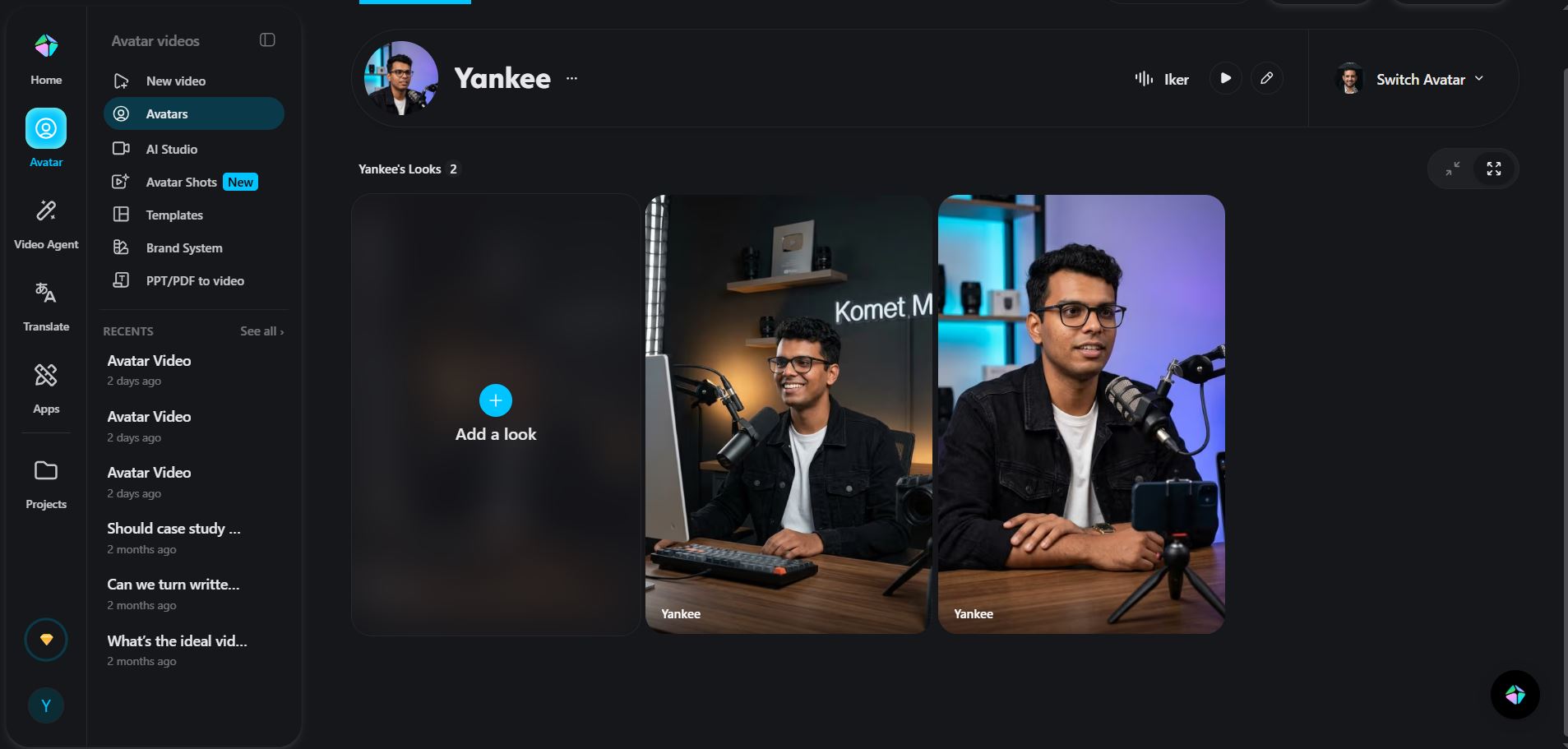
3. Upload the AI image you generated from Gemini
4. HeyGen will process and prepare your avatar (takes 1–3 minutes)
Step 4: Write Your Script or Enter Your Text
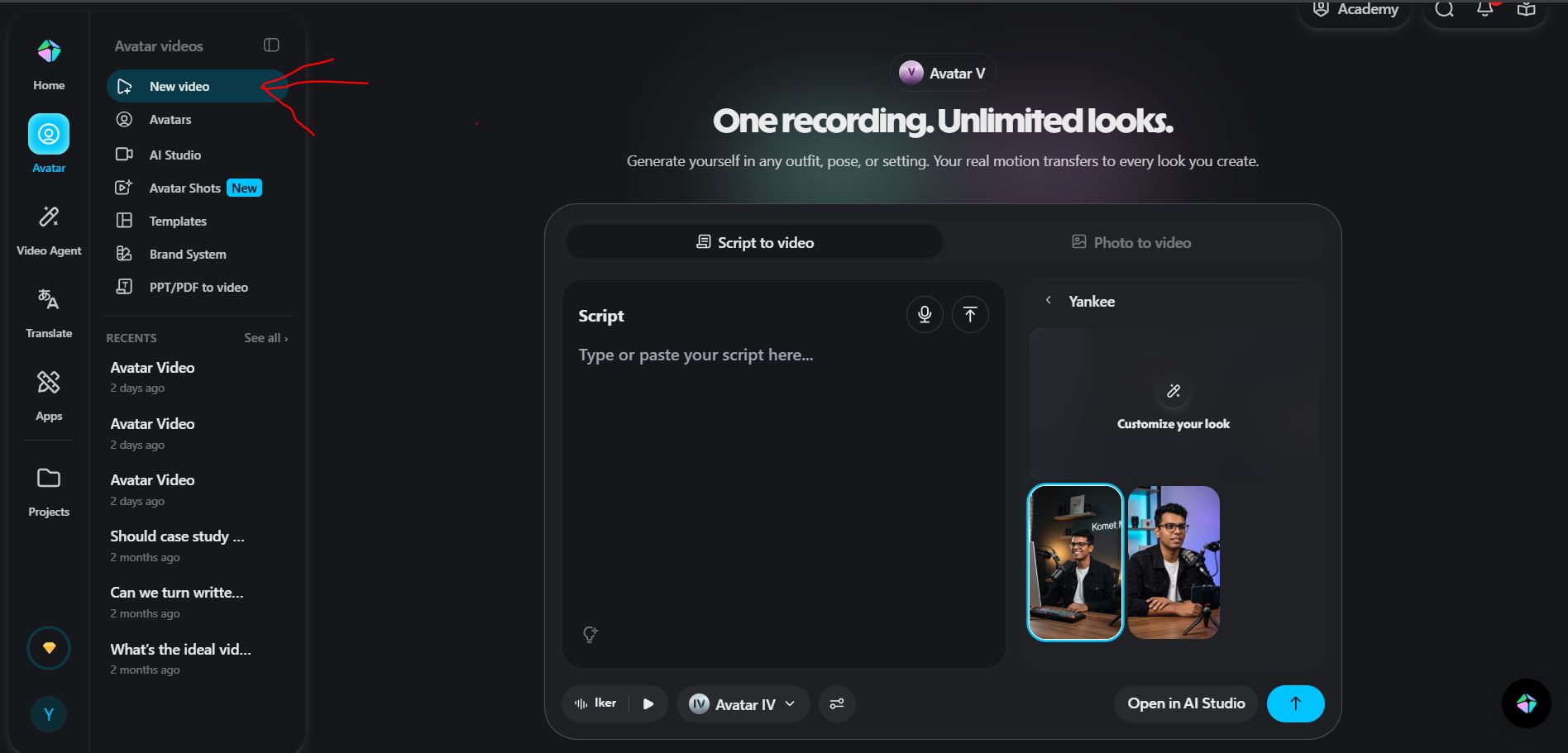
1. From the dashboard, click "New Video"
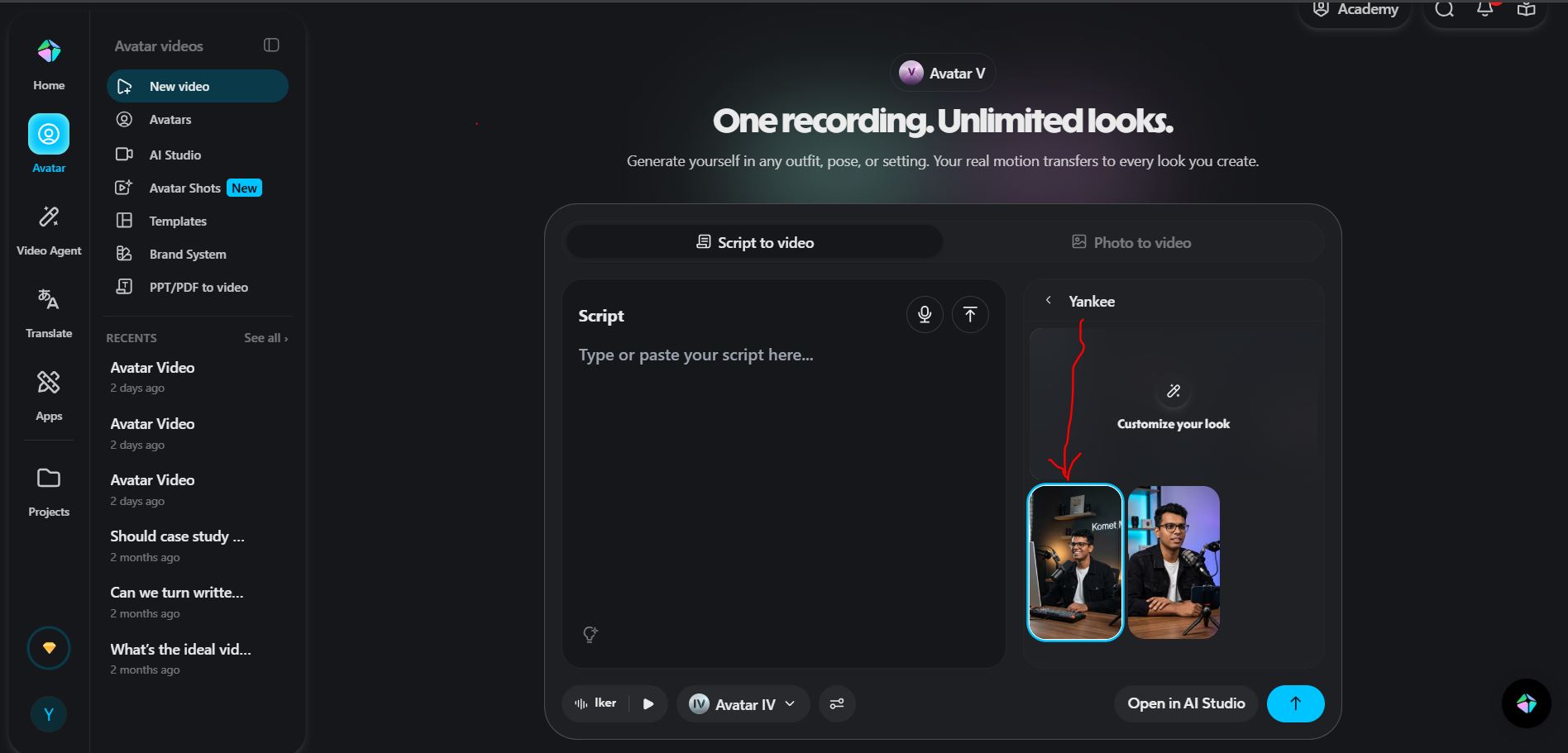
2. Select your newly created avatar.
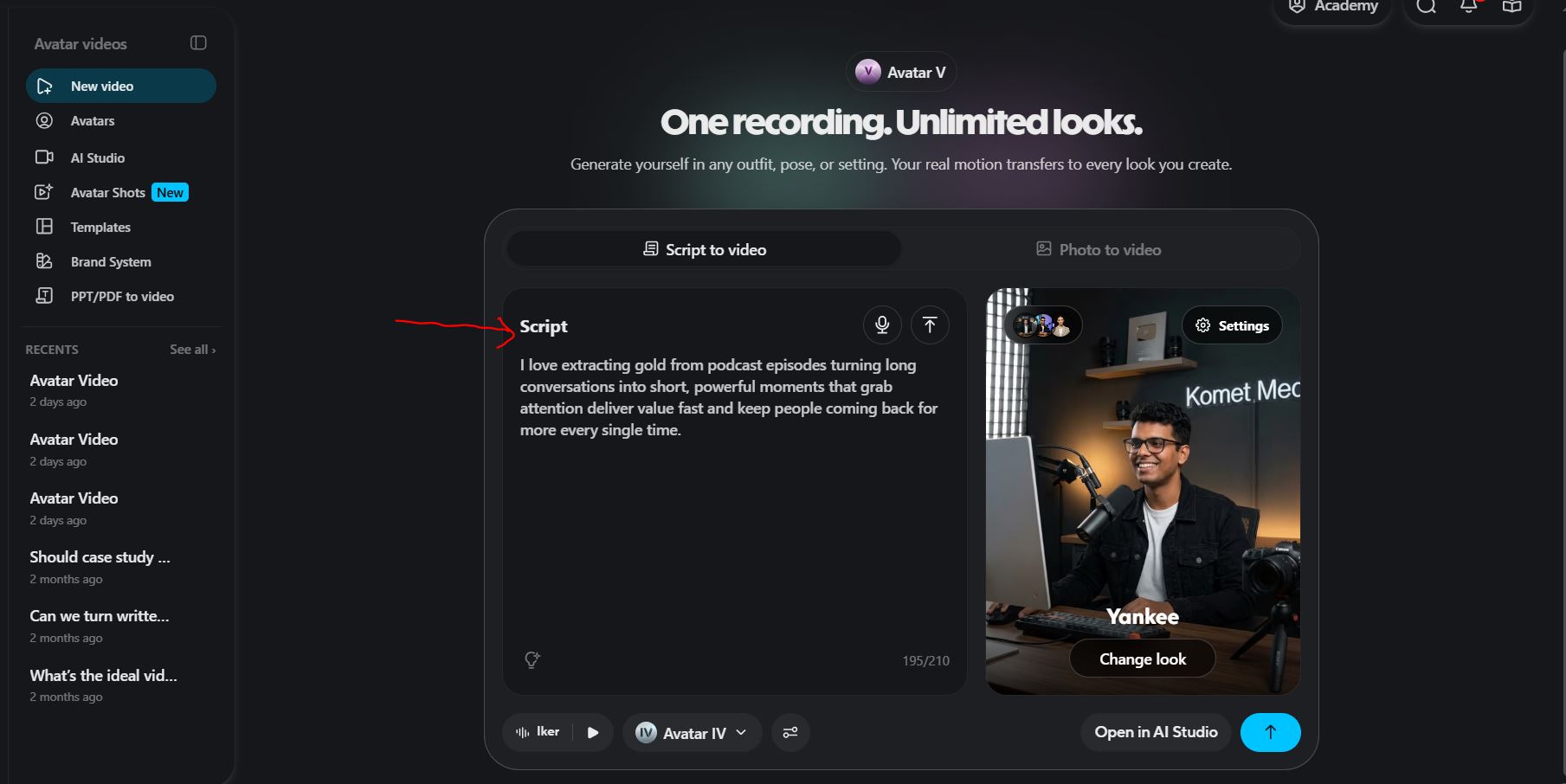
3. In the script box, type or paste the text you want your avatar to speak
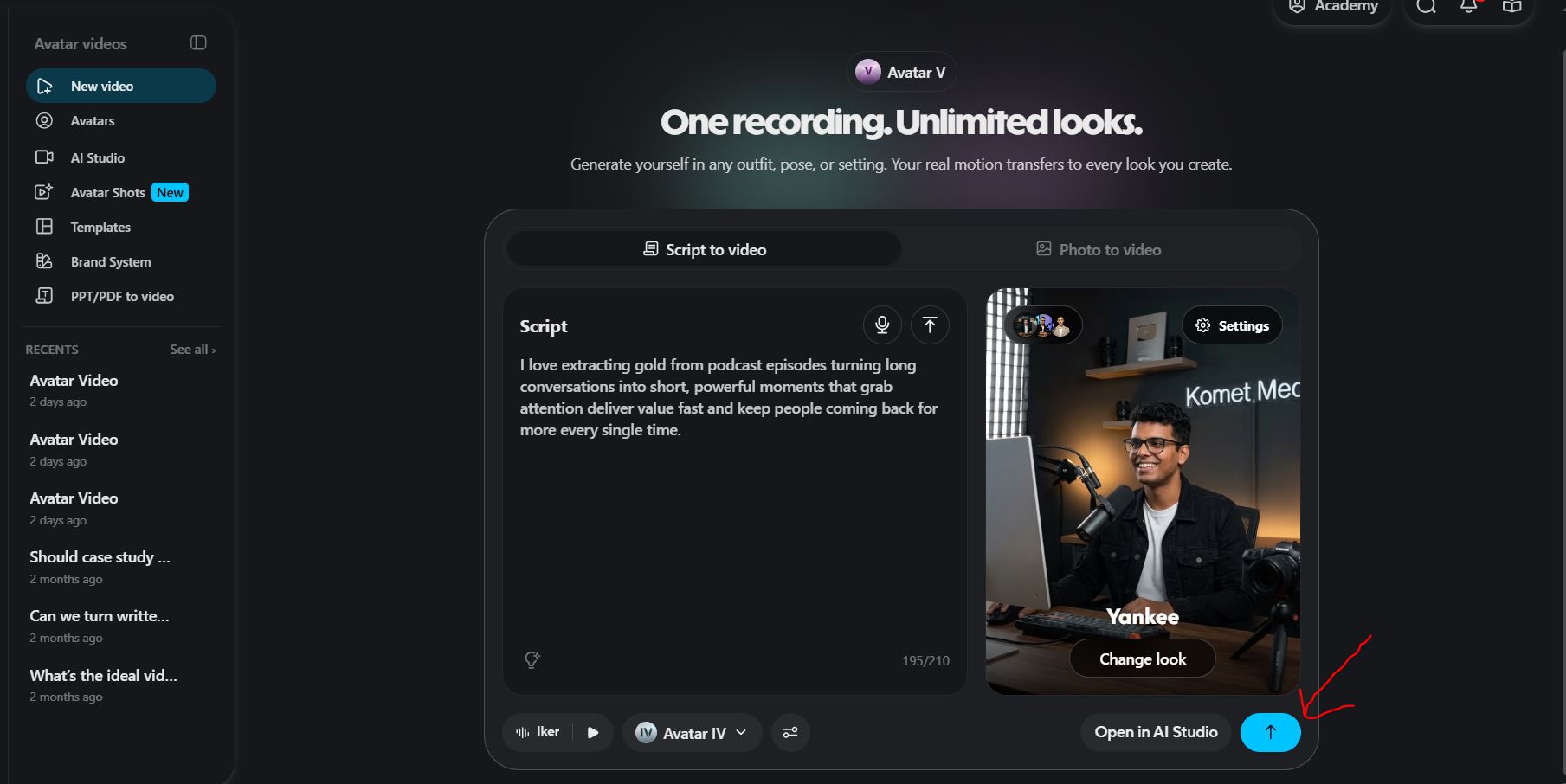
4. Click on Blue Upward Arrow as shown below.
5. Once done, download your video
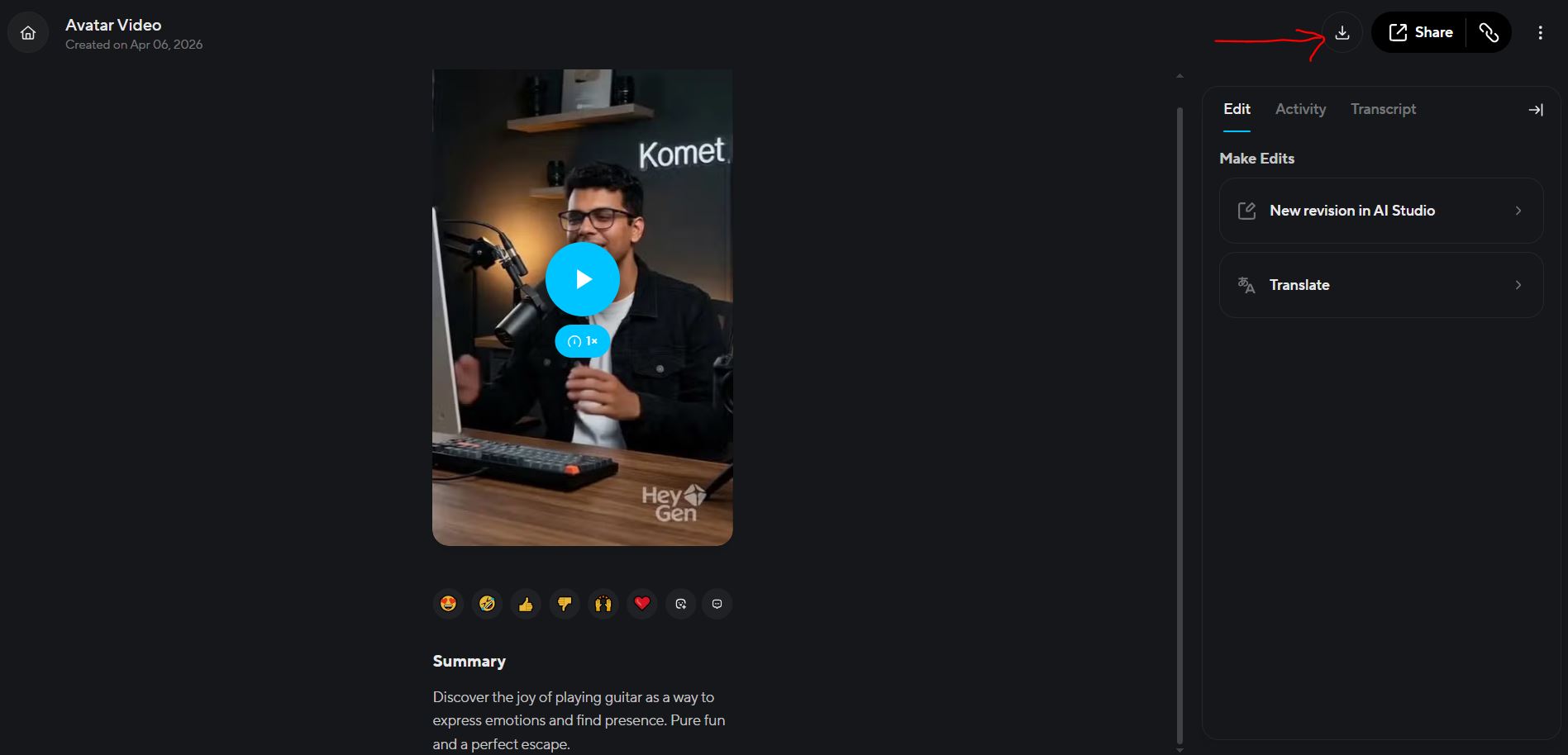
Tip: Keep your script natural and conversational. Avoid very long sentences - shorter sentences make the lip sync look more realistic.
To remove the watermark and export in 1080p, you'll need HeyGen's paid plan. But the free plan is perfect for testing and short videos.
Output will be as below
What to Expect?
Using this exact workflow, I was able to create:
✅ A hyper-realistic AI avatar that closely resembles my real face
✅ A talking head video with natural lip sync
✅ A professional studio background without owning any studio
✅ YouTube-ready content in under an hour
✅ Zero bucks spent
Creating an AI avatar video used to require expensive software and professional studios. Today, with Google Gemini and HeyGen, anyone can do it for free in under an hour. Use the exact prompts above to get started, customize them to your style, and start publishing content that looks professional - even if you're just starting out.
If you found this guide helpful, share it with a fellow creator and check out more tutorials now.
Frequently Asked Questions
Is Google Gemini free to use for image generation?
Yes, Google Gemini offers free image generation through its web interface at gemini.google.com.
Can I use my own face in HeyGen?
Yes, HeyGen's Photo Avatar feature lets you upload any image - including your AI-generated one and turn it into a talking avatar.
Is HeyGen completely free?
HeyGen offers a free plan with limited credits. For watermark-free and longer videos, a paid plan is required.
How realistic does the AI avatar look?
With a good prompt and a clear reference photo, Google Gemini can generate near-photorealistic images that look like actual studio photographs.
Can I use this for YouTube monetization?
Yes, AI-generated content is allowed on YouTube as long as you disclose it where required and the content follows their guidelines.