
How to Schedule Instagram Posts: Step-by-Step Guide
Most teams waste hours posting manually when they could batch a week's worth of content in one focused session. Knowing how to schedule Instagram posts is the single fastest way to stay consistent without killing your team's bandwidth. Whether you're a founder building visibility or a growth team managing pipeline-supporting content, this guide covers every method, every tool, and every practical nuance, completely free options included.
TL;DR
- Instagram's native app and Meta Business Suite both let you schedule posts for free, with no third-party tool required.
- You need a Business or Creator account to access scheduling; personal profiles cannot schedule content.
- You can schedule a maximum of 25 posts per day and up to 75 days in advance.
- Third-party tools like Buffer, Later, and Sprout Social add bulk scheduling, analytics, and cross-platform management.
Does Instagram Have a Built-In Scheduling Feature?
Yes, and most people still don't use it. Instagram now lets professional accounts schedule posts directly within the app, though its native scheduler doesn't yet support Stories, and scheduling is only available for professional accounts (Business or Creator). After years of users asking for it, Instagram finally added in-app scheduling near the end of 2022. Users are able to schedule up to 25 posts per day and up to 75 days in advance. Only Instagram Business and Creator accounts have access to this feature. Personal profiles are unable to schedule content.
If you're still on a personal account, the fix is simple:
- Open the Instagram app and go to your profile.
- Tap the three lines in the top-right corner, tap Settings and privacy, scroll down to Account type and tools, and tap Switch to professional account, then follow the on-screen prompts.
Once you're on a professional account, you unlock scheduling directly in the app. Meta Business Suite is a free tool that also lets you schedule Instagram posts and Reels in advance , giving you a desktop option on top of mobile. For B2B founders and growth teams specifically: scheduling isn't just a time-saver. It's how you maintain a consistent publishing cadence across product launches, webinar cycles, and campaign windows without adding headcount.
Step-by-Step Guide to Scheduling Instagram Posts on Mobile
Here's how to schedule Instagram posts directly from the app without any third-party tool:
- Open the Instagram app and ensure you're on a Business or Creator account.
- Tap the '+' button at the bottom of the screen or swipe right on your home feed to create a new post, then select 'Post' or 'Reel' as your content type.
- Upload your media, apply filters or edits, and write your caption with hashtags.
- Tap 'Advanced Settings' at the bottom of the screen, toggle 'Schedule this post,' select your preferred date and time, then go back to the previous screen and tap 'Schedule.'
- To manage queued content: open your profile, tap the menu icon (three lines), and select "Scheduled content."
- Tap Scheduled content, then tap the three dots next to the relevant post or Reel to edit, reschedule, share now, or delete.
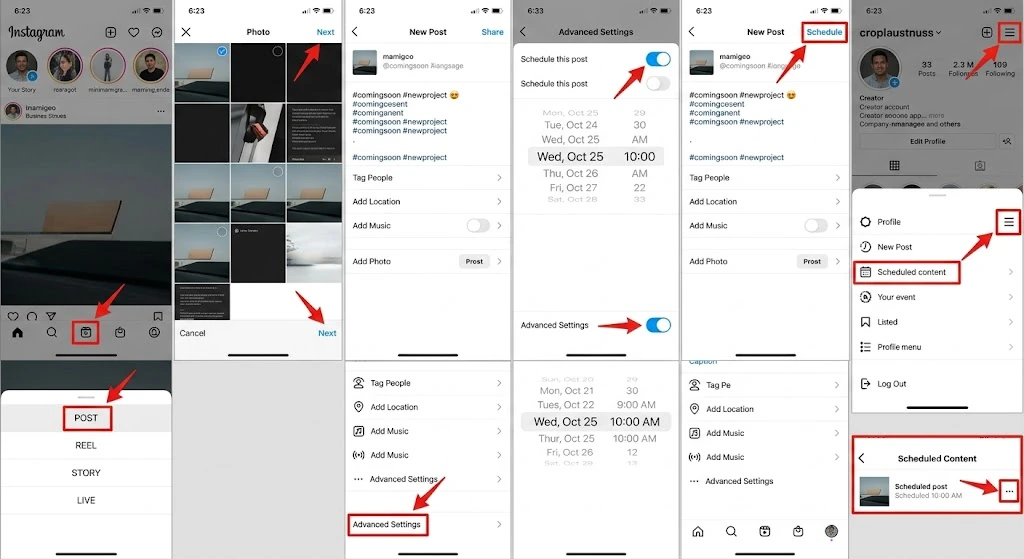
For caption writing, keep the first 125 characters punchy since that's what shows before the "more" tap. Instagram captions have a 2,200-character limit, but for optimal engagement, shorter captions often perform better. Write your hook in line one, deliver value in the body, and put your CTA and hashtags at the end. This mobile workflow is the fastest way to get started with zero setup cost and zero third-party login.
How to Schedule Instagram Posts Without Third-Party Apps (Meta Business Suite)
Meta Business Suite is a free, all-in-one platform created by Meta to help you manage your professional presence across Facebook and Instagram from a single dashboard. It's the best option if you want desktop scheduling, Stories support, and a visual content calendar without paying for anything. This method allows you to post Stories as well as Reels and posts.
Here's the full process:
- Go to business.facebook.com and log in with your Facebook credentials.
- Navigate to Settings in the left sidebar, select Instagram Accounts, and click Add. Choose Claim Instagram Account, agree to the terms, log in with your Instagram credentials, and enter your two-factor authentication code if prompted.
- Click Content in the left menu, then click Create Reel or Create post. To create a Story, click the down arrow next to Create post and choose Create Story.
- Upload your media, write your caption, add hashtags, mentions, and a location tag if relevant.
- Next to Scheduling options, toggle on Set date and time, then select your preferred date and time.
- Click Schedule to queue the post.
You can schedule posts up to 75 days in advance in Meta Business Suite.
One important time zone note: Business Suite uses the time zone of your Facebook Page. If your Page's time zone is set incorrectly, your posts will go out at the wrong times. Check and update your Page's time zone in the Page settings. For teams building a short-form video content strategy, Meta Business Suite's calendar view gives a clean weekly view of every scheduled asset, which makes gap-spotting much easier.
What's the Best App to Schedule Instagram Posts? (Tool Comparison)
There are two ways to schedule your Instagram posts for free: through the native Instagram app and using Meta Business Suite. These two options are great for those seeking a cost-effective Instagram scheduling solution, but note that they don't support bulk scheduling, meaning you'll need to schedule each post individually.
When you need bulk scheduling, analytics, or cross-platform management, paid and freemium third-party tools step in:
On Buffer's free plan, you can connect up to 3 Instagram accounts and schedule up to 10 posts per Instagram account per month. Metricool's free plan lets you schedule 50 posts per month across all connected profiles, plus 3 months of analytics history and competitor tracking for up to 5 accounts.
With Hootsuite, you can schedule all forms of content including multi-image posts, Stories, Reels, and carousels with its auto-posting capabilities. It's the most feature-complete option, though it carries a premium price.
For B2B teams running Instagram marketing alongside other channels, Hootsuite or Sprout Social make sense. For founder-led teams focused purely on Instagram and Facebook, Meta Business Suite is the right starting point.
How to Schedule Instagram Reels and Stories in Advance
Reels and Stories require slightly different handling depending on your tool.
Scheduling Reels: Meta Business Suite supports scheduling Reels for Instagram. The process is the same as scheduling regular posts, but you select the Reel format when creating the content. Note that some Reel-specific features like audio selection or Remix may need to be set up directly in the Instagram app. With Buffer, you can plan, edit, draft, and schedule Reels to Instagram for free. However, if you want to add trending audio or interactive elements: Instagram does not allow third-party tools to auto-apply music, stickers, polls, links, or other interactive elements. To use those, schedule the Story as a notification and add the interactive elements inside Instagram when you post.
Scheduling Stories: If you want to schedule Instagram Stories, you'll need to use Meta Business Suite
or a third-party tool. Meta Business Suite replaced the older Creator Studio (which Meta fully retired in 2024) and lets you plan and schedule Stories in advance, plus see basic insights on how they perform.
To schedule a Story in Meta Business Suite:
- Click the "Create post" dropdown and select "Create Story."
- Upload your content and edit it if needed. You can add up to 10 images and videos.
- Instead of hitting "Share Now," select "Schedule," choose your desired date and time, and your Story is queued up and ready to go live at the set time.
For teams doing serious video marketing or content repurposing, Reels are the highest-leverage format. Pre-scheduling them removes the daily decision-making from your team's plate entirely.
Best Practices for Posting Frequency, Timing, and Content Batching
Knowing how to schedule Instagram posts is only half the system. When and how often you post determines whether the Instagram algorithm works for or against you. Scheduling enables you to stay consistent with your posting strategy, whether it's one daily post or multiple posts a day. This helps keep you top of your followers' minds and feeds, and also gives you a boost with the Instagram algorithm.
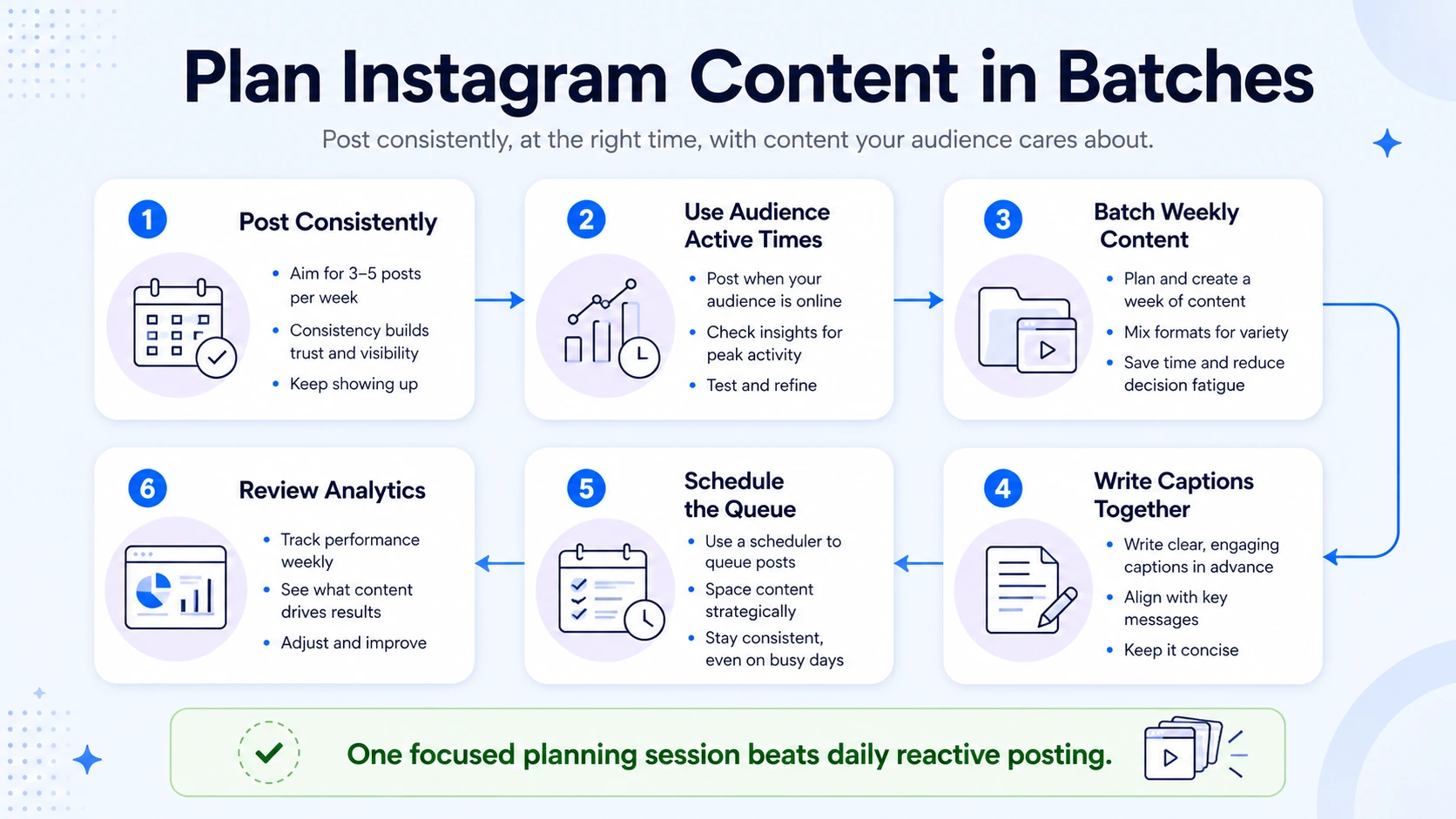
Posting frequency: On Instagram, the highest engagement rate of 4.04% is achieved by posting just twice a week. More posts don't automatically mean more reach. Quality and timing beat volume every time.
Finding your peak times: Use Instagram Insights to identify when your audience is most active. Not sure when to schedule your post? In Meta Business Suite, click Active times to access a popup showcasing upcoming times that your audience is active. Buffer surfaces similar data: Buffer's best-time recommendations are based on your account's recent Instagram performance, looking at when your posts historically get the strongest engagement and suggesting days, times, and posting frequency that tend to work best for your audience.
Content batching: Set aside a few hours at the start of each week or month to create all your content. Write captions, select images, plan hashtags, and schedule everything in one session. This is far more efficient than creating and posting content one at a time on the day. For B2B teams and founders, content batching pairs well with content repurposing. One webinar can produce five Reels, three carousel posts, and two single-image posts with the right workflow.
Our Instagram growth services are built around exactly this system: extract, edit, schedule, and repeat. The teams that win on Instagram in 2026 are not posting more. They're posting smarter, from a system built once and run on autopilot.
Conclusion
Scheduling Instagram posts is a leverage move, not just a productivity trick. Here's what to take away:
- Start free: Use the Instagram app's native scheduler or Meta Business Suite before spending on any third-party tool.
- Protect your Reels: Audio and interactive elements must be added inside the Instagram app; third-party tools can't auto-apply them.
- Batch your creation: One focused session per week beats daily reactive posting every time.
- Use data: Instagram Insights and your scheduler's analytics tell you exactly when your audience is online, use it.
If you're a B2B founder or growth team looking to turn existing content into a consistent Instagram presence, Komet Media builds the full system for you.
Frequently Asked Questions
Q1: Can you schedule Instagram posts for free?
There are two ways to schedule your Instagram posts for free: through the native Instagram app and using Meta Business Suite. Both require a Business or Creator account. Buffer and Metricool also offer free plans with limited monthly posts.
Q2: How far in advance can I schedule Instagram posts?
You can schedule posts up to 75 days in advance in Meta Business Suite. This gives you enough runway to plan content around seasonal events, product launches, and marketing campaigns well ahead of time.
Q3: How do I schedule Instagram posts on mobile without a third-party app?
Create your post in the Instagram app, tap Advanced Settings, toggle "Schedule this post," pick your date and time, and tap Schedule. This feature is only available for professional accounts (Business or Creator).
Q4: What's the best free tool to schedule Instagram posts automatically?
For Instagram and Facebook only, Meta Business Suite is the strongest free option. Metricool's free plan allows 50 scheduled posts per month and includes 3 months of analytics history plus competitor tracking for up to 5 accounts, making it the most generous free third-party option.
Q5: Can I schedule Instagram Reels in advance?
Yes. You can schedule single-image posts, carousel feed posts, and Reels for free using Meta Business Suite. Buffer also supports free Reel scheduling. Audio and interactive elements, however, must be added manually inside the Instagram app.
Q6: Does scheduling Instagram posts hurt reach or engagement?
No. Your device handles scheduling by Meta's servers, not. Once you schedule a post, it will be published at the specified time regardless of whether your device is online or your app is open. Scheduled posts perform identically to manually published ones.

