
How to Schedule Instagram Post: Step-by-Step Guide
If you're still posting manually in real time, you're burning hours you don't have. Knowing how to schedule Instagram post content in advance is one of the highest-leverage workflow shifts a B2B team can make. Whether you're a founder building visibility, a marketing lead running a content calendar, or a growth team managing multiple channels, this guide covers every method, every tool, and the exact timing data you need to publish smarter.
TL;DR
- Instagram natively supports scheduling up to 75 days in advance, no third-party tool required.
- Meta Business Suite is free, desktop-friendly, and the only native option for scheduling Stories.
- Tools like Buffer, Later, and Hootsuite add bulk scheduling, analytics, and cross-platform control.
- Post Tuesday through Thursday, 9 AM–5 PM in your audience's local time, as a reliable baseline.
Does Instagram Have a Built-In Post Scheduler?
Yes, and it's more capable than most people realize. As of the March 2026 update, native scheduling is available for public Instagram accounts; you no longer need a Business or Creator account to use it. Private accounts remain excluded. Instagram allows 25 scheduled posts per day, up to 30 days ahead, covering photos, carousels, and Reels. The native scheduler also lets you schedule up to 75 days in advance.
Here's how to schedule an Instagram post directly in the app:
- Open Instagram and tap the + icon to start a new post or Reel.
- Add your photo or video, caption, hashtags, and location as normal.
- Before tapping Share, tap Advanced Settings (iOS) or More Options (Android).
- Toggle the Schedule this post option on, then select your preferred date and time from the menu that appears.
- Tap Done, then tap Schedule.
You can view and edit your scheduled posts by navigating to the "Schedule Content" section within your account's Settings and Privacy menu. Two limitations worth knowing: there's no bulk scheduling, analytics, or best-time guidance built into the native app. For teams managing multiple formats or accounts, you'll want either Meta Business Suite or a third-party tool covered below.
How to Schedule Instagram Posts in Advance Using Meta Business Suite
Meta Business Suite is a completely free tool provided by Meta for businesses and creators to manage their Facebook and Instagram presence, including content scheduling. It's the go-to option for desktop scheduling, and it unlocks one critical capability the Instagram app doesn't offer. Meta Business Suite can schedule Stories, something the in-app scheduler can't do. It also lets you plan Facebook and Instagram side by side from a computer, which beats writing long captions on a phone. First, connect your Instagram Business Account to your Facebook Page so you can access both from Meta Business Suite.
Then follow these steps:
- Go to business.facebook.com and open Meta Business Suite.
- Click Content in the left menu.
- Click Create Reel, Create Post, or for a Story, click the down arrow next to Create Post and choose Create Story.
- Specify which Instagram account you want to share to, you can also cross-post to your Facebook Page at the same time.
- Upload your media and write your caption. Include mentions and hashtags, you can even save hashtag sets to reuse across content.
- Next to Scheduling options, toggle on Set date and time, then select your preferred date and time.
- Click Schedule to confirm.
Pro tip: Not sure when to schedule your post? Click Active times to access a popup showing upcoming windows when your audience is most active. For Stories specifically, you can upload up to 10 photos or videos, edit each one with crop, trim, text, mentions, stickers, and a link, then under Scheduling options choose Schedule and set the date and time.
How to Schedule Instagram Post on Your Phone Step by Step
The mobile workflow is the fastest route when you're away from your desk. Here's the full process for both formats:
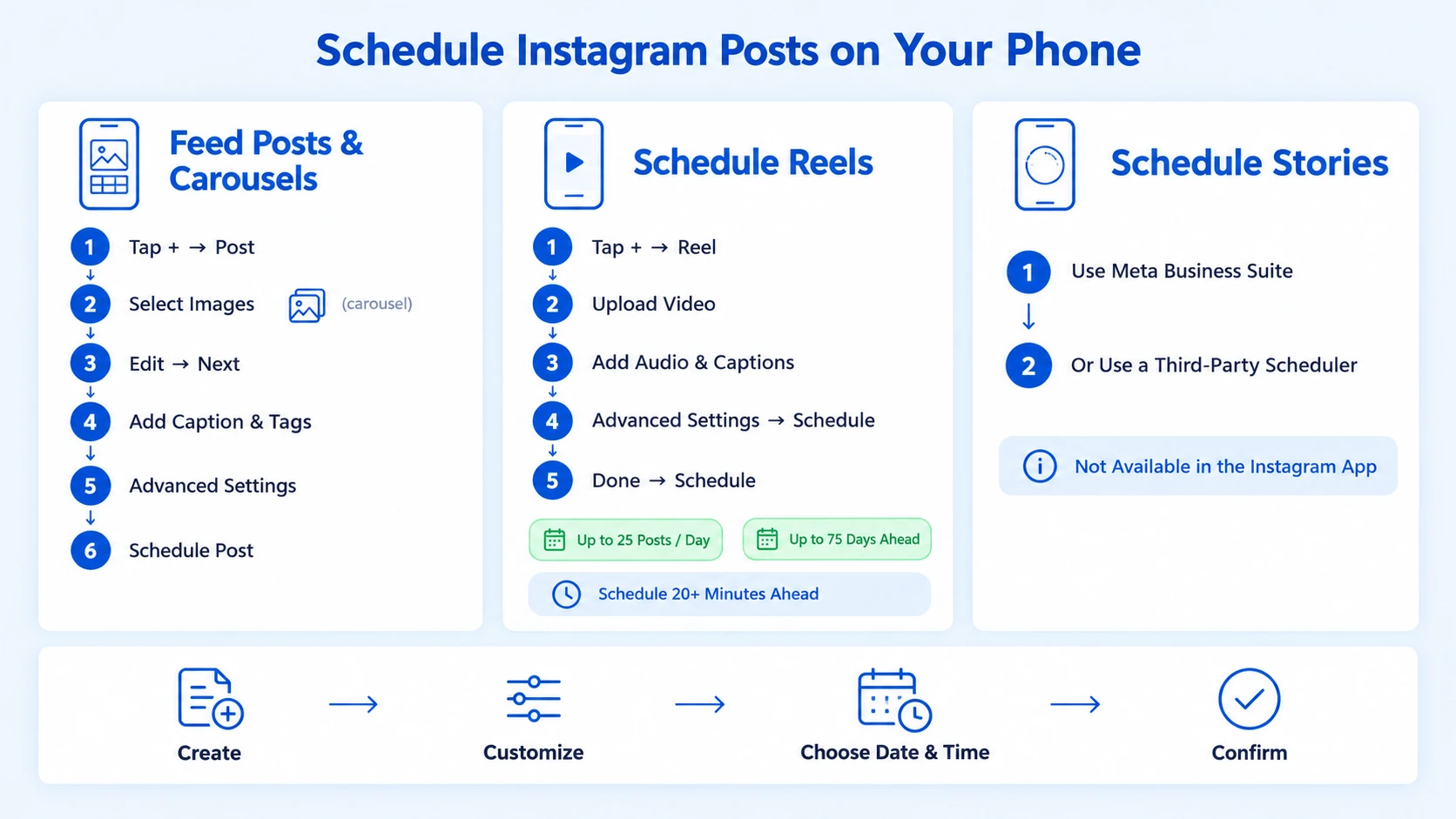
Scheduling a feed post or carousel (mobile):
- Tap + (Create) and select Post.
- Select your image(s), for a carousel, select multiple files.
- Edit, add filters, and tap Next.
- Write your caption, add hashtags, tag people, and add a location.
- Tap Advanced Settings, toggle on Schedule this post, pick a date and time, then tap Done.
- Tap Schedule on the main screen to confirm.
Scheduling a Reel (mobile): You can schedule Reels natively in the Instagram mobile app. It's free, and you can schedule up to 25 posts per day and 75 days in advance.
- Tap +, select Reel, and upload your video.
- Add audio, captions, and effects, then tap Next.
- Add your captions and hashtags.
- Tap Advanced Settings, toggle Schedule this post, pick your time.
- Tap Done then Schedule.
Schedule Reels at least 20 minutes in advance to give the system time to process.
For Stories: You cannot schedule Instagram Stories directly inside the Instagram app. Use Meta Business Suite or a third-party Instagram scheduling tool instead.
Best Apps to Schedule Instagram Posts Automatically
When you're managing a serious content operation, the native scheduler hits its ceiling fast. Here's how the leading third-party tools compare in 2026:
Buffer is the best free option for most teams. Buffer's free tier includes 3 channels with 10 scheduled posts each, and requires no credit card. The AI Assistant on all plans is GPT-4.0 powered, Later and Hootsuite lock AI behind paid tiers.
Later wins on visual planning. Later is primarily for Instagram-focused creators who want a visual planning experience with a drag-and-drop feed preview grid that neither Buffer nor Hootsuite match.
Hootsuite is built for scale. Hootsuite is expensive and no longer offers a free plan, the Standard plan starts at $99/month per user, meaning a three-person team pays $297/month.
For Instagram growth and content strategy, the right tool depends on your posting volume and team size. If you also need professional short-form video editing to keep the content pipeline full, the scheduling tool is only as good as the assets feeding it.
What Time Should You Schedule Instagram Posts for Maximum Engagement?
Timing affects how many people see your content before the Instagram algorithm uses early engagement signals to determine broader reach. General guidelines are useful baselines, but your Instagram Insights will always outperform industry averages for your specific audience.
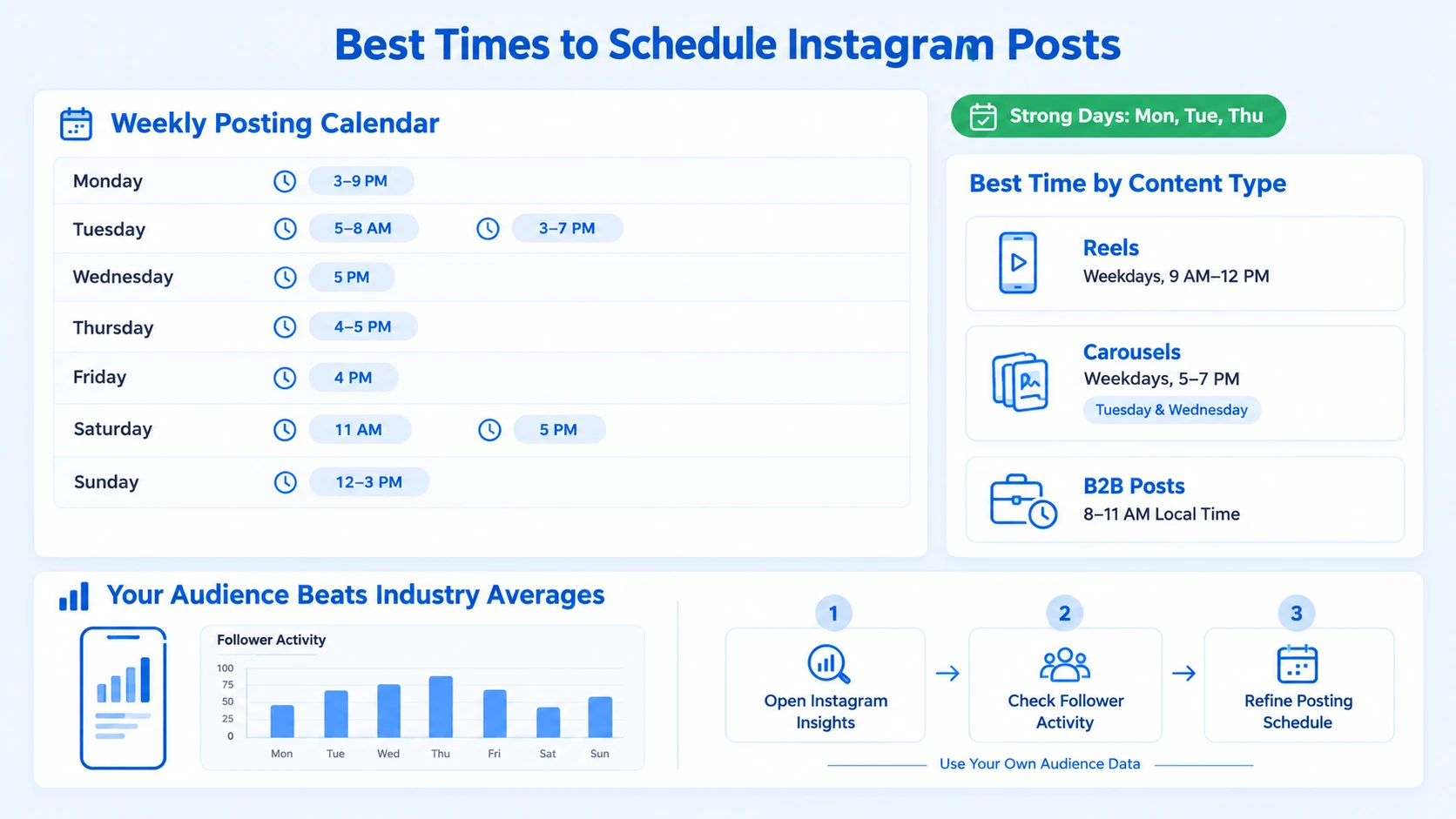
The best time to post on Instagram by day: 3–9 PM on Mondays, 5–8 AM and 3–7 PM on Tuesdays, 5 PM on Wednesdays, 4–5 PM on Thursdays, 4 PM on Fridays, 11 AM and 5 PM on Saturdays, and 12–3 PM on Sundays. For content type, timing varies:
- Reels: Optimal time for Reels is between 9 AM and 12 PM on weekdays, capturing users during mid-morning breaks and maximizing exposure as Reels thrive on quick interactions.
- Carousels: Best posted between 5 PM and 7 PM local time on weekdays, with Tuesday and Wednesday showing the strongest results.
- B2B content specifically: Schedule B2B/professional posts for 8–11 AM local time, then refine using your account data.
For maximum reach, the best days to post on Instagram are Mondays, Tuesdays, and Thursdays, according to Hootsuite's 2026 social media analysis. "Instagram engagement peaks during early mornings and early evenings, especially early in the week.", Hootsuite, 2026 analysis of over one million posts.
Use Instagram Insights on your professional account or the built-in analytics in your scheduling tool to identify when your specific followers are online. Industry benchmarks give you a starting point; your own audience analytics determine your optimal schedule.
How to Schedule Instagram Reels and Stories in Advance
Reels and Stories each have their own scheduling paths, and conflating them wastes time.
Scheduling Reels in advance: Both the native Instagram app and Meta Business Suite support Reel scheduling. The built-in Instagram scheduler is limited to 75 days in advance and does not support Stories, collaborations, or Personal profiles. For anything beyond that, a third-party tool is required.
Steps via Meta Business Suite desktop:
- Go to business.facebook.com, open Content.
- Click Create Reel, select your Instagram account.
- Upload your video, add captions and hashtags.
- Select 'Schedule' instead of 'Share Now.'
- Pick your date and time, click Schedule.
Scheduling Stories in advance: You cannot schedule Stories from the Instagram app, Instagram's help page lists only Reels, photos, and carousel posts for native scheduling. To queue Stories, use Meta Business Suite, which supports it on both desktop and the mobile app.
Scheduled Stories appear under Content, then Stories, then Scheduled, where the "..." menu lets you publish, reschedule, or delete. For teams posting Stories daily, native Story scheduling lacks bulk options and doesn't scale well. Creators who post Stories regularly usually schedule them through Meta Business Suite or an external tool with auto-publishing.
If your team produces regular video content and podcast clips for Instagram, scheduling Reels through Meta Business Suite or a tool like Later keeps everything in one publishing workflow.
How to Batch Schedule a Week of Instagram Content at Once
Content batching is the productivity method that makes consistent Instagram presence sustainable for lean teams. The principle: create everything in one session, schedule it all in one session, then don't touch it again until next week.
A practical weekly batching workflow:
- Plan on Sunday (45–60 min): Map your content calendar for the week. Decide your post mix, Reels, carousels, single images, Stories, and assign each a slot based on your engagement data.
- Create in one session (2–3 hrs): Film, edit, write captions, and prepare all assets before opening any scheduling tool.
- Schedule in bulk: Open Meta Business Suite or your tool of choice. Upload all posts, set dates and times, and preview the feed layout.
- Review the calendar view: Use the Planner in Meta Business Suite or Later's visual grid to confirm nothing is overlapping or missing.
- Set reminders for Story sequences: Since Stories require more active management, flag Story days in your content calendar so they don't get skipped.
For Hootsuite and Later paid plans, bulk upload allows you to import multiple posts via CSV or batch upload, cutting scheduling time significantly. The Planner in Meta Business Suite gives you a Week or Month calendar view of posts, Stories, Reels, and ads. You can hover over an upcoming day and click Schedule to start a post on that date, or click a scheduled item to reschedule or delete.
The single biggest lever for consistent posting isn't motivation, it's a batched publishing workflow running on a content calendar.
For B2B teams producing podcast content or webinars that get repurposed into short-form clips, batching is the bridge between long-form production and daily Instagram presence. That's exactly the system we build at Komet Media for founders and growth teams turning their existing content into a repeatable video pipeline.
Conclusion
Scheduling Instagram posts is a solved problem in 2026, the only question is which method fits your workflow.
- The Instagram app handles posts, carousels, and Reels natively, up to 75 days out, for free.
- Meta Business Suite adds Stories scheduling and desktop control at zero cost.
- Buffer is the best free third-party option; Later wins for visual planning; Hootsuite for enterprise teams.
- Batch your content weekly and align posting times to your audience's active windows, not generic benchmarks.
- For B2B teams, a scheduling system is only as strong as the content feeding it, that's where a video growth partner changes the equation.
Frequently Asked Questions
Q1: Can I schedule Instagram posts for free without a third-party tool?
Yes. The native Instagram app allows free scheduling for public accounts on posts, carousels, and Reels up to 75 days out. Meta Business Suite is also completely free and adds Stories scheduling and a desktop interface. No subscription required for either.
Q2: Does scheduling Instagram posts hurt reach or engagement?
No credible evidence supports this. The Instagram algorithm responds to early engagement signals after publishing, what matters is timing your scheduled post to land when your audience is active, not whether you used a scheduler to publish it.
Q3: What's the difference between Meta Business Suite and Later for scheduling Instagram?
Meta Business Suite is free and handles posts, Reels, and Stories across Instagram and Facebook. Later starts at $18.75/month and adds a visual grid preview, feed planning by drag-and-drop, and deeper analytics. Choose Meta Business Suite if budget is a constraint; choose Later if visual content planning is a priority.
Q4: Can I schedule Instagram Reels in advance from my phone?
Yes. Open the Instagram app, tap Create, select Reel, upload your video, and in Advanced Settings toggle "Schedule this post." Pick your date and time, then confirm. Schedule at least 20 minutes ahead for the system to process the upload properly.
Q5: How do I know the best time to schedule my Instagram posts?
Start with general benchmarks, Tuesday through Thursday, 9 AM to 5 PM in your audience's time zone. Then refine using Instagram Insights (under Professional Dashboard) or the analytics in your scheduling tool. Your own audience data will always outperform industry averages over time.
Q6: How far in advance can I schedule Instagram posts?
The native Instagram app and Meta Business Suite both support scheduling up to 75 days in advance. Third-party tools like SocialBee remove this limit entirely, letting you build a long-term content calendar without a 75-day cutoff.

