
Instagram Reels Video Format and Spec Guide: Step-by-Step Guide
Most Reels don't fail because of bad content. They fail because the file was wrong before it ever reached the algorithm. Wrong aspect ratio, misaligned safe zones, aggressive compression from a bad export, and your hook disappears behind a UI button. This Instagram Reels video format and spec guide covers every technical decision you need to make, resolution, codec, bitrate, frame rate, safe zones, and export workflow, so your video looks exactly the way you built it, on every device, every time.
TL;DR
- The Instagram Reels aspect ratio is 9:16, with a recommended resolution of 1080×1920 pixels.
- Reels must be in MP4 or MOV format with H.264 video codec and AAC audio codec.
- Reels can now run up to 20 minutes, though Instagram notes that Reels longer than 3 minutes are not recommended to new audiences.
- Keep all text and CTAs inside the central safe zone, the bottom and top of the frame are eaten by Instagram's UI.
What Are the Instagram Reels Video Specs in 2026?
This is the full reference table for the Instagram Reels video format and spec guide. Every number here is verified for 2026.
Instagram Reels require vertical 9:16 video at 1080×1920 pixels. The minimum length is 3 seconds. The recommended frame rate is 30 fps, though 24 fps and 60 fps are also supported. Reels must be in MP4 or MOV format with H.264 video codec and AAC audio codec. The maximum file size is 1 GB per upload, and Instagram recommends a video bitrate of at least 3,500 kbps for best quality after compression.
Why 1080×1920 specifically?
1080×1920 is the only Instagram Reels resolution that matches Instagram's internal re-encoder bucket. Anything under that ratio gets re-encoded twice, which adds compression artifacts. MP4 with H.264 codec at 1080×1920 resolution in 9:16 vertical is the best format for Instagram Reels. If you're working with H.265/HEVC footage from a modern smartphone, you can export in HEVC as well, most modern smartphones record in H.265, and Instagram accepts this format.
One critical note for Android users: Android users sometimes see noticeably lower quality on uploaded Reels compared to iPhone users, even when the source footage is identical. This is a known issue related to Instagram's compression behavior across different hardware. Mitigation options include uploading at 1080p rather than 4K, enabling high-quality uploads in Instagram settings, and using a dedicated editing app with clean export presets rather than uploading directly from the camera roll.
Instagram Reels Aspect Ratio and Dimensions Guide
Instagram built Reels around mobile-first, full-screen consumption. A 9:16 frame matches the natural position of a smartphone held upright, which is exactly how most people watch short-form video. Every other ratio gets punished. Here is how non-standard ratios behave when uploaded:
The Instagram Reels aspect ratio is 9:16, with a recommended resolution of 1080×1920 pixels. This vertical format fills the entire screen on most smartphones and is the only ratio Instagram displays without cropping or adding black bars in the Reels tab. Every other ratio gets adjusted automatically, sometimes in ways that undermine your content.
One 2026-specific update affects how your cover image appears: Instagram moved its profile grid to a rectangular display, so grid previews now crop closer to a 3:4 shape rather than the old square. That means a cover designed edge to edge in full 9:16 may get trimmed on the grid. The safe move is to center your key visual and any cover text so it survives whether someone sees the full 9:16 version in the Reels tab or the cropped preview on your profile.
For cross-platform teams repurposing content to TikTok and YouTube Shorts: most accounts cross-post to TikTok, YouTube Shorts, and Pinterest Idea Pins, all of which are 9:16 but with slightly different safe zones and length caps. Build your Reel canvas at 9:16 first, then verify each platform's specific UI safe zones before publishing.
Instagram Reels Video Length and File Size Limits
Length strategy matters as much as format compliance. Reels can now run up to 20 minutes, though Instagram notes that Reels longer than 3 minutes are not recommended to new audiences, so shorter Reels still travel further. For B2B teams using Reels as a distribution channel for product demos, founder content, or webinar clips—whether created from scratch or repurposed (exactly what we do at Komet Media), this matters. A 60-to-90-second clip hits the sweet spot: enough depth to educate, short enough to retain.
On file size: a well-exported 1080×1920 MP4 at 30 fps runs roughly 150–400 MB for a 60-to-90-second clip at recommended bitrate. You have significant headroom under the 4 GB ceiling, which means there is no reason to compress so aggressively that quality degrades. Export clean, let Instagram handle its own compression pass. Instagram is notoriously aggressive with compression, and if your export settings aren't dialed in correctly, it will absolutely destroy your video quality. That makes your pre-upload export settings the single most important variable in final quality, not the recording source.
Caption length also has a hard limit: captions longer than 150 characters get truncated in the feed with a "more" prompt. Front-load your caption with the hook and CTA.
Why Is My Instagram Reel Getting Cropped? The Safe Zone Explained
This is the most common production mistake, and it has nothing to do with resolution. Your Reel is 1920 pixels tall, but Instagram's UI covers significant portions of the top and bottom. Instagram Reels overlay UI elements across the bottom 400 pixels of the right side and bottom 270 pixels on the left, including the caption, like/comment/share buttons, and audio attribution. The Instagram Reels safe zone reserves the top 250 pixels and bottom 350 pixels. The bottom 350 px is larger than Stories (which only blocks 340 px) because Reels have more action buttons. Safe zone breakdown for a 1080×1920 Reel:
If you put burned-in captions in the danger zone, they disappear behind the comment icon. Move all hard-coded text into the central 1,320 px tall safe zone. Use the title-safe rule: keep critical text and visuals within the central 70–80% of the frame, leaving the top and bottom 10–15% free for buttons, usernames, and captions.
For B2B video where on-screen text carries the message—speaker names, stat callouts, product labels—this isn't optional. One misplaced lower-third and your entire proof point disappears. Whether we are building a new video from the ground up or repurposing an existing asset, our short-form video production process bakes safe zone templates into every project from the first edit.
Best Video Settings for Instagram Reels: Codec, Bitrate, and Frame Rate
Getting the Instagram Reels video format and spec guide right at the export stage protects everything you built in the edit. Here are the settings that matter:
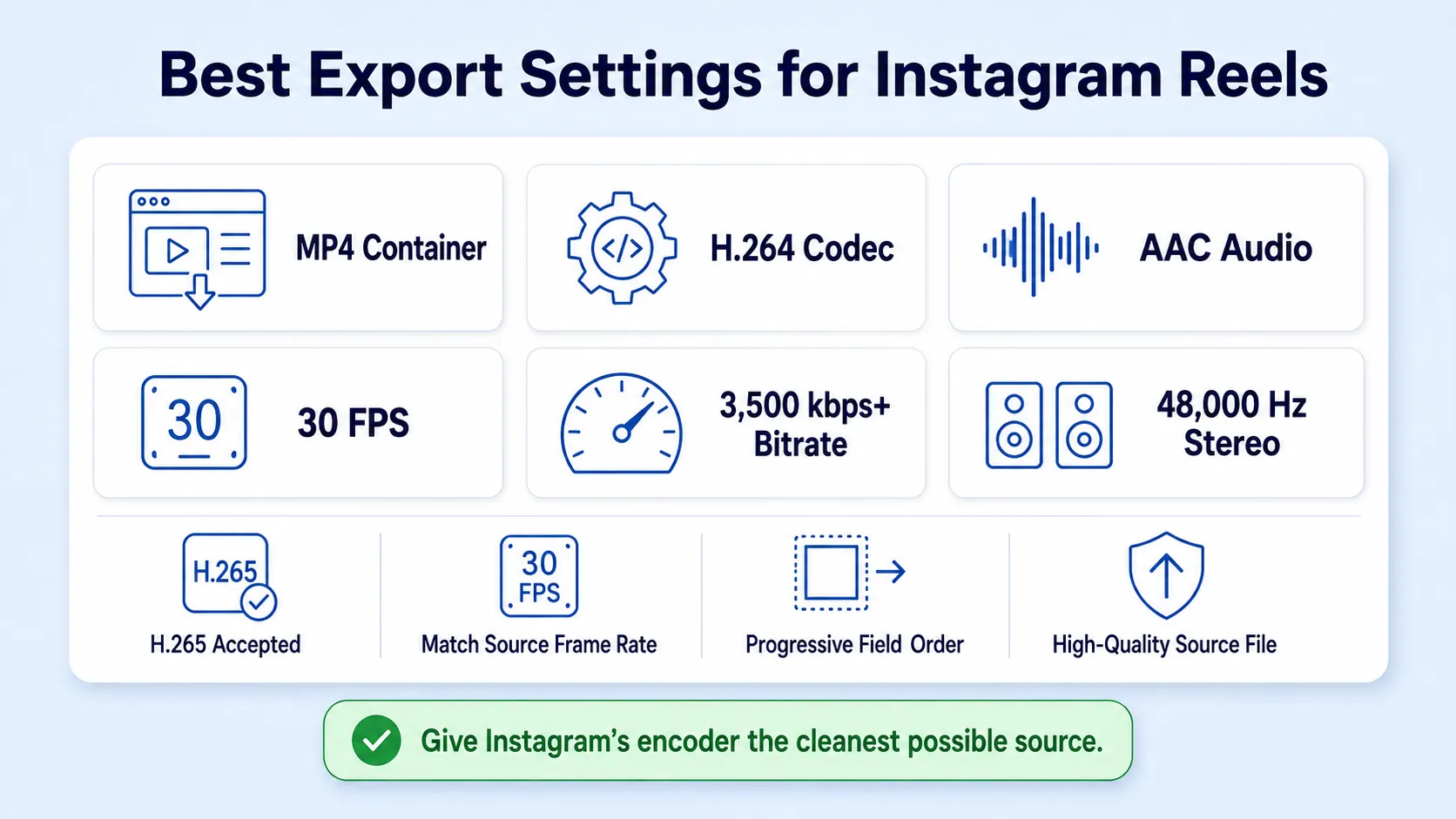
Codec: MP4 with H.264 video codec and AAC audio codec provides the best balance of quality and file size for Instagram Reels. H.265/HEVC is also accepted and produces sharper results at lower file sizes.
Bitrate: Instagram recommends a video bitrate of at least 3,500 kbps for the best quality after compression. At Komet Media, we typically export at higher bitrates and let Instagram's encoder make its own compression decisions from a high-quality source file.
Frame rate: The recommended frame rate is 30 fps, though 24 fps and 60 fps are also supported. Match your sequence to your source footage frame rate to avoid a forced conversion that introduces judder.
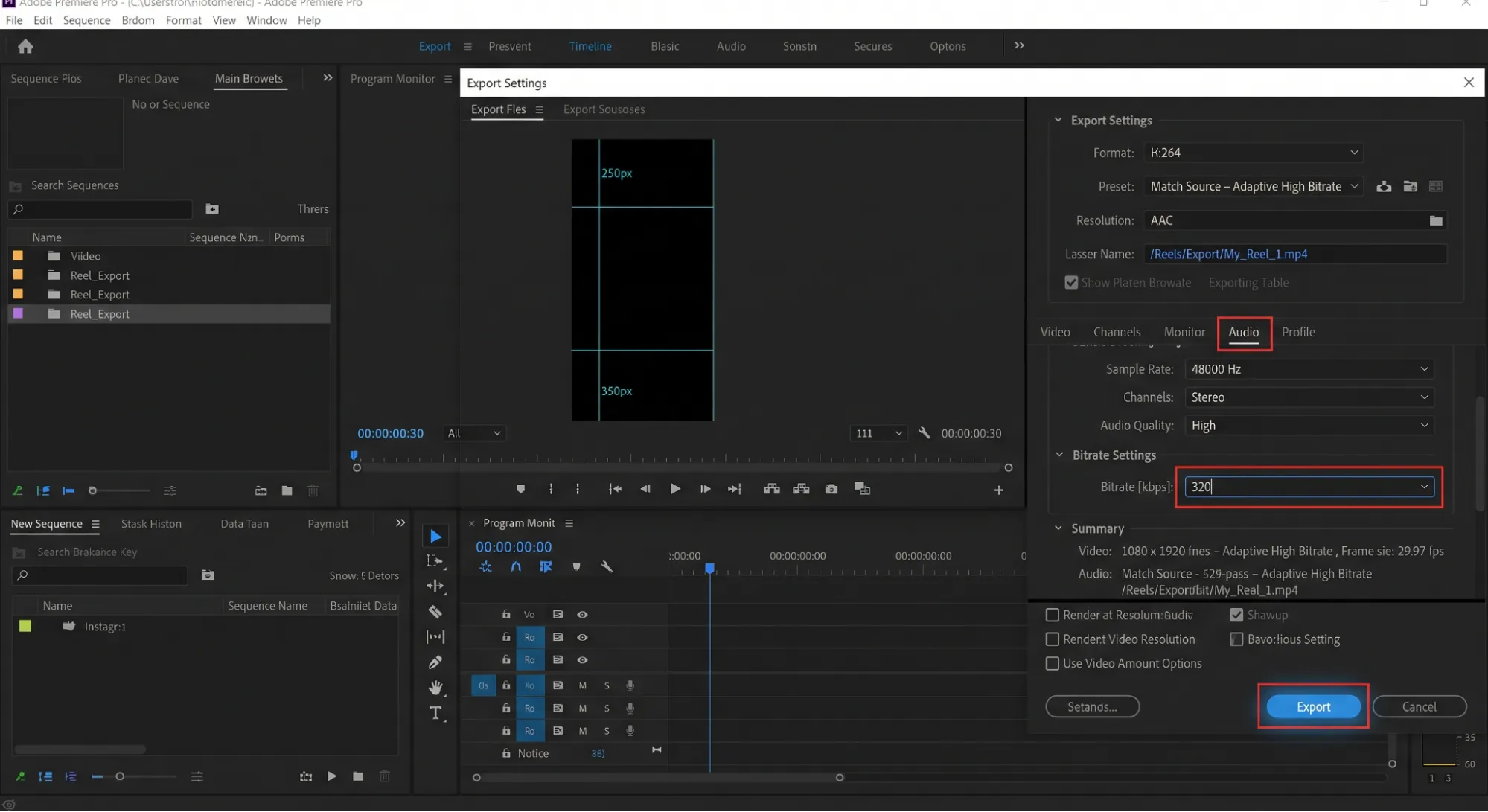
Audio: AAC stereo at 48,000 Hz. Use Format H.264, Frame Size 1080×1920, Frame Rate 30 FPS, Field Order Progressive, and for audio: ACC Sample Rate 48,000 Hz with Stereo channels.
How to Export from Premiere Pro for Instagram Reels
This is the step-by-step workflow we use at Komet Media when exporting Reels from Adobe Premiere Pro. Follow this exactly and you will not lose quality to Instagram's compression.
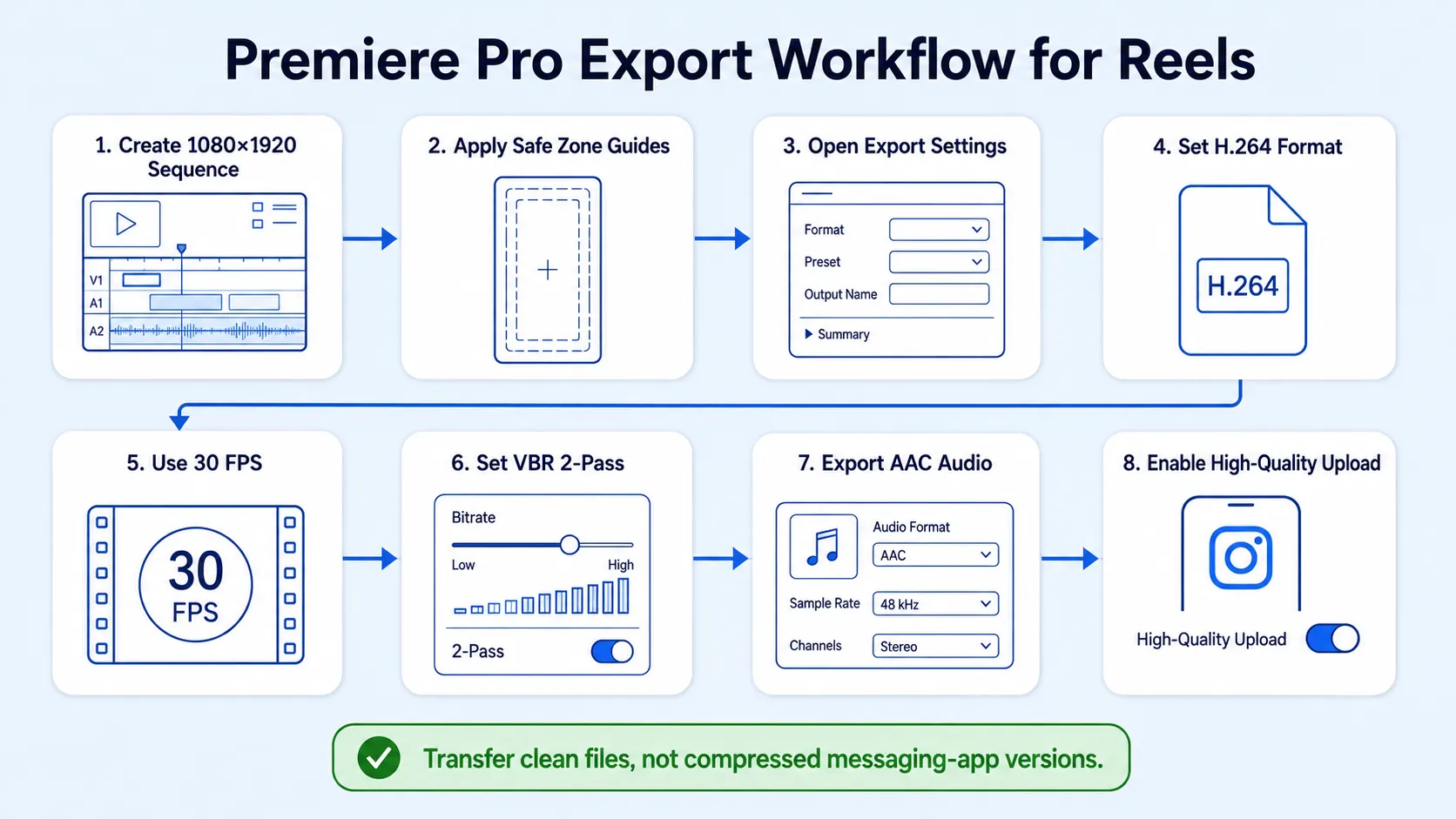
Create your sequence: Set frame size to 1080×1920, match the frame rate to your source footage (23.976, 29.97, or 59.94).
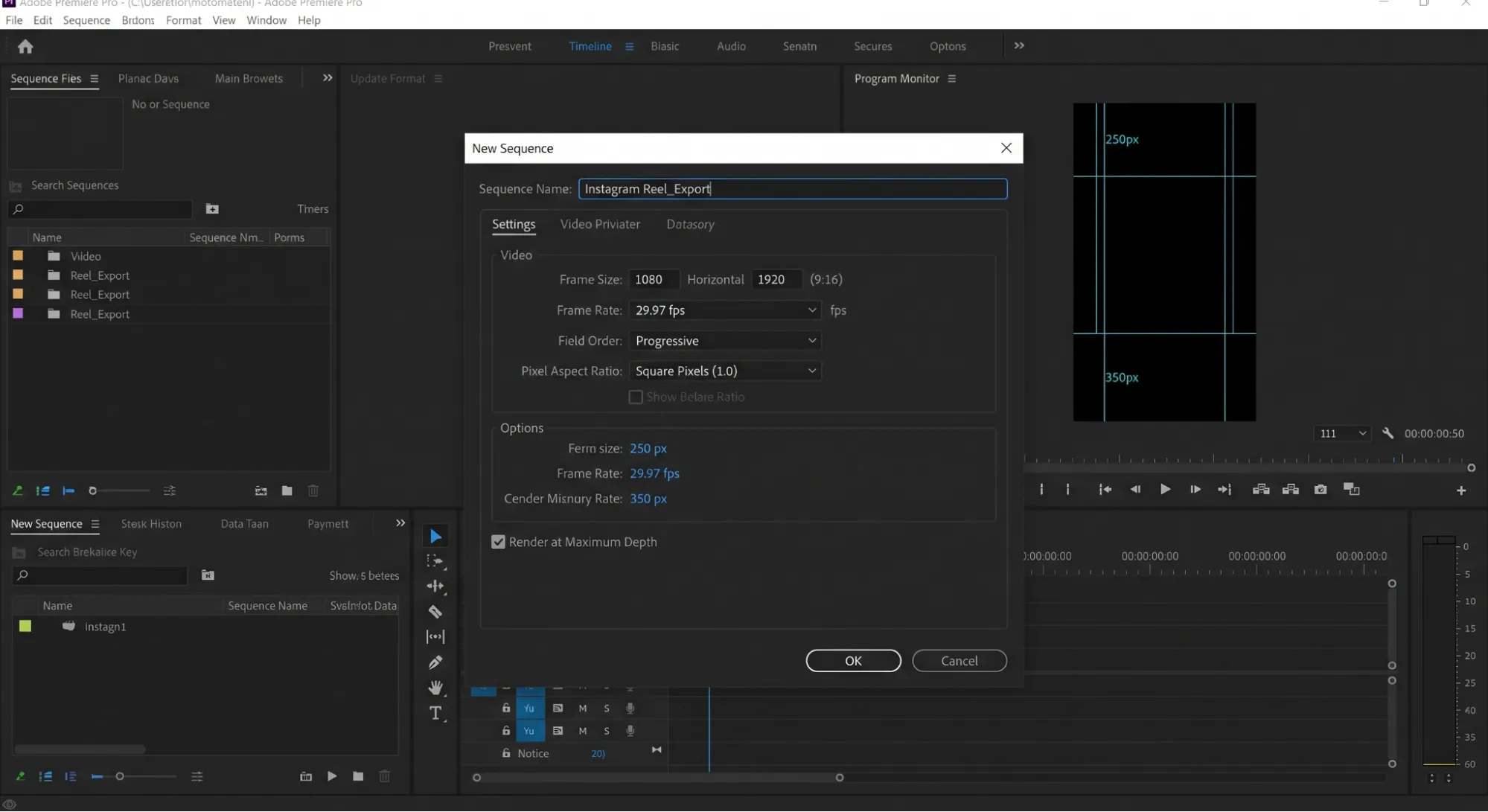
Apply safe zone guides: Keep all text, graphics, and on-screen elements within the central safe area, away from the top 250 px and bottom 350 px.
Open Export Settings: File > Export > Media.
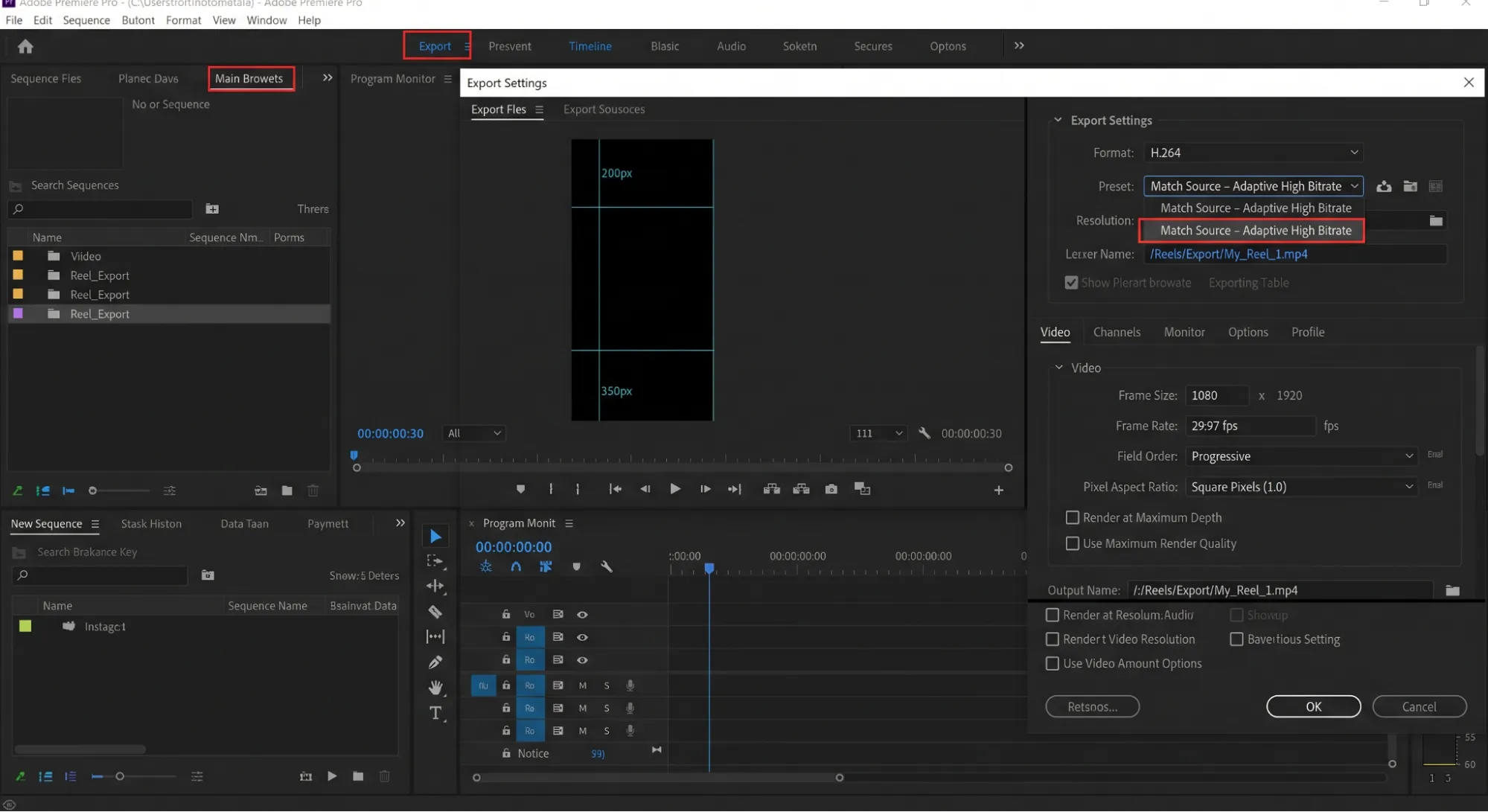
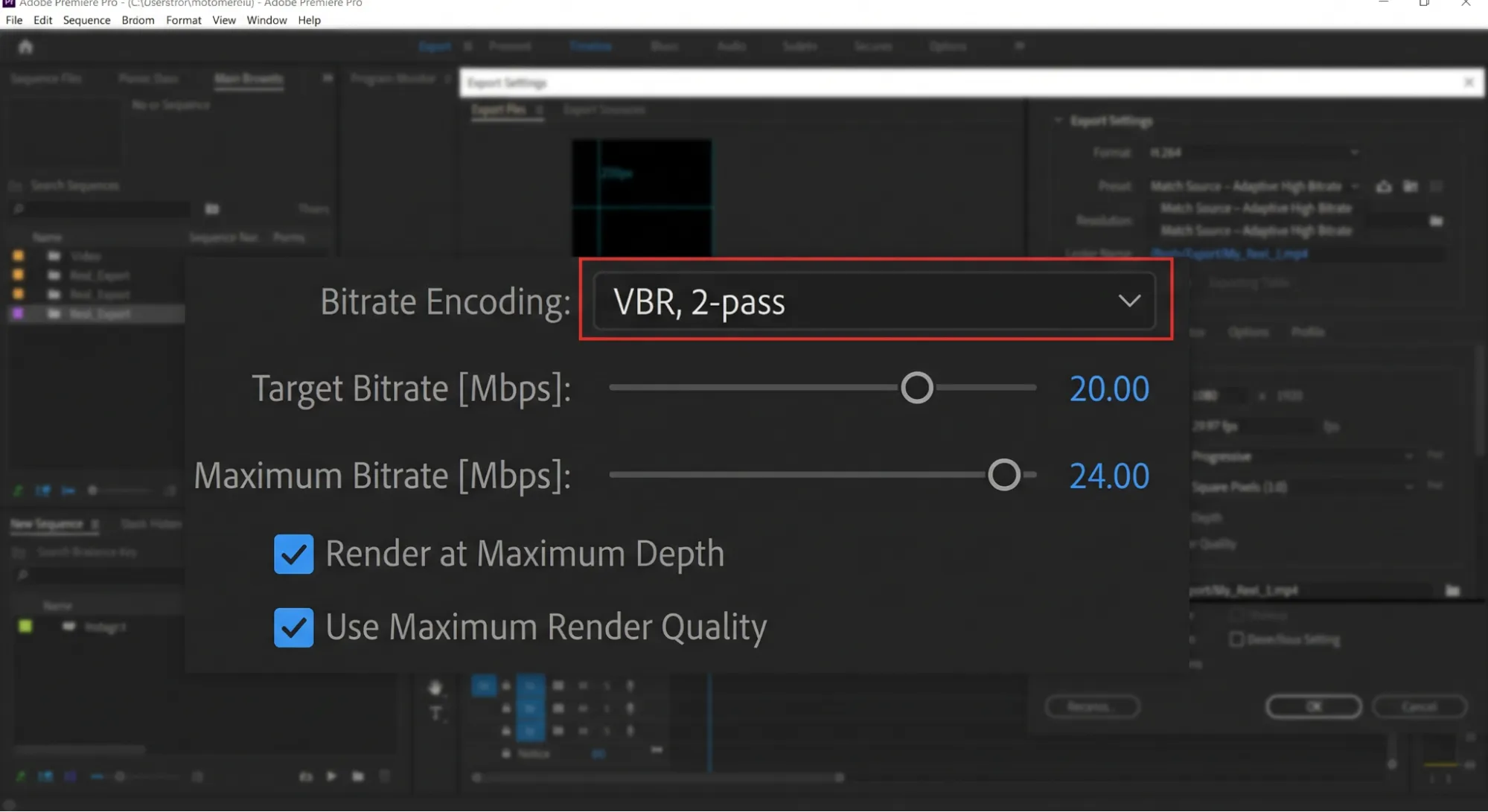
Set your format: Format H.264, Preset: Match Source – Adaptive High Bitrate, Frame Size 1080×1920, Frame Rate 30 FPS, Field Order Progressive, Aspect Square Pixels (1.0), Render at Maximum Depth: Yes, Use Maximum Render Quality: Yes.
Set bitrate: Bitrate Encoding VBR 2 Pass, Target Bitrate 20 Mbps, Maximum Bitrate 24 Mbps.
Set audio: AAC, 48,000 Hz, Stereo, 320 kbps.
Export and transfer to phone: export settings matter more than ever in 2026 if you want your Instagram Reels to look as sharp and professional as possible. Transfer via AirDrop or Google Drive rather than a compressed messaging app.
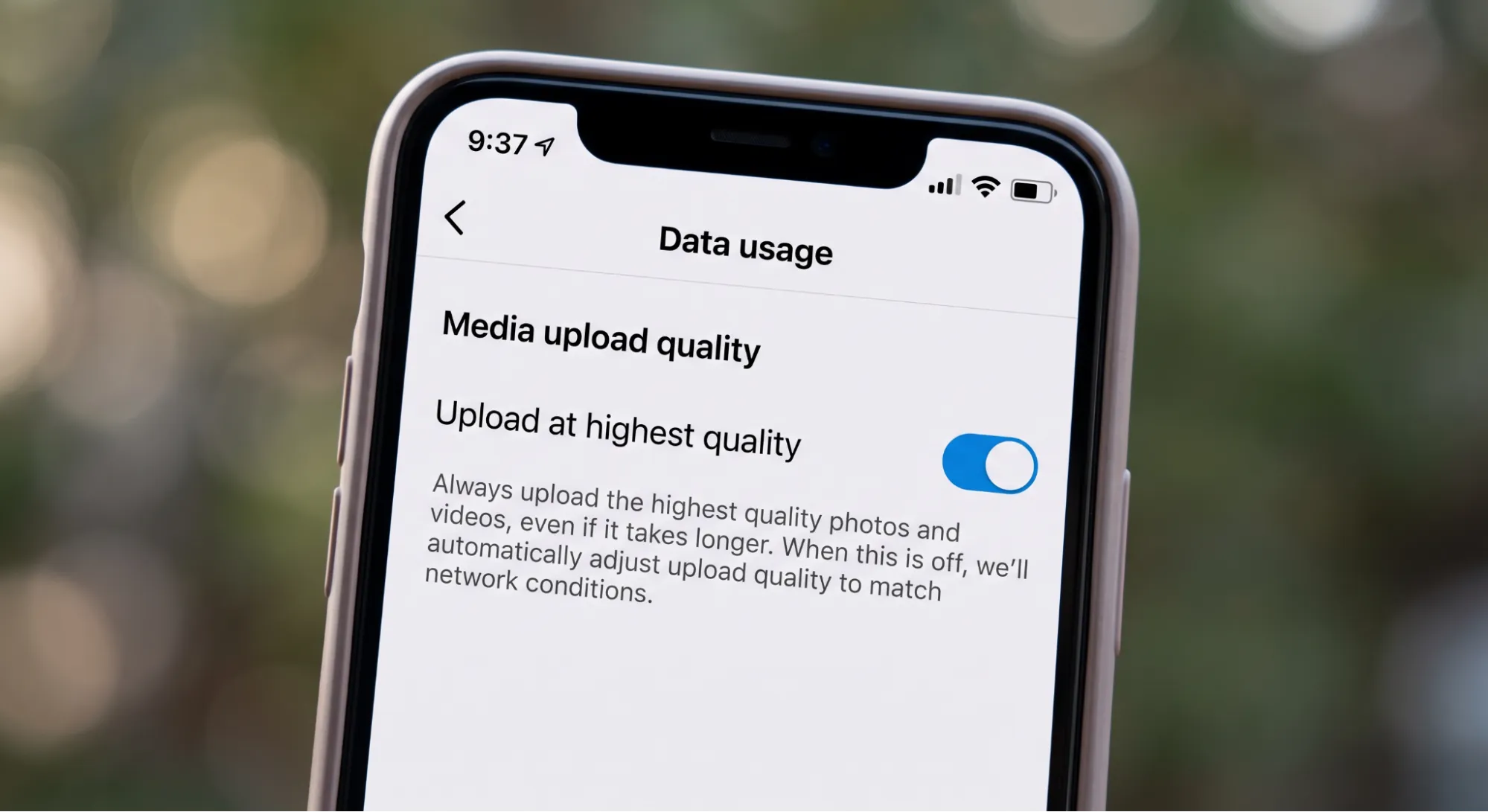
Enable high-quality upload in Instagram settings: Go to Settings > Account > Data Usage > High-Quality Uploads and toggle it on before posting.
For non-Premiere workflows, the same logic applies: most video editing apps now allow you to select export presets for Instagram. On mobile, tools like CapCut and Canva offer drag-and-drop resizing. On desktop, Premiere Pro and Final Cut let you manually set the aspect ratio and resolution.
If you're repurposing podcast episodes or webinar recordings into Reels, the export workflow is the same, the only difference is that you'll be cutting a 9:16-framed clip from a 16:9 source, which requires a reframe step before export.
Reels vs. Stories vs. YouTube Shorts: Format Comparison
Teams distributing the same vertical video across platforms need to know where the specs diverge. The Instagram Reels video format and spec guide sits close to TikTok and YouTube Shorts, but the differences are real.
Stories video uses the same 9:16 aspect ratio at 1080×1920 pixels as Reels, but the length limit is 60 seconds per clip. The resolution and codec specs are identical, the divergence is in UI overlay placement, which means the same video will have different safe zone requirements on each platform. Most accounts cross-post to TikTok, YouTube Shorts, and Pinterest Idea Pins, all of which are 9:16 but with slightly different safe zones and length caps.
Build one master file at 9:16, then create platform-specific exports with adjusted text placement rather than repositioning elements post-export. For B2B teams using Instagram marketing or short-form video as part of a broader distribution stack, the ability to repurpose one recording into Reels, Shorts, and TikTok simultaneously is a significant efficiency gain, as long as each platform's safe zone and length rules are respected individually.
Conclusion
Get the technical foundation right and the algorithm stops being a bottleneck. The key takeaways from this Instagram Reels video format and spec guide:
- Resolution and ratio are non-negotiable: 1080×1920 px at 9:16 is the only format that fills the screen without black bars or cropping.
- Codec and bitrate protect your quality: H.264 or H.265 with at least 3,500 kbps bitrate and AAC audio gives Instagram's encoder the best source material to work with.
- Safe zones are not optional: Keep all critical text, hooks, and CTAs in the central 1,320 px tall zone, away from the top 250 px and bottom 350 px.
- Export settings matter as much as recording settings: A clean Premiere Pro export at 1080×1920, 20 Mbps, VBR 2-Pass is the last line of defense before Instagram's compression runs.
Need help creating spec-perfect short-form video from scratch or long-form content? Komet Media's short-form video production and editing service handles the full workflow for B2B teams. Book A Call Now!
Frequently Asked Questions
Q1: What is the correct aspect ratio for Instagram Reels?
The Instagram Reels aspect ratio is 9:16, with a recommended resolution of 1080×1920 pixels. This is the only ratio that displays full-screen in the Reels tab without cropping or black bars. Any other ratio gets letterboxed, pillarboxed, or cropped automatically by Meta Platforms.
Q2: What file format does Instagram Reels accept?
Reels must be in MP4 or MOV format with H.264 video codec and AAC audio codec. H.265/HEVC is also accepted. MP4 with H.264 is the most universally compatible option and the safest choice if you're exporting from Premiere Pro or any desktop editing suite.
Q3: How long can an Instagram Reel be in 2026?
Reels can now run up to 20 minutes, though Instagram notes that Reels longer than 3 minutes are not recommended to new audiences, so shorter Reels still travel further. For most B2B use cases, clips, demos, founder takes, aim for under 90 seconds for maximum distribution.
Q4: Why does my Instagram Reel look blurry after uploading?
Reels often turn blurry because of over-compression or repeated exports. Export directly from your primary editing timeline at 1080×1920 with a bitrate of at least 3,500 kbps. Avoid re-exporting a file that has already been compressed, and enable high-quality uploads in Instagram's app settings before posting.
Q5: Why is my Reel getting cropped even though I uploaded at 9:16?
Cropping is almost always a safe zone problem, not a resolution problem. Instagram overlays UI elements across the bottom 400 pixels of the right side and bottom 270 pixels on the left, including the caption, like/comment/share buttons, and audio attribution. Move all text, logos, and CTAs into the central safe zone before exporting.
Q6: Can I use the same video file for Reels, TikTok, and YouTube Shorts?
The resolution and codec specs are identical across all three platforms, 9:16 at 1080×1920 in MP4. Most accounts cross-post to TikTok, YouTube Shorts, and Pinterest Idea Pins, all of which are 9:16 but with slightly different safe zones and length caps. Build one master export and create platform-specific versions with adjusted text placement rather than re-editing from scratch.

