
Repurpose a Webinar into LinkedIn Clips: Step-by-Step Guide
Most B2B SaaS teams spend weeks producing a webinar, then let the recording collect dust. That's a broken content model. When you repurpose a webinar into LinkedIn clips, a single 60-minute session becomes eight to twelve platform-native assets that keep driving the pipeline for months. This guide covers every step: which moments to extract, which tools to use, how to format clips for the LinkedIn algorithm, and how to post for maximum distribution. No fluff, just the workflow.
TL;DR
- Extract high-value moments first: contrarian takes, founder insight, buyer objections answered.
- Format clips as vertical (9:16), 30–90 seconds, with burned-in captions.
- Upload natively, never link out to YouTube or Vimeo from your feed post.
- Distribute from personal profiles, not just the company page.
Why Repurposing a Webinar into LinkedIn Clips Is the Highest-ROI Move in B2B Content
Most B2B teams treat their webinar as a single-use event. That's the wrong model. B2B marketers who get this right see webinars as content engines, not standalone events, each one is a source of multi-channel content that fuels marketing efforts well into the future.
The math is compelling: one 60-minute webinar can yield eight to twelve clips, each tailored to a different platform or audience segment. The ROI case is already proven. Webinars deliver an average ROI of 213%, with SaaS companies seeing peaks of 430% ROI. But that figure assumes you're squeezing every asset out of the session, not just posting the replay link once and moving on. LinkedIn is where those clips land hardest for B2B.
Between 2024 and 2025, video posting on LinkedIn increased 13.77%, while video impressions rose 73.39% and video views rose 52.17%, suggesting distribution and viewing are growing faster than publishing. That's an algorithmic window. Teams that move into it now build a compounding reach advantage. For SaaS founders and growth teams specifically, the payoff is threefold:
- Buyer education: Complex product concepts explained by a real expert, on-demand.
- Pipeline support: Clips surface in the feeds of decision-makers who never attended the live session.
- Founder-led trust: A founder's voice on camera builds credibility that a blog post cannot replicate.
AI-generated text has made B2B buyers skeptical of written content. A real face on camera builds trust in a way text cannot. When you repurpose a webinar into LinkedIn clips, you're converting your highest-quality thought leadership into the format buyers actually respond to. This is the core logic behind Komet Media's short-form video and content repurposing system.
What Parts of a Webinar Should You Turn into LinkedIn Clips?
Not every moment deserves to be a clip. Before you open any editing tool, your job is triage. The strongest clips share one trait: they deliver a complete, stand-alone idea in under 90 seconds. Here's the framework I use when we do webinar repurposing at Komet Media:
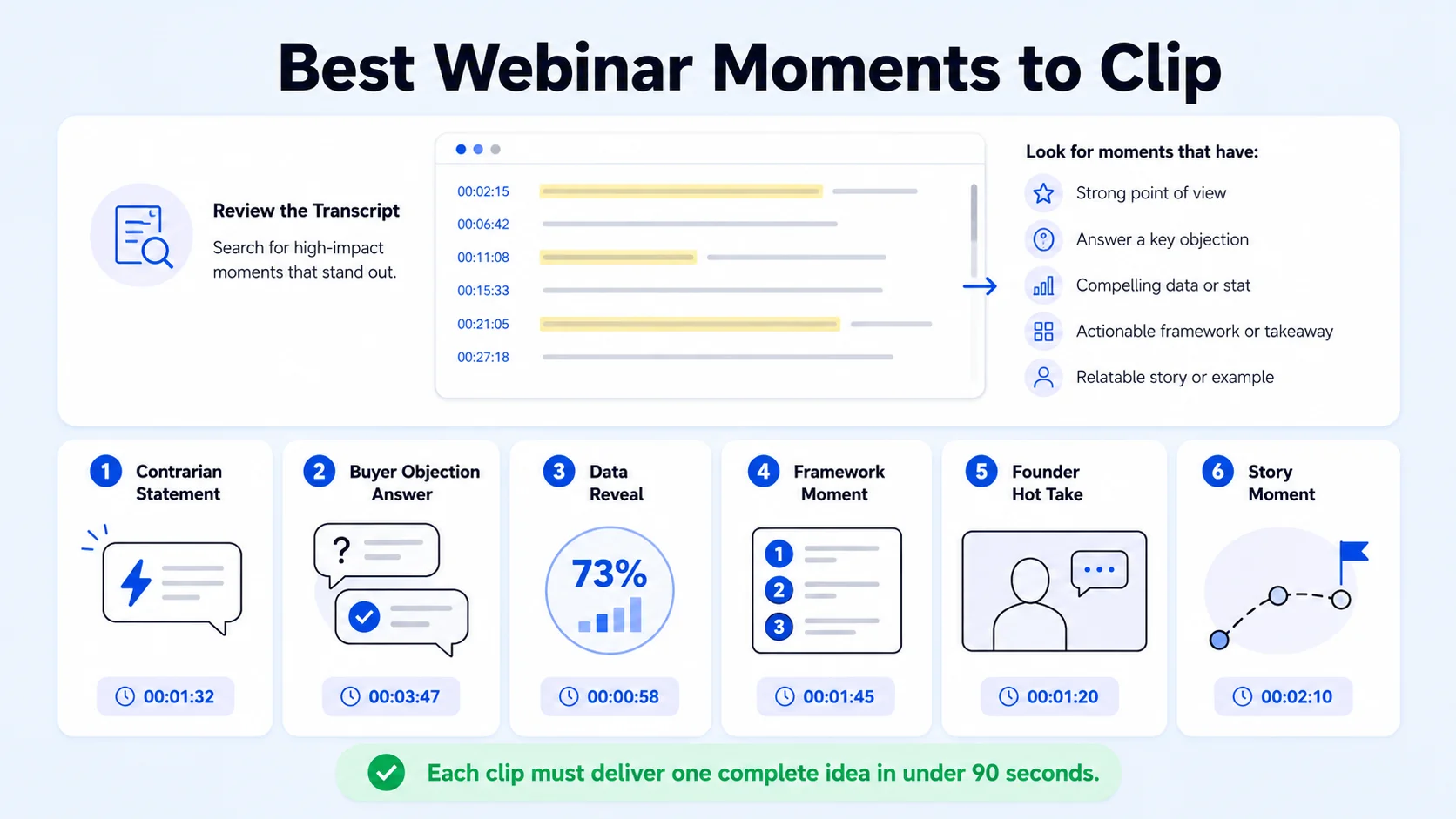
Clip types ranked by LinkedIn performance:
- Contrarian statements: "Most SaaS teams are doing X wrong", stops the scroll immediately.
- Buyer objection responses: If a question from the audience surfaced a real objection, that exchange is gold for sales enablement.
- Data reveals: A stat your speaker drops that reframes how the audience thinks about a problem.
- Framework moments: "Here are the three things we check before…", structured, educational, saveable.
- Founder/executive hot takes: Authentic, opinionated, not scripted. These are the clips that build pipeline trust.
- Story moments: A client result, a failure, a turning point, narrative holds attention.
What to avoid:
- Intro segments ("Thanks for joining us today…"), no value, no hook.
- Multi-speaker cross-talk with audio overlap.
- Slides-only screens with no speaker visible.
- Sections where the speaker is reading verbatim from text.
When scanning your transcript in Descript or a similar tool, run a keyword search for phrases like "the reason," "the mistake," "what most people miss," "our data shows," and "here's how." Those signal extractable moments.
One of the biggest missed opportunities in B2B marketing is underutilizing webinar content. Most teams invest heavily in webinars but only use them once. In reality, webinars are a goldmine of high-quality content that can be broken down into multiple short videos, key insights, strong quotes, and valuable moments can all be turned into LinkedIn-ready clips.
What Are the Best Tools to Clip Webinars for LinkedIn?
Your tool choice shapes your speed. Here's what the current stack looks like for B2B teams:
Descript takes a text-first approach: it transcribes your webinar, then lets you edit by cutting and rearranging the transcript, incredibly intuitive if you're more comfortable with word processing than timeline editing. You can highlight a sentence, delete it, and the corresponding video segment disappears.
Riverside combines remote recording with Magic Clips AI, and is often recommended when you want record-to-clip in one platform, though clip quality can trail dedicated clippers. For manual control, Descript is the best text-based editor. For free, CapCut cannot be beaten.
For teams doing video editing at volume, a combination of Descript for extraction and CapCut for caption styling and formatting hits the right balance of control and speed. If you're recording future webinars and want a cleaner input file, Riverside.fm as your webinar recording software is worth the upgrade.
Step-by-Step Workflow to Repurpose a Webinar into LinkedIn Clips
This is the exact workflow I run at Komet Media. Follow it in order.
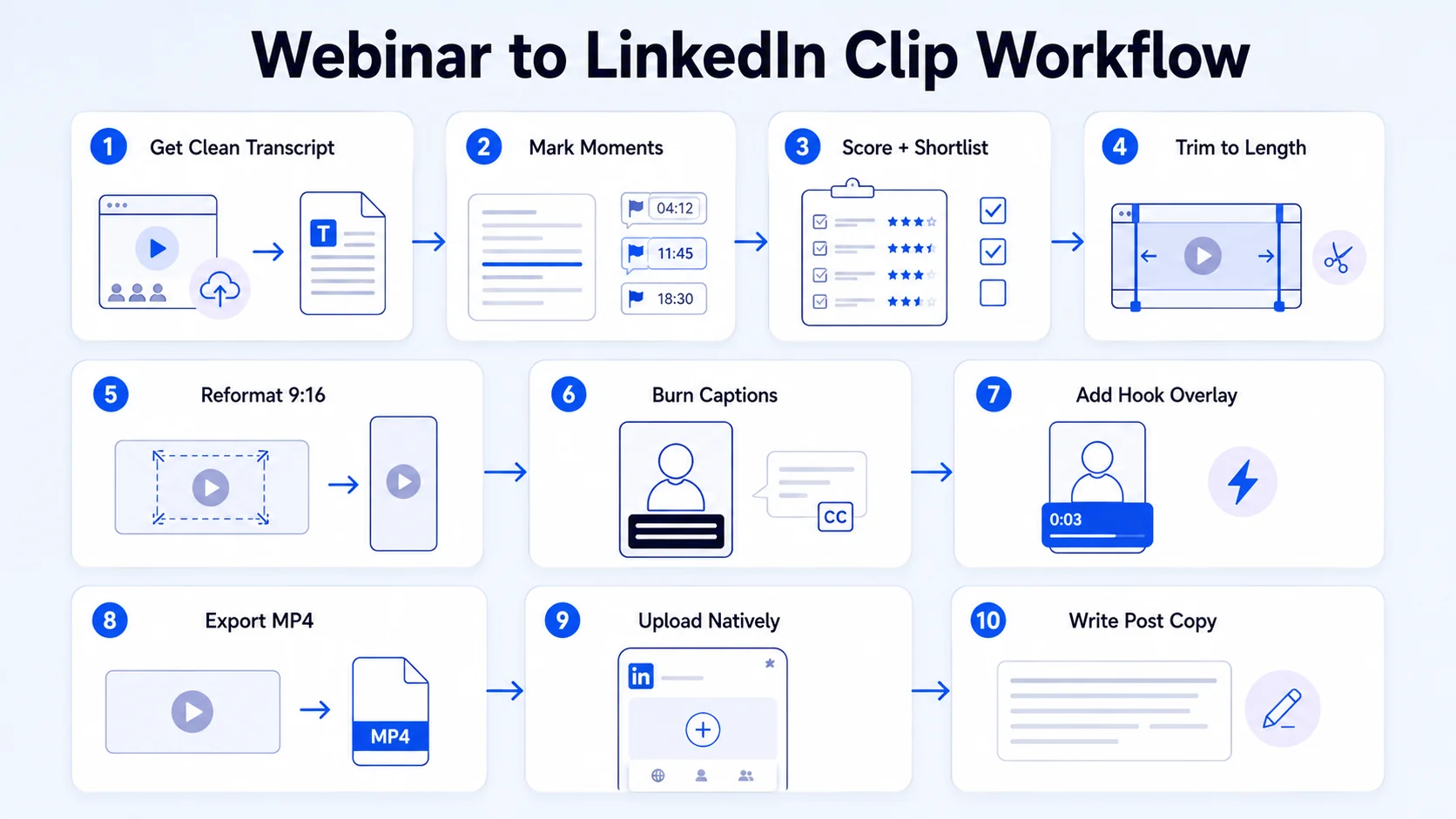
- Get a clean transcript: Upload your Zoom or recording file to Descript or Riverside. Let the AI transcribe. Correct speaker names.
- Mark moments: Read the transcript and drop markers on any segment matching the clip types listed above. Aim for 10–15 candidates from a 60-minute session.
- Score and shortlist: Cut the list to 6–8 clips. Ask: does this land without any context from the webinar? If it needs setup, it's not a standalone clip.
- Trim to length: Export each clip. Target 30–60 seconds for feed distribution, up to 90 seconds for thought leadership. For most B2B content, 30–90 seconds is the range that works. Feed videos perform best at 30–60 seconds, thought leadership at 60–90 seconds.
- Reformat to vertical: Resize each clip to 9:16 (1080×1920). Vertical video is currently getting a distribution boost on LinkedIn, while square and horizontal formats are getting slightly deprioritized. If you're creating content specifically for LinkedIn's short-form feed, export vertical first.
- Burn in captions: Add captions via CapCut or Descript. Because LinkedIn videos autoplay without sound, captions are no longer optional, they are a core part of how your message is delivered.
Native videos with captions can boost reach by 112%.
- Add a hook overlay: The first 3 seconds need a text hook on screen. Use the clip's core idea compressed into 5–7 words.
- Export as MP4/H.264: LinkedIn's safest standard is MP4 with H.264.
- Upload natively on LinkedIn: Never paste a YouTube link. LinkedIn prioritizes native content that keeps users on the platform, and native video uploaded directly to LinkedIn brings 38% more engagement than sharing a link to YouTube.
- Write the post copy: Lead with the hook as plain text above the video. No external links in the post body.
How Long Should LinkedIn Clips Be When Repurposed from Webinars?
Length is one of the most common questions I get, and the answer depends on what the clip is doing. Videos under 60 seconds retain 87% of viewers, clips under 30 seconds see up to a 200% lift in completion, and video posts average a 5.1% engagement rate versus 2.8% for everything else.
Use this length guide for your repurposed clips:
The average view duration on videos under 2 minutes is 83% from start to finish, which means even at 90 seconds, you're not losing much of your audience if the content is genuinely useful.
One practical rule: if you can say the same thing in 45 seconds as you can in 90, cut it to 45. Completion rate directly affects how the LinkedIn video algorithm decides whether to push your clip to wider audiences. Videos that receive engagement in the first hour are 4.1x more likely to be promoted by the algorithm. Short, high-completion clips earn that first-hour engagement faster.
Webinar to LinkedIn Video Repurposing Strategy for B2B: Distribution and Posting
Creating clips is only half the job. How you distribute them determines whether they actually reach buyers.
Post from personal profiles first. You'll consistently get more reach by distributing video through your team members' personal profiles than through your company page alone. Company page organic reach dropped roughly 60–66% between 2024 and 2026. That means your founder's LinkedIn profile is your most valuable distribution channel, not your brand page.
Post cadence: Research consistently points to three to four posts per week, on Tuesday through Thursday, during mid-morning hours (9 to 11 AM local to you) as the highest-performing window. If you extracted eight clips from one webinar, you have two weeks of content on that cadence.
Post structure for each clip:
- Line 1: Text hook (the core idea, no hashtags yet).
- Lines 2–3: One-sentence context that makes the viewer need to watch.
- Final line: A question or CTA that invites comments.
- Upload the video natively.
- Add 3–5 relevant hashtags in the first comment, not the post body.
Native video gets a +69% performance boost, especially when your logo or brand appears in the first four seconds. Consider adding a subtle brand watermark in the corner of every clip as part of your video marketing workflow.
Enable LinkedIn Creator Mode on the founder or executive profile posting the clips. This unlocks the video tab, increases follower suggestions, and gives your content additional distribution surface area from LinkedIn's recommendation system. Videos with direct CTAs in the final 10 seconds get 27% more likes and comments, so end every clip with a spoken or text-based call to action, even if it's just "What's your take on this?"
Conclusion
When you repurpose a webinar into LinkedIn clips correctly, one session fuels weeks of pipeline-building content.
- Extract 6–8 clips per webinar, focusing on contrarian takes, objection responses, data reveals, and founder POV.
- Format every clip as vertical (9:16), 30–90 seconds, with burned-in captions and a 5-second hook.
- Upload natively, post from personal profiles, and aim for Tuesday–Thursday mid-morning.
- Run this as a repeatable system, not a one-off project, and compounding reach follows.
If you want this built and run for your team without managing the workflow yourself, Komet Media's webinar repurposing service handles extraction, editing, captioning, and distribution strategy end to end.
Frequently Asked Questions
Q1: Can I repurpose a Zoom webinar into LinkedIn content?
Yes. Export the Zoom recording as an MP4, then upload it to Descript or Opus Clip for transcription and clip extraction. Zoom recordings are standard MP4 files, every tool in this guide accepts them. The output quality depends on your original audio setup, so a USB mic or Riverside.fm for future sessions will improve results.
Q2: How many LinkedIn clips can I get from one webinar?
One 60-minute webinar can yield eight to twelve clips, each tailored to a different platform or audience segment. For a tighter 30–40 minute webinar, expect five to eight viable clips. Apply the standalone test: each clip must make sense without the context of the full session.
Q3: Do I need LinkedIn Creator Mode to post video clips?
Creator Mode is not required to post video, but it does expand your distribution. It adds a Follow button as the default CTA, unlocks a video tab on your profile, and improves how LinkedIn's algorithm surfaces your content to non-connections. For any founder or executive posting more than once per week, it is worth enabling.
Q4: What aspect ratio should webinar clips be for LinkedIn in 2026?
Vertical video (1080×1920) is currently getting a distribution boost, while square and horizontal formats are getting slightly deprioritized in the feed. Export 9:16 vertical as your primary format. If a clip has important on-screen data that requires horizontal, reframe the keyframe so the speaker fills the vertical frame and the slide appears as a lower-third overlay.
Q5: How do I write the LinkedIn post copy for a repurposed webinar clip?
Open with the core idea from the clip as a text hook, do not start with "I" or your company name. Follow with one to two lines of context. Add a question at the end to drive comments. Keep the post under 150 words. Place hashtags in the first comment, not the post body, to avoid suppressed reach from the LinkedIn algorithm.
Q6: Is it better to post clips from a personal profile or a company page?
Personal profiles significantly outperform company pages for organic video reach. Company page organic reach dropped roughly 60–66% between 2024 and 2026, that's a structural shift, not a temporary dip. Post from the founder, the executive, or a team member with an active LinkedIn presence. Reshare to the company page afterward as a secondary distribution layer.

