
YouTube Video Format and Spec Guide: Step-by-Step Guide
If your product demos look sharp in Premiere but land soft and blocky on YouTube, the problem is almost always your export settings. This YouTube Video Format and Spec Guide covers every decision that matters for SaaS, AI, and B2B tech teams: container, codec, bitrate, resolution, audio, and the metadata layer that determines whether buyers actually find your content. Get these right and your walkthroughs, webinar cuts, and founder-led videos work for the pipeline, not just the clock.
TL;DR
- MP4 with H.264 codec and AAC audio remains the gold standard for YouTube uploads in 2026.
- Use 8 Mbps at 1080p/30fps and 12 Mbps at 1080p/60fps as your baseline bitrate targets.
- The standard aspect ratio for YouTube on desktop is 16:9; use 9:16 for Shorts.
- Closed captions, chapter markers, and end screens are not optional extras, they directly lift watch time and pipeline.
What Video Format Should You Upload to YouTube?
The first question every SaaS editor faces: what format does YouTube actually want? The answer is simpler than the export dialog makes it look. The container is the wrapper. The codec is how the video and audio streams are compressed inside that wrapper. For YouTube uploads, MP4 is the default container because it's widely supported, stable, and aligns with YouTube's recommended encoding workflow.
YouTube's clear preference is MP4 (MPEG-4 Part 14). If you upload other less-used formats, the platform converts them into MP4 anyway. That conversion costs you quality. Start with MP4 and eliminate one variable before YouTube's encoder even touches the file. Inside that MP4 container, the codec that matters most is H.264. H.264 is YouTube's recommended video codec. It delivers strong quality at manageable file sizes and is the default export codec in virtually every editing application.
For audio, the go-to codec is AAC-LC (Advanced Audio Codec - Low Complexity). Audio should be AAC-LC at 48 kHz, 384 kbps for stereo or 512 kbps for 5.1 surround. One technical detail most SaaS teams miss: YouTube's recommended upload settings call for an MP4 file with the moov atom at the front for fast-start processing. Most modern export panels handle this automatically, but if you are doing a custom FFmpeg export, add the -movflags +faststart flag.
What YouTube accepts vs. what it prefers:
While YouTube accepts almost any format including MOV, AVI, MKV, and WebM, MP4 with H.264 processes fastest and has the fewest issues. For B2B SaaS teams shipping a consistent volume of demos and walkthroughs, fewer issues at the upload stage means more time on content strategy.
Best YouTube Video Specs for B2B SaaS Companies 2026
Resolution and aspect ratio are the spec decisions with the most visible consequences. Get them wrong and your product UI walkthrough arrives with black bars or blurry text that kills credibility before the buyer hears a word. The standard aspect ratio for YouTube on a computer is 16:9. When uploading other aspect ratios such as vertical or square, the player automatically adapts to the size of the video. For standard widescreen content, demos, webinar cuts, founder videos, product walkthroughs, your target is 1920×1080 at aspect ratio 16:9. 1080p is the minimum for a professional-looking video. 4K is ideal if your camera and editing workflow support it.
YouTube processes and stores multiple resolution variants of every upload. When you upload at 4K, viewers can watch at 4K, 1440p, 1080p, 720p, and lower, each variant looks better than if you had uploaded at 1080p because YouTube derives them from a higher-quality source. YouTube does not specifically recommend a single resolution, but for best results, you should opt for a minimum of 480p on mobile or 720p on desktop up to a maximum of 1080p.
Resolution reference table for SaaS video types:
For YouTube Shorts, the game changes. You need to think vertically. A 9:16 aspect ratio is non-negotiable, so your resolution should be flipped to 1080×1920. Verified accounts can upload files up to 256 GB or up to 12 hours, whichever is reached first. For SaaS teams publishing demos and webinar replays, file size is rarely the constraint, quality at the re-encode stage is.
Best Codec for YouTube Uploads: H.264 vs H.265 vs AV1
The codec debate matters most if your team produces 4K content or runs into slow export queues. Here is a practical breakdown without the noise. H.264 (AVC) is the universal lowest common denominator, every phone, browser, smart TV, and security camera decodes it in hardware. For SaaS teams uploading consistent volumes of demos and walkthroughs, H.264 is still the right default: fastest export, fewest compatibility issues, and cleanest processing through YouTube's pipeline.
H.265 (HEVC) produces smaller files than H.264 at the same quality level, roughly 40–50% more efficient. YouTube accepts it. If you shoot 4K and want to reduce upload time without sacrificing source quality, H.265 is a solid choice. The trade-off is slower software encoding and slightly more complex hardware requirements.
For the highest quality ceiling: in independent 2026 testing, AV1 at around 60 Mbps produced the best VMAF scores of any upload codec, beating H.265 and crushing VP9. But AV1 software encoding is slow. To make this practical you need hardware AV1 encoding, which is built into recent Nvidia, AMD, and Intel GPUs. One important fact most SaaS teams do not know: whatever you upload, YouTube throws it away. Every upload is re-encoded into multiple delivery formats. In 2026, the primary delivery codec is AV1, with VP9 as the fallback for older devices and browsers.
Your job is not to pick the "best" final codec. Your job is to hand YouTube's encoder the cleanest possible source so its re-encode looks good.
Codec decision summary:
For everyone without hardware AV1 encoding, H.264 still gets you 95% of the way there.
YouTube Bitrate Recommendations for High-Quality Business Content
Bitrate is the single setting that most SaaS teams under-specify. Too low and YouTube's re-encode produces blocky artifacts on your UI text and cursor movement. Too high and you're wasting upload time with no visible gain. YouTube's published numbers are encoding floors, not ceilings. According to YouTube's official upload encoding settings, the platform publishes recommended ranges that should be treated as minimums.
YouTube recommended upload bitrates (2026):
2026 bitrate targets: 720p/30fps at 5 Mbps, 1080p/30fps at 8 Mbps, 1080p/60fps at 12 Mbps, 1440p/30fps at 16 Mbps, 4K/30fps at 35–45 Mbps. Audio: 192–320 kbps AAC. Use variable bitrate (VBR) rather than constant bitrate (CBR) for uploads. VBR allocates more data to complex frames (your busy dashboard UI) and less to simple frames (a white slide), which is exactly what SaaS product content needs.
Action-heavy content such as fast-cut edits benefits from the higher end of the range, while talking-head videos or webinars can use the lower end with excellent results. A product walkthrough with rapid UI clicks and animated transitions sits closer to the high end. A founder interview on a clean background can sit comfortably at the low end. Uploading 20–50% above the published numbers usually leaves enough headroom for the re-encode to land cleanly. For screen-recording-heavy SaaS demos, where small text clarity matters, this headroom is worth it.
How to Export Video from Premiere Pro for YouTube
Premiere Pro remains the most common edit environment for B2B SaaS video teams. Here is the exact export path from timeline to upload-ready file.
- Open the Export panel: In Premiere Pro 2026, access the Export workspace via the header bar or press Ctrl + M on Windows / Cmd + M on Mac.
- Set the destination: Under Settings, choose YouTube as the destination on the left, then pick YouTube 1080p Full HD (or 2160p 4K) from the preset menu.
- Set format and codec: Format = H.264. Container = MP4. This is the YouTube-aligned baseline.
- Set resolution and frame rate: Set the frame size to 1920×1080 for HD or 3840×2160 for 4K, and keep the frame rate the same as your sequence, commonly 24, 30, or 60 fps.
- Set bitrate encoding: Switch Bitrate Encoding to VBR, 2 Pass. Variable bitrate spends data where the image is complex and saves it where it's simple, and two passes analyze the footage before encoding.
- Set target bitrate: A clean 1080p export starts around 8 Mbps for 24/25/30fps or 12 Mbps for 48/50/60fps. A clean 4K export starts around 35–45 Mbps or 53–68 Mbps for high frame rate.
- Set audio: AAC, 48 kHz, 320 kbps stereo.
- Quality check before upload: Do not judge quality only inside Premiere. Export a file, play it in QuickTime or VLC, and check motion, gradients, titles, and dark areas. If it looks bad before YouTube touches it, fix the export.
Screen recordings of your product UI are the most compression-sensitive content type you produce.
A talking-head clip can survive mediocre compression. A software demo cannot. If your menu text blurs, your cursor jitters, or your code window turns mushy, viewers feel it immediately. For UI-heavy screen recordings, push your bitrate 30–50% above the standard floor. The clarity of your product interface is a direct signal of product quality to the buyer watching.
How to Optimize YouTube Video Quality for SaaS Product Walkthroughs
Technical specs get your video through YouTube's encoder cleanly. What happens next, whether that video finds buyers and supports the pipeline, is a metadata and optimization problem.
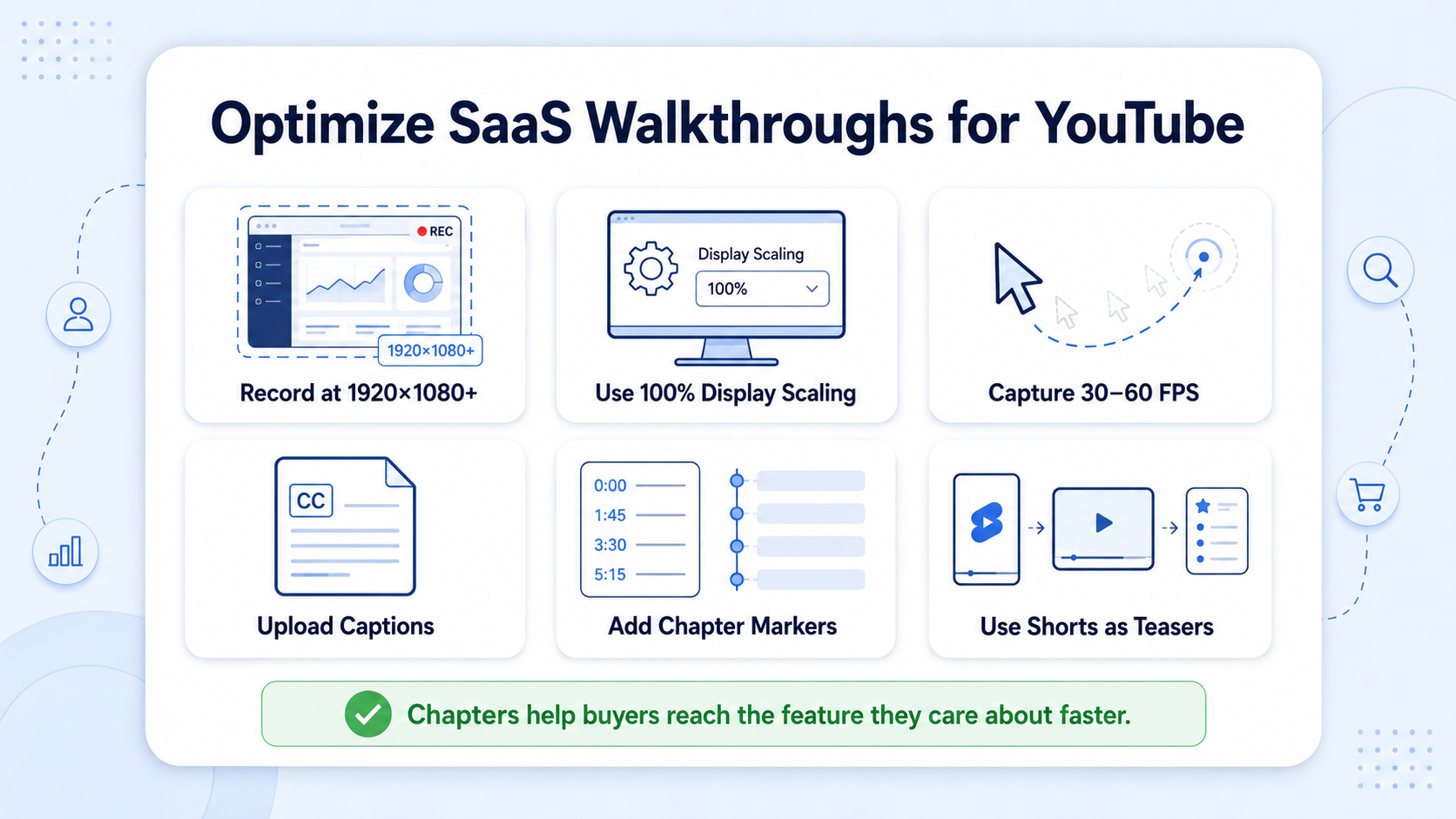
Screen recording setup: Capture at 1920×1080 minimum with your display scaled to 100%. Any DPI scaling above 100% introduces soft text in the recording before it even hits the encoder. Record at frame rate 30fps for standard walkthroughs, 60fps if your demo includes fast animations or rapid navigation.
Metadata that moves the YouTube algorithm: Search engines cannot watch videos, but they can read captions and transcripts. Adding closed captions makes your video content discoverable and helps you rank for relevant searches. Transcripts can also be repurposed into blog posts and other SEO-friendly content. Timestamps with chapter markers are mandatory. They double watch time on B2B videos. For a SaaS product walkthrough, chapter markers serve a second purpose: they let an evaluating buyer jump directly to the feature they care about, shortening the time-to-value without shortening the video. The first timestamp must start at 0:00. You must include at least three timestamps. Label each chapter with a buyer-relevant phrase: "Setting up your first workflow" outperforms "Step 2" every time.
End screens and distribution: Short-form video has moved from a social tactic to a top-of-funnel discovery channel in 2026. Treat YouTube Shorts and LinkedIn clips as teasers that pull viewers toward your deeper, cornerstone videos. Done well, short-form is how prospects find you before they know your category.
For demo video length, most top-performing SaaS demo videos run 60 to 120 seconds for top-of-funnel content. Deeper product walkthroughs can run up to 3 minutes, but only when the viewer has already expressed interest. Connect these videos to your video marketing services and YouTube video editing workflow so every asset feeds a system, not a one-off upload.
YouTube Studio, Content ID, and B2B SaaS Distribution
Getting the file right is half the work. Publishing it correctly inside YouTube Studio is where most B2B SaaS teams leave the pipeline on the table.
YouTube Studio upload checklist for SaaS:

- File name: Name your export file with your target keyword before upload. The YouTube algorithm can read the file name and all the code that comes with it when it's uploaded. "saas-crm-demo-walkthrough-2026.mp4" outperforms "FINALv3export.mp4".
- Title: Include the primary keyword and a year tag. Include the year if your topic changes annually, it can drive a 10 to 15% CTR lift for evergreen topics.
- Description: The first 150 characters are what show above the fold on YouTube. Make them count. Lead with the buyer problem, not your product name.
- Captions: Upload a clean SRT file rather than relying on auto-captions. Have someone review captions for accuracy, especially in technical niches. One misheard term can throw off the entire semantic understanding of your content.
- Chapters: YouTube's chapter feature improves performance metrics by increasing average watch duration, encouraging repeat views, and boosting search rankings since chapters appear in Google's video results.
- Playlists: Cluster all videos on the same topic into one playlist. Each playlist becomes a topic authority signal.
- End screens: Add end screens to every video pointing to a related demo or your product page. Never end with a fade to black before the end screen, it wastes the time.
Content ID system: YouTube's Content ID system scans uploaded audio and video against a database of registered content. If your walkthroughs use licensed background music, verify you hold the appropriate license before upload or use royalty-free tracks. A Content ID claim will suppress your video in search before your buyers ever see it.
HDR video: If your team produces HDR video content, YouTube's transcoding system now handles 8K and HDR more efficiently than before, though H.264 is still recommended for uploads to avoid compatibility issues.
For teams turning webinars and podcasts into structured YouTube content, our webinar and podcast production workflows feed directly into this YouTube publishing system. Komet Media provides a comprehensive solution - from initial video production from scratch to advanced editing, repurposing, and distribution - ensuring consistent quality settings across every export and channel.
Conclusion
Every SaaS video that lands on YouTube passes through the same re-encode pipeline. Your only job is to give that pipeline the cleanest possible source.
Key takeaways:
- MP4 with H.264 codec and AAC audio is the gold standard for YouTube uploads in 2026, use it as your default for every SaaS video type.
- Match bitrate to content: 8 Mbps at 1080p/30fps for standard content, higher for UI-dense screen recordings.
- Closed captions, chapter markers, and a keyword-optimized file name are non-negotiable for B2B discoverability.
- You do not need high production value. A clean screen recording with voiceover and a clear CTA beats a costly brand video for pipeline generation every time.
If you want a partner that handles the full ecosystem—including video production from scratch, expert editing, repurposing, and global distribution - Komet Media's video editing services are built for exactly this.
Frequently Asked Questions
Q1: What is the single best format to upload to YouTube in 2026?
MP4 with H.264 video codec and AAC-LC audio is YouTube's officially recommended format. It processes fastest and is compatible with every editing application. For 4K content where file size matters, H.265 inside an MP4 container is a solid alternative.
Q2: What resolution does YouTube recommend for professional business videos?
1080p is the minimum for a professional-looking video. 4K is ideal if your camera and editing workflow support it. For SaaS demos involving UI screen recordings, 1920×1080 at aspect ratio 16:9 is the practical standard, 4K is a bonus, not a requirement.
Q3: What bitrate should I use for a 1080p SaaS product walkthrough?
For 1080p at 30fps, use 8 Mbps. For 1080p at 60fps, use 12 Mbps. For UI-heavy screen recordings with dense text and fast navigation, push 20–30% above these floors to preserve clarity after YouTube's re-encode.
Q4: Is H.264 or H.265 better for YouTube uploads?
For most creators, H.264 remains the better default choice in 2026 because of its universal compatibility and faster export times. H.265 is worth using when file size is a significant constraint or when exporting 4K content and you want to reduce file sizes for upload or storage.
Q5: Do closed captions actually affect YouTube video performance?
Yes. Subtitles and closed captions can boost YouTube search optimization by highlighting important keywords since the YouTube algorithm reads the texts in the source code and video. Your subtitles and closed captions not only help with YouTube SEO but also increase engagement. For B2B SaaS videos with product-specific terminology, always upload a manually reviewed SRT file rather than relying on auto-generated captions.
Q6: How should I use chapter markers in a SaaS demo video?
The first timestamp must start at 0:00, and you must include at least three timestamps to activate chapter markers. Label each section with a buyer-relevant phrase that matches what your prospect is looking for, for example, "Automating your approval workflow" rather than "Feature overview." Chapters boost search rankings since they appear in Google's video results.

