
How to Edit Instagram Post: Step-by-Step Guide
You hit publish, then spot the typo. Or worse, the wrong tag. Knowing how to edit an Instagram post after it goes live is a skill every serious content team needs in their back pocket. The good news: Instagram has quietly expanded its post-editing capabilities in 2026. This guide covers every edit type, what is actually possible, what is locked, and the exact steps to fix it fast without deleting a single post.
TL;DR
- You can edit captions, tags, location, and alt text on any published Instagram post without losing engagement.
- The underlying photo or video file cannot be replaced once published.
- Carousel slide order is now reorderable as of March 2026.
- Reels allow caption, cover image, and tag edits but no video-file changes.
Can You Edit an Instagram Post After You Publish It?
Yes, and more than most people realize. Edits target captions, user tags, alt text, and location tags. The main media, photos or videos, remains locked post-publish. That boundary is intentional: once a Reel or post is published, the core video file is locked permanently to preserve platform integrity and prevent "bait-and-switch" tactics. Here is a clear breakdown of what is and is not editable:
Instagram does not notify your followers of caption changes (unlike Facebook), so you can fix a typo before anyone screenshots it. That alone should remove any hesitation about going back in to clean up a post.
Steps to Edit an Instagram Post on Phone (Captions, Tags, Location)
This is the core process. Users often complete these fixes in under 30 seconds.
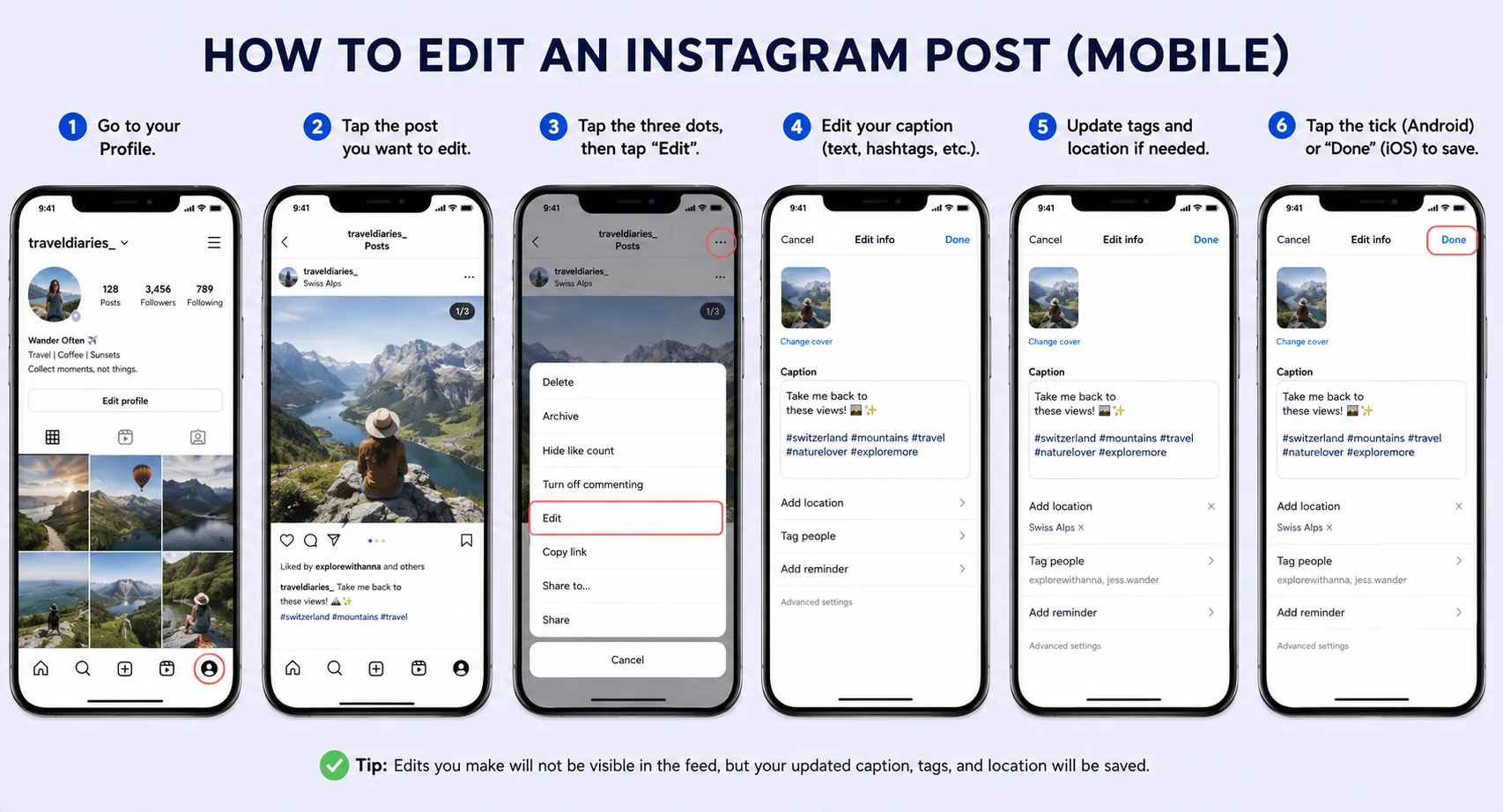
Here is how to edit Instagram post on mobile:
Open the Instagram app and navigate to your profile.
Tap the post you want to edit.
Tap the three dots in the right corner of your screen, then tap "Edit" from the drop-down menu.
Tap the caption field to fix any typo, update your copy, or refresh your hashtag strategy.
Tap "Tag people" to add or remove tagged people and invite collaborators.
Tap the current location in the "Add Location" area to change or remove it. If no location is set, tap "Add Location" to add one.
Tap the tick (Android) or "Done" (iOS) to save.
A few formatting notes worth knowing: if your caption is a wall of text, add spaces by hitting the return key after each paragraph. Just make sure you remove any hidden spaces after the punctuation at the end of your sentences, or Instagram will ignore your line break.
Pro tip: if you need to make changes, do it soon after posting, ideally when engagement is still low. Edits at peak engagement hours can disrupt the reading experience for active viewers. For Instagram marketing teams managing accounts at scale, building a pre-publish caption checklist eliminates most of these emergency fixes entirely.
How to Fix a Typo or Change a Caption on Instagram Post
Knowing how to edit Instagram post captions specifically is the most common use case. There is no character limit difference between editing and original posting. The same 2,200-character limit applies. You can rewrite the entire caption if you need to.
A few things you can update inside the caption edit screen:
- The caption copy: Fix typos, sharpen the hook, add a CTA you missed.
- Hashtags: Hashtags added during an edit are indexed by Instagram's search , so swapping in better-performing tags after posting is a legitimate optimization move.
- Line breaks: Return to the caption field, add line breaks for readability, and hit Done.
What you cannot do in the caption field:
- Tag a location (that is a separate field).
- Embed a clickable link (Instagram's caption links remain non-clickable regardless of edit timing).
- Add music to a static post. Adding music to a post after it has been shared is currently not possible. You cannot add music to an existing Instagram post.
Caption editing is where most brands lose points on brand consistency. A polished caption that still reads well three months later is the mark of a thought-through content system. If you are a founder or marketing head building short-form video content at volume, treat caption templates as infrastructure, not afterthoughts.
How to Edit an Instagram Reel After Posting
Reels have the most questions around post-publish editing, so here is a precise answer. Yes, limited edits are allowed after posting an Instagram Reel. You cannot replace the video file itself; you can only change metadata and some surface elements.
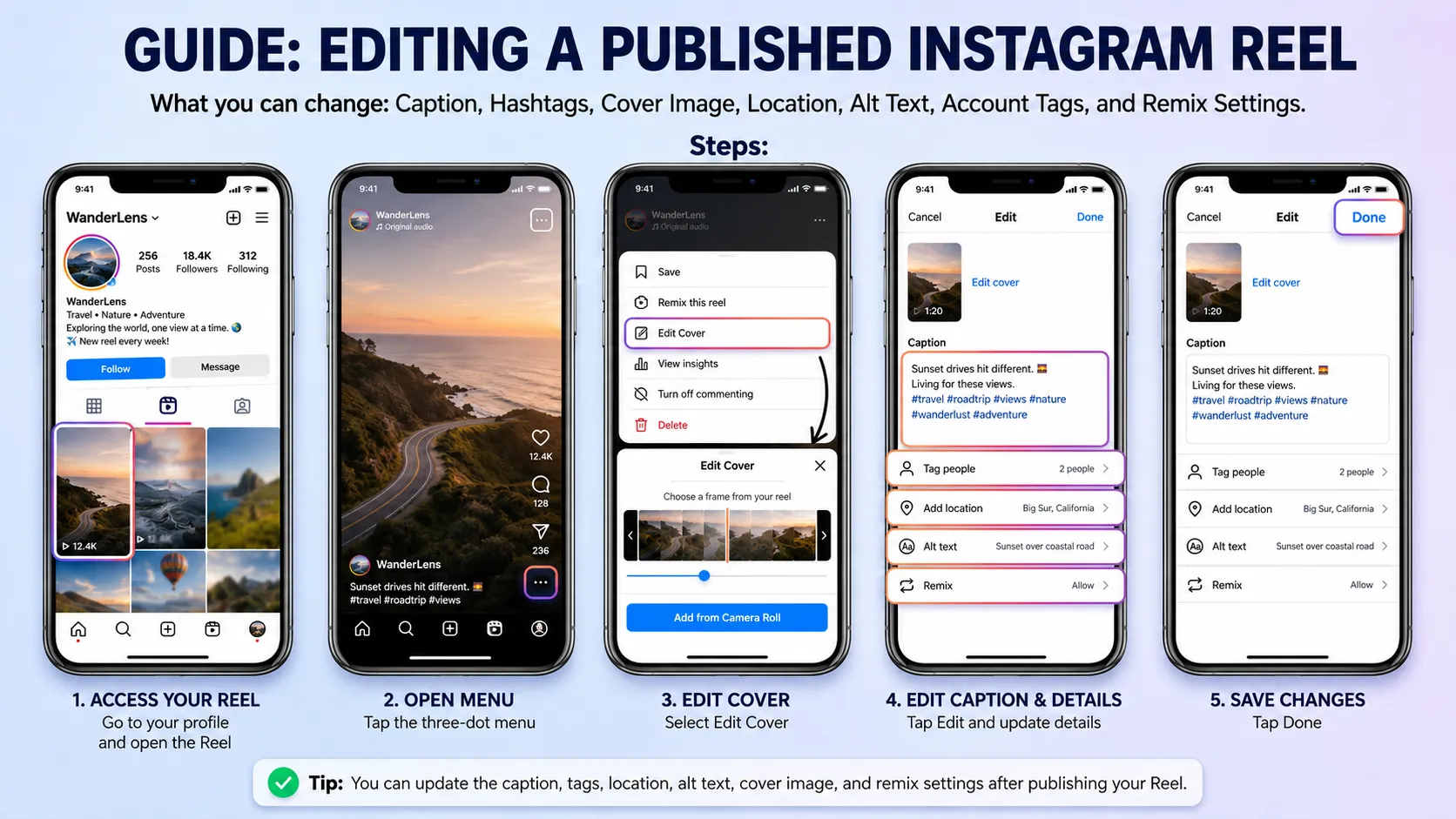
What you can change on a published Reel:
- Caption and hashtags, cover image (choose a frame from the video or upload a custom cover image), location tag, alt text, account tags, and remix/duet settings.
Steps to edit a Reel after posting:
- Go to your profile and open the Reel.
- Tap the three-dot menu at the bottom right, then select "Edit Cover" to choose a new frame from the video.
- To edit the caption, tap the three dots, select Edit, make your changes, and tap Done.
If the video itself has an error that needs fixing, the only real option is the "Move to Drafts" workaround: you can delete the reel and save it as a draft at the same time, enabling you to go in and edit the video. Find the posted reel, tap the three dots, click Delete, and then choose "Move to Drafts." This preserves your edit capability but resets all engagement to zero.
Key distinction: Editing metadata on a Reel preserves all likes, views, and comments. Deleting and reposting resets them to zero.
How to Add or Remove Tags on Instagram Post After Publishing
User tagging and location tagging are both fully editable after publishing. Here is how to handle each scenario.
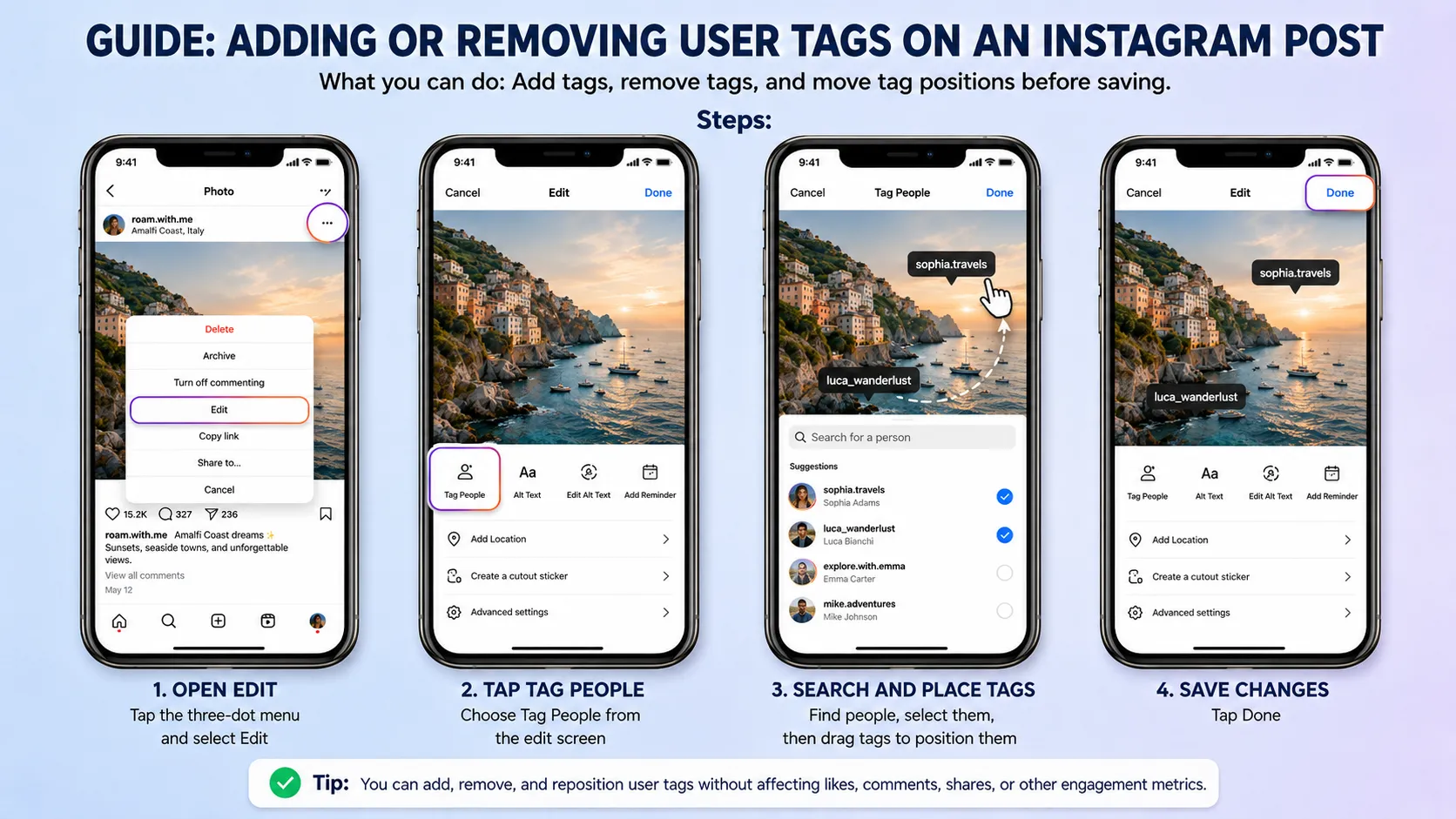
Adding or removing user tags:
- Tap the three dots on your post and select Edit.
- Tap the Edit menu, then select "Tag People" in the bottom-left corner of the picture. Search through your contacts to find the people you want to tag. After selecting them, you can drag the tags to position them.
- Tap Done to save.
Adding or editing alt text (accessibility): Alt text is often overlooked but matters for accessibility and discoverability. Alt text helps the Instagram algorithm interpret the subject of a photo or graphic, which makes in-app search and recommendations more relevant.
To edit alt text on a published post: open your Instagram post, tap the three-dot icon in the top right corner, select Edit from the menu, and then tap on the Edit Alt Text icon located in the bottom right corner of the image. If your post is a carousel, you will see a separate slot for alt text for each photo. Fill out each one for maximum accessibility coverage.
Adding or changing a location tag: Location tags support local discoverability. Location tags can help your content reach local audiences, making them particularly valuable for businesses looking to attract nearby customers. Edit the location through the same three-dot Edit menu, tapping "Add Location" or tapping an existing location to update it.
Is It Possible to Edit an Instagram Carousel Post After Posting?
This section has a genuinely new answer in 2026. As of March 24th, 2026, Instagram now allows users to reorder photos and videos inside a carousel post after publishing. However, the feature appears to be rolling out gradually.
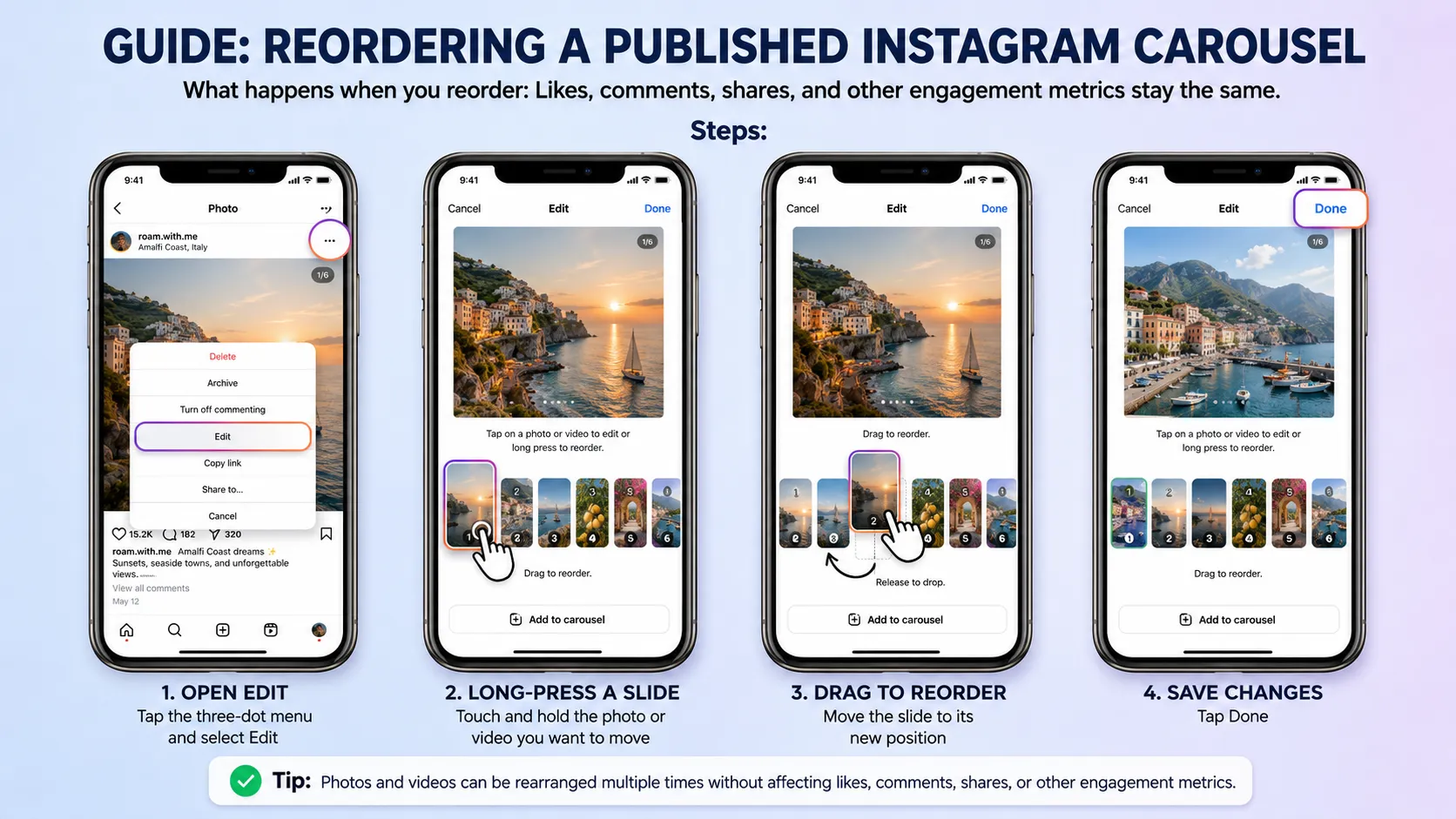
Steps to reorder a published carousel:
- Go to your post and tap the three-dot menu in the top-right corner. Select Edit. Long-press on the slide you want to move.
- Drag it to the new position.
- Tap Done. Photos and videos can be rearranged multiple times without affecting likes, comments, shares, or other engagement metrics.
Limitations to know:
- The reorder feature is limited to newly uploaded carousel posts. Older posts cannot be reordered, though users can still delete slides.
- Users cannot add new media to an already published carousel. To include additional photos or videos, users must create a new carousel post.
- The minimum carousel size is two slides. If you try to delete slides from a two-slide carousel, Instagram will not allow it.
Caption edits, reorders, and other post-publish changes do not send notifications to followers or people who have commented. No one is alerted that you edited the post. For brands running Instagram growth campaigns, the ability to optimize carousel order post-publish is a meaningful lever. You can now test which opening slide drives more swipes without resetting engagement.
Conclusion
Knowing how to edit Instagram post content after publishing protects your engagement, keeps your brand sharp, and eliminates the lose-everything-or-live-with-the-mistake dilemma.
Key takeaways:
- Captions, hashtags, location tags, user tags, and alt text are always editable without any engagement impact.
- The underlying photo or video file is permanently locked once published.
- Reel covers and captions are editable; the video itself is not.
- Carousel slide order can now be reordered on new posts as of March 2026.
For teams serious about video editing services and Instagram content at scale, combine these editing mechanics with a strong pre-publish review system to keep both quality and output velocity high.
Frequently Asked Questions
Q1: Does editing an Instagram post after publishing hurt your engagement or reach?
No. Instagram has not stated that editing a post triggers any re-distribution or penalty. The post stays in its original position in the feed chronology and retains its engagement signals. Edit freely.
Q2: Can you edit Instagram post captions without deleting the post?
Yes, completely. Tap the three dots on any published post, select Edit, update the caption, and tap Done. The post stays live the entire time, and no engagement is lost in the process.
Q3: How do you edit Instagram post alt text after publishing?
If you forget to add alt text before publishing, go to your published post, tap the three dots and select Edit, tap "Edit Alt Text" below the image, write or update your alt text, and save your changes.
Q4: Can you change the photo or video in an Instagram post after posting?
No. You cannot edit a picture on Instagram after posting it. You have only one shot to adjust or crop the photo and add the right filter before it goes live. To change the visual, you must delete and repost.
Q5: How do you edit Instagram Reel after posting if the video has an error?
Your only option is to move it to drafts. Tap the three dots on the Reel, select Delete, then choose "Move to Drafts." Edit the video there and repost. This resets all engagement metrics to zero.
Q6: Can you reorder slides in an Instagram carousel after posting?
Yes. Instagram announced users can now rearrange posts within a carousel after publishing. The process uses a simple "long press and drag" editing functionality to switch around images and videos. Note that this feature is rolling out gradually and applies to newly uploaded carousels only.

