
Editing Webinars into Highlight Reels: Step-by-Step Guide
Editing Webinars into Highlight Reels: Step-by-Step Guide (2026)
Most B2B teams run a webinar, send one follow-up email, then let the recording collect dust. That's leaving a serious pipeline on the table. Editing webinars into highlight reels is how you turn a one-time live event into weeks of buyer education, LinkedIn content, and sales enablement assets. The recording, transcript, highlight reel, and gated replay landing page are not afterthoughts, they are the asset, and the live broadcast is the production event that creates them. This guide walks you through the exact process we use at Komet Media.
TL;DR
- Find the moments first: scan the transcript for the 5–8 highest-signal segments before you open your editor.
- Cut ruthlessly: a finished highlight reel is 30–90 seconds, not a compressed replay.
- Format for each platform: 9:16 vertical for Reels and Shorts, 16:9 or square for LinkedIn feed.
- Distribute fast: publish within 48 hours while the topic is still front of mind.
What Is a Webinar Highlight Reel (and How Is It Different from a Recap)?
Before you edit a single frame, you need to be clear on what you're actually building. Video highlights are the most important or engaging moments pulled from a longer video into a shorter summary, the standout moments strung together into a shorter version. They give viewers the best parts without asking them to watch the whole thing, which is useful for long recordings like webinars and events. A highlight reel and a webinar recap are not interchangeable:
Highlights and clips overlap, but they serve slightly different goals. A highlight reel usually strings several key moments into one summary, while a clip is a single moment shared on its own. For B2B SaaS and AI teams, the highlight reel is your awareness asset. It drives people to the recap or the full replay. The recap is your pipeline asset. Confuse the two and you'll keep publishing 12-minute "highlights" that nobody finishes.
HubSpot's State of Marketing report notes that short-form leads in ROI, engagement, and lead generation compared to other video formats, which is exactly why editing webinars into highlight reels should be a non-negotiable part of every webinar production workflow.
How to Find the Best Moments in a Recorded Webinar
Scrubbing a 60-minute recording frame by frame is how you waste a Tuesday. Use a structured extraction process instead.
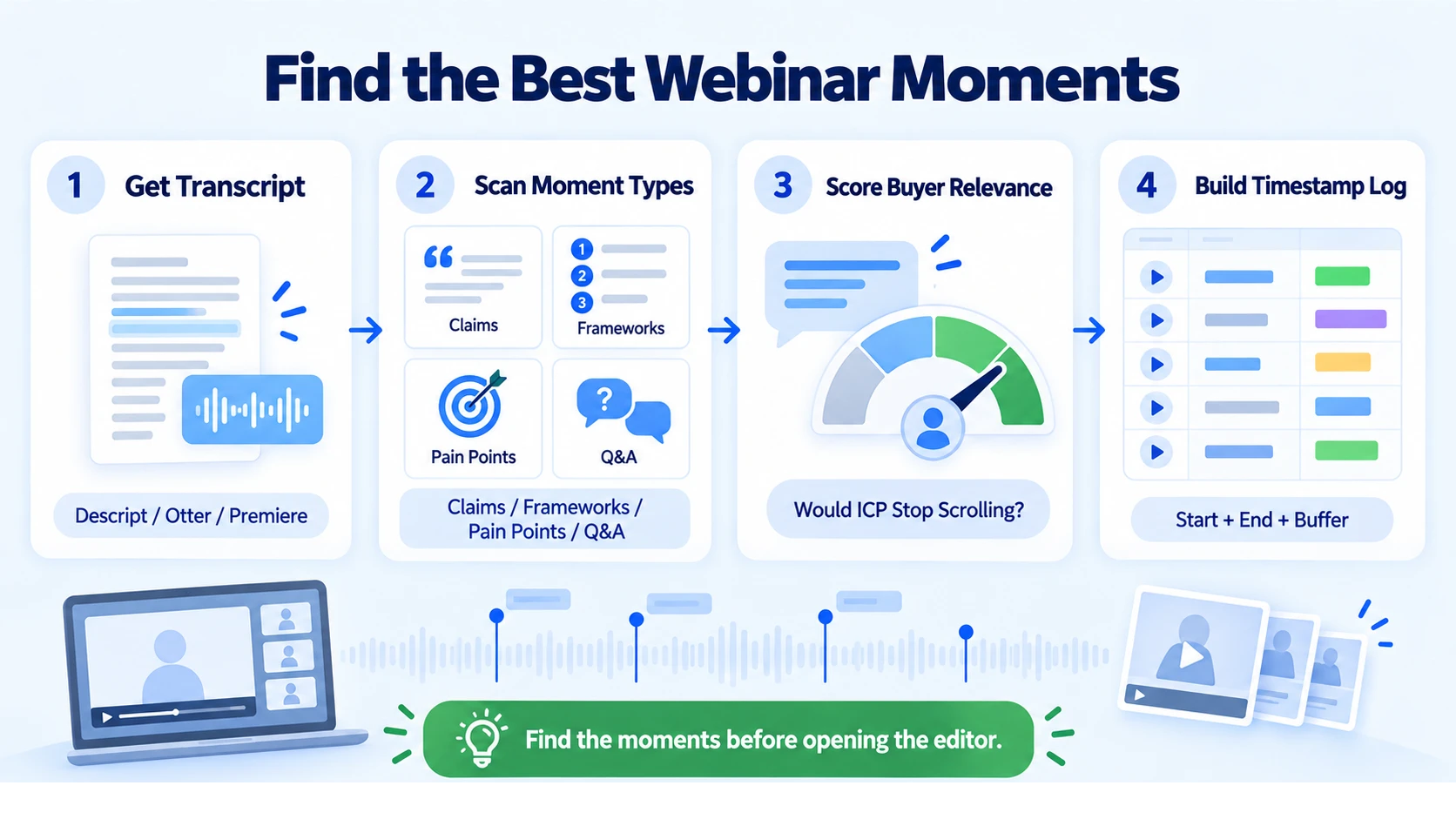
Step 1: Get a transcript first. Upload your webinar recording to a transcription tool, Descript, Otter.ai, or Adobe Premiere Pro's built-in speech-to-text all work. Descript focuses on text-based editing, letting you turn transcripts into clips. Its "Find Good Clips" action is useful for identifying highlights, making it a capable tool for repurposing webinars into clips when precision and collaboration matter.
Step 2: Scan for moment types. Read the transcript and timestamp every instance of the following:
- A sharp, quotable claim (something a buyer would screenshot)
- A framework, step, or numbered list the speaker walked through
- A pain point named directly, especially if the audience reacted
- A product insight or live demo moment
- A surprising stat or counterintuitive take
- A strong Q&A answer that stands alone
Step 3: Score by buyer relevance. Not every good moment is a good clip. Ask: would my ICP (founder, marketing head, growth lead) stop scrolling for this? If the answer is maybe, skip it. Before you finalize your clip list, aim for 8–15 potential short-form clips you could create from the recording. Each one should have a hook, a core insight, a visual cue, and a clear call-to-action.
Step 4: Build a rough timestamp log. Note start and end times for each flagged segment. Include 2–3 seconds of buffer before and after each clip, you'll need it for pacing in the edit. When atomizing a podcast or webinar, use timestamps to identify the most impactful 30–60 second clips. This timestamp log becomes your edit brief, which means the actual editing step is fast and focused rather than exploratory.
Best Video Editing Software for Cutting Webinar Highlights
Your tool choice should match your team's workflow and output volume.
Adobe Premiere Pro fits teams that need to turn one webinar into a campaign, not just a finished video. If the post-event workload includes a gated replay, short paid social cuts, captioned clips for LinkedIn, and versions for sales follow-up, Premiere handles that volume well. Long timelines stay manageable, separate camera and audio feeds are easy to sync, built-in transcription speeds up captioning, and Auto Reframe helps turn one 16:9 session into vertical and square cut-downs without re-editing from scratch.
CapCut's combination of AI clipping, smart formatting, and captions makes it possible to go from a two-hour webinar to 20+ polished shorts quickly. Its auto caption generator and seamless publishing inside the online video editor make it effective for global audiences and multi-platform strategies.
For most B2B SaaS teams doing in-house editing at volume, CapCut handles social cuts fast; Adobe Premiere Pro or DaVinci Resolve handles anything going into a sales deck, a webinar page, or a paid ad. Our short-form video editing service runs on Premiere Pro for exactly this reason.
Editing Webinars into Highlight Reels: The Step-by-Step Process
This is the full production workflow. Do not skip steps 1–3, the edit lives or dies by the prep.
- Export and ingest your recording: Download the full webinar MP4 at the highest available resolution. Bring it into your timeline editor. Set your sequence to 1080p/30fps as your master.
- Import your timestamp log: Use your moment notes from the extraction step. Mark in-points and out-points directly on the timeline. Do not start cutting without this, you'll drift.
- Cut each segment individually first: Create separate sequences for each flagged clip. Trim silence, filler words ("um," "so"), and dead air aggressively. Trim and cut unnecessary sections, and use tools like Audiate to remove "ums" and "ahs" and clean up audio for a polished delivery.
- Sequence your highlight reel: Pull your 3–5 strongest clips into a single master sequence. Lead with the best moment, not the second best, not the setup for the best. The best, in the first three seconds.
- Add captions: Burn open captions onto every export. Posting a talking-head video without captions is a missed opportunity. A lot of people scroll LinkedIn in silent mode. Most won't turn on sound even if interested, always assume your video must work with the sound off.
- Apply aspect ratio conversion: Export a 16:9 master, a 1:1 square, and a 9:16 vertical. Vertical video (9:16 aspect ratio) is the dominant format, perfect for mobile viewing. Use Auto Reframe in Premiere Pro or the crop tool in CapCut to reframe talking-head shots without losing the speaker's face.
- Add a call-to-action overlay: A text overlay in the final 3 seconds pointing to your webinar page, a demo, or a gated replay converts passive viewers into next steps. Every piece of micro-content should include a clear call-to-action and a link guiding the audience to the original long-form asset.
- Compress and export: Export MP4 H.264 at 1080p for all platforms. LinkedIn, YouTube Shorts, and Instagram Reels all accept this format natively.
How Long Should a Webinar Highlight Reel Be?
Length is not a creative choice, it's a platform and funnel decision. Most highlight reels should be 30–90 seconds. Within that range, the right duration depends on where you're distributing it.
Short clips between 30 and 90 seconds work best for discovery, while longer videos (2 to 5 minutes) are better suited for audiences who already know you. For B2B buyers who haven't engaged with your brand before, shorter forces you to be sharper, which is the point. LinkedIn allows up to 30 minutes for regular posts, but that doesn't mean viewers will watch that long. A common mistake is posting a 10-minute talk when a 15–30 second highlight reel would have far more impact.
For a single webinar, the right output is not one highlight reel, it's a set of assets. Create a 60–90 second highlight reel for LinkedIn and email, three 30-second clips of key takeaways for social, and two 15-second teaser clips for Stories. That one webinar now covers multiple touchpoints across your funnel. See how we structure this inside our webinar production workflow.
Content Repurposing Strategy: Distributing Your Highlight Reel for Pipeline Impact
Editing webinars into highlight reels is only half the job. Where and how you deploy them determines whether they move pipeline or just collect views. The most efficient B2B teams start with a single, insight-dense "anchor" asset, then break it into smaller, platform-ready pieces that keep the conversation going long after the original launch. Start with something that already carries weight: a webinar, research report, executive interview, or customer roundtable.
The 225% surge in webinar volume reflects a fundamental shift in how B2B companies build mindshare with their audiences and ultimately drive revenue.
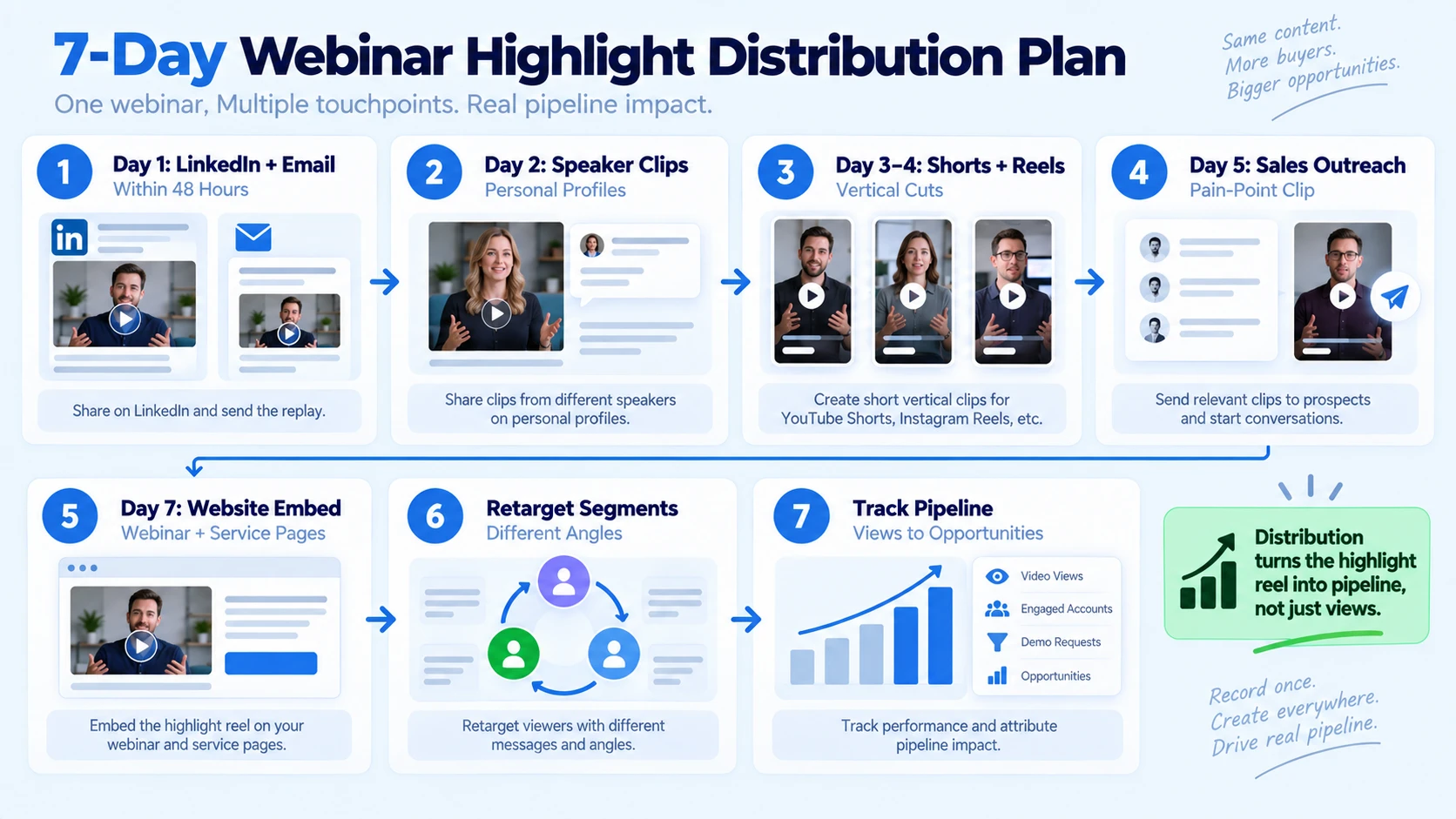
That volume only translates to pipeline when teams have a distribution system behind it, not just a one-time post.
A practical 7-day distribution window after each webinar:
- Day 1 (within 48 hours): Post the 60–90 second highlight reel on LinkedIn. Email registrants with the reel embedded and a link to the full replay.
- Day 2: Push 2–3 individual clips as standalone LinkedIn posts from the founder or speakers. Personal profiles outperform company pages for reach.
- Day 3–4: Upload vertical cuts to YouTube Shorts and Instagram Reels. Use captions-only, no music, B2B audiences watch without sound.
- Day 5: Share a clip in sales outreach sequences. A 60-second clip that names a buyer's pain point is stronger than a paragraph of copy.
- Day 7: Add the best clip to your webinar page and relevant service pages as embedded social proof.
Build a distribution schedule that reaches each segment twice, using different angles rather than reposting the same cut. Stagger distribution across LinkedIn, YouTube Shorts, and email so the buyer can encounter the idea on more than one surface.
Most B2B marketing teams produce between 8 and 20 videos per month. A team running two webinars and one executive interview per month can typically generate 10 to 15 finished assets from that volume once repurposing is factored in.
Conclusion
Editing webinars into highlight reels is not a nice-to-have, it's the highest-leverage content move available to a B2B SaaS team in 2026. One 60-minute webinar, edited correctly, can fuel a full month of buyer education, founder-led social content, and sales enablement clips.
Key takeaways:
- Extract before you edit: a timestamp log prevents wasted editing time.
- 30–90 seconds is the target range, calibrate by platform, not by preference.
- Captions are mandatory on every social export; most buyers watch silent.
- Distribute within 48 hours and stagger across LinkedIn, Shorts, email, and outreach.
If your team is running webinars but not building a video content system around them, Komet Media builds that system for you.
Frequently Asked Questions
Q1: How many clips should I pull from a 60-minute webinar?
A 60-minute Zoom recording has enough material for five to eight finished clips. Aim for a 60–90 second highlight reel plus 3–5 standalone clips, each built around a single insight, pain point, or framework moment.
Q2: Do I need professional video editing software to make a highlight reel?
No. CapCut handles fast social cuts with auto-captions and aspect ratio conversion at no cost. Adobe Premiere Pro and DaVinci Resolve are worth the investment when you're producing 10+ assets per webinar or need precise timeline editing and multi-format exports at professional quality.
Q3: Should I add music to my B2B webinar highlight reel?
Keep music out of LinkedIn and sales clips. Most B2B buyers watch video on mute, and music without sound context adds nothing. If you use background music anywhere, keep it at -30dB or lower, the speaker's voice is the content.
Q4: What parts of a webinar should I always include in a highlight reel?
Prioritize: a sharp claim or counterintuitive stat, a named pain point your ICP recognizes immediately, a framework or step the speaker walked through, and the strongest Q&A answer. Short-form video has ranked as the highest-ROI content format for four consecutive years (HubSpot, 2025 State of Marketing Report), which means the moments that stop a scroll are worth more than the moments that summarize the topic.
Q5: How soon after a webinar should I publish the highlight reel?
In the first 48 hours, send the replay link, highlight reel, LinkedIn posts from speakers, email to registrants, and 3 short-form videos. Speed matters because registrant attention is highest immediately after the event ends.
Q6: What's the difference between editing webinars into highlight reels and content repurposing?
Editing webinars into highlight reels is one tactic inside a broader content repurposing strategy. Repurposing means systematically extracting blog posts, email sequences, social clips, carousels, and podcast cuts from one anchor asset. From one anchor asset, aim to create 10–15 video clips, a handful of static visuals, one short newsletter embed, and a quick sales-enablement reel. The highlight reel is the top-of-funnel hook that makes people want to consume the rest.

