
Adding Captions and Subtitles That Lift Retention: Step-by-Step Guide
Most B2B videos lose viewers not because the content is bad, but because nobody can hear it. Your buyers are scrolling LinkedIn in a quiet office or watching a demo clip on mute. If your video has no text on screen, they're gone in three seconds. This guide covers adding captions and subtitles that lift retention from first export to platform publish, including the format decisions, free tools, and exact workflow steps that move viewer retention metrics in the right direction.
TL;DR
- Up to 80% of viewers are more likely to finish a video with subtitles.
- Open captions are best for social media silent viewing; closed captions are better for YouTube SEO and long-form compliance.
- Free tools like Kapwing, Descript, and CapCut auto-generate captions in minutes with no manual transcription.
- The biggest retention killer is not missing captions, it's inaccurate, poorly timed, or unreadable ones.
Why Captions Improve Video Retention Rates
Captions do not just serve viewers who are deaf or hard of hearing. They serve the majority of your audience. Studies show that over 85% of social media videos are watched on mute. When a buyer can read your message without hitting play, you stay in the feed longer. The retention data backs this up directly.
YouTube videos with captions have shown a 27% higher viewer retention rate. Zooming out to all platforms, captioned videos achieve 40% higher viewing time compared to non-captioned content, with captions keeping viewers engaged in noisy environments and silent browsing situations. The mechanism behind this is cognitive, not just contextual.
Captions provide multiple sensory inputs (visual and auditory) that reinforce the message, help viewers follow along in distracting environments, make it easier to stay engaged during slower sections, and allow viewers to quickly scan ahead to assess if content is valuable before committing full attention.
For B2B SaaS, AI, and tech startups & teams specifically, this matters for pipeline. A founder explaining your product in a talking-head clip, a clipped webinar moment, or a short product demo, all of these are consumed silently by busy buyers making quick judgments. Captions are the difference between your message landing or being scrolled past.
The engagement benefit exists even for viewers who speak the video's primary language fluently, suggesting that the cognitive reinforcement of seeing and hearing content simultaneously enhances attention and retention. The watch time optimization effect also compounds algorithmically.
Viewers are less likely to drop off early, meaning more minutes watched and higher engagement scores, and a higher watch time signals to YouTube that your content is engaging, which leads to better rankings and higher placement in suggested video feeds. This applies across Instagram Reels, TikTok, and LinkedIn as well. Caption accessibility is not a legal checkbox. It is a distribution lever.
At Komet Media, when we repurpose long-form content into short videos or build full video content systems from scratch—handling research, strategy, and scripting—captions are always baked into the workflow, not bolted on at the end.
Open Captions vs. Closed Captions: Which One Wins for Retention?
The format decision affects how viewers experience your video, how platforms index it, and how flexible your editing workflow stays.
Open captions are hardcoded in video and always visible. The user can turn off the closed caption while watching the video. Social media platforms often autoplay videos with sound off, so open captions help users engage without needing to turn on audio or find CC controls. Since open captions are burned into the video as pixels, not text, search engines and screen readers can't parse them, which limits their SEO value compared to closed caption files. For YouTube specifically, uploading a closed caption SRT or WebVTT file makes your transcript indexable content that surfaces in search.
The practical play for B2B teams: Use open captions on all social clips (TikTok Caption Tool, Instagram Reels Accessibility settings, LinkedIn). Use closed captions on YouTube, gated webinar replays, and sales enablement videos where viewers may need to toggle or access transcripts. Content creators often use a mix of both, closed captions for SEO and compliance, open captions for guaranteed visibility.
For our clients at Komet Media, this is the standard dual-format export we include with every video editing services package, whether we're repurposing existing recordings or producing video content from scratch.
Step-by-Step Guide to Adding Captions in YouTube Studio
This is the fastest zero-cost path for adding captions and subtitles that lift retention on YouTube.
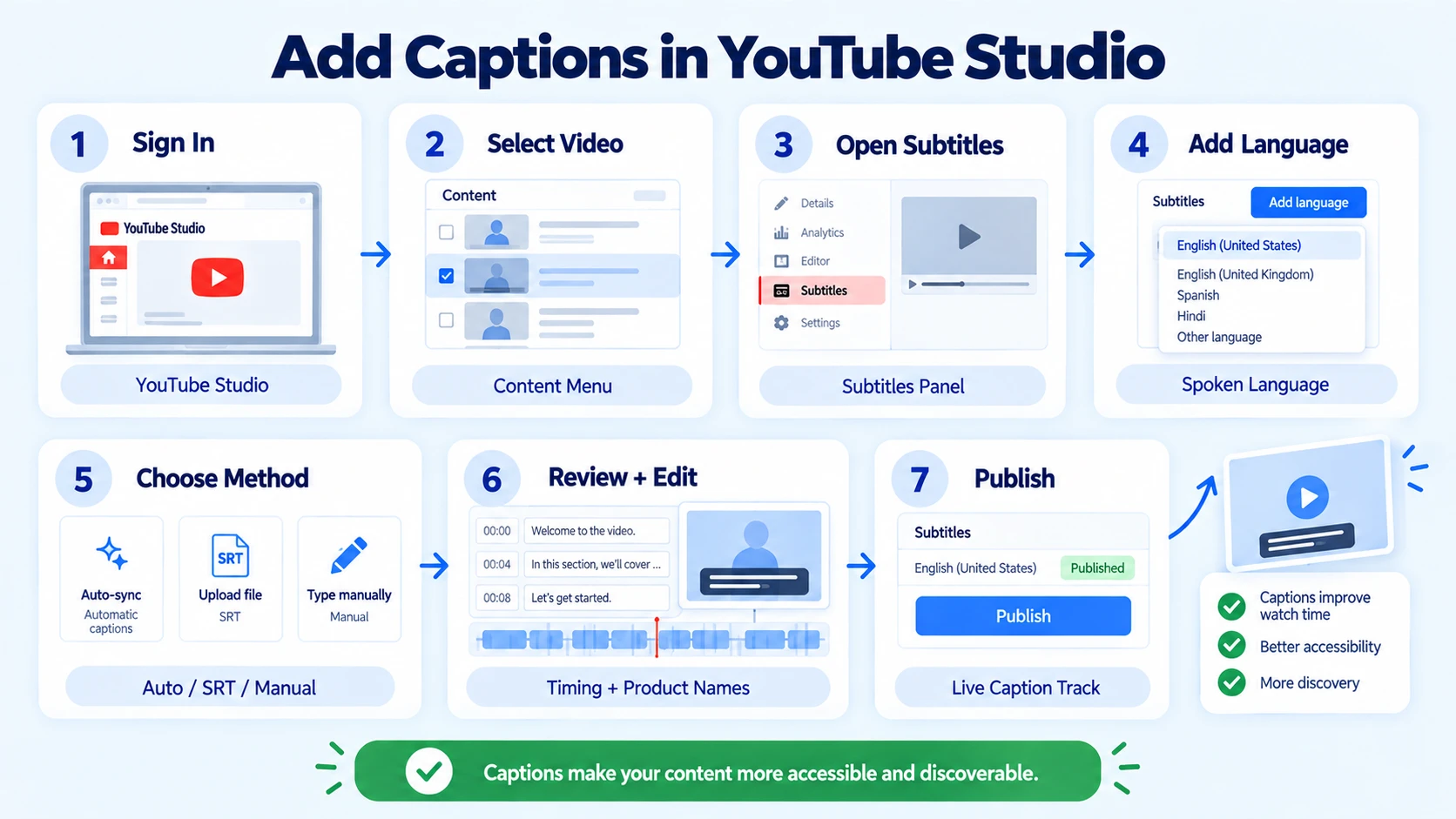
- Sign in to YouTube Studio: Go to studio.youtube.com.
- Navigate to your video: Click "Content" in the left menu, then select the video you want to caption.
- Open the Subtitles panel: Click "Subtitles" in the left navigation.
- Add your language: Click "Add Language," select the language spoken in the video, then click "Add" under Subtitles.
- Choose your caption method: YouTube offers three paths, auto-generated captions, upload a file (SRT or WebVTT), or type manually.
- Review and edit auto-captions: Auto-captions are a starting point, not a final product. YouTube's speech recognition regularly mishears proper nouns, product names, technical terms, and speakers with accents, so review every caption before publishing, because every error is a word your audience misreads and a keyword Google indexes incorrectly.
- Adjust timing: Click any line in the caption editor to adjust timestamps manually.
- Publish: Click "Publish" to make captions live on the video.
This process improves video accessibility and boosts SEO by making your content indexable by search engines. For SaaS, AI, and tech teams repurposing webinar or podcast content—or creating videos from scratch via custom research and scripting—the most efficient workflow is to generate captions in Descript or Kapwing first (where you can also edit the transcript for product terminology), export the SRT file, then upload it directly into YouTube Studio at Step 5. This gives you a reviewed, accurate SRT rather than raw auto-generated output.
Best Free Tools for Adding Subtitles Without Paying for Transcription
You do not need to pay Rev.com for manual transcription on every video. AI subtitle generators save 80-90% of transcription time while delivering 90-99% accuracy on clear audio, making them essential for efficient video production.
Kapwing is built for creators making snappy Instagram Reels, TikToks, and YouTube Shorts, its AI subtitle tool is fast, simple, and customizable with fonts and colors. Descript captions through a transcript-first editing model, which is powerful for podcasts and talking-head video, and its captions are accurate.
Modern AI-powered subtitle generation achieves 90-98% accuracy for clear audio in common languages, rivaling human transcription, making paid human transcription services like Rev.com most justified for legal, medical, or compliance-critical content rather than standard B2B SaaS, AI, and tech video.
For Instagram Reels Accessibility and the TikTok Caption Tool, both platforms have built-in auto-caption options within the upload flow. These are convenient starting points but still require a review pass for accuracy before publishing, particularly if your content contains product names, technical terms, or founder names that speech recognition commonly mangles.
Common Caption Mistakes That Destroy Retention
Getting captions on screen is step one. Getting them right is what actually moves viewer retention metrics.
- Skipping the accuracy review: The most common mistake is treating captions as an afterthought, adding them hastily before publishing without proper review. This leads to typos, timing issues, and formatting inconsistencies that signal low production value, and viewers notice, eroding trust and credibility faster than almost any other quality issue.
- Over-captioning: Another frequent error is over-captioning, where every single word appears on screen regardless of relevance or readability. This creates visual noise and cognitive overload, especially in fast-paced content, so edit for clarity, removing filler words and redundant phrases while preserving meaning.
- Poor placement: Caption text that overlaps platform UI (like TikTok's like button or Instagram's username bar) gets hidden. Keep captions inside the safe zone, centered in the lower third for landscape, and above the bottom 20% for vertical video.
- Ignoring caption accuracy rate: A word error is a missed or incorrect word that doesn't change meaning, while a meaning error changes what the speaker intended. No meaning errors should make it to publish, word errors are only acceptable if they don't affect clarity.
- Using open captions on YouTube: Burned-in text on a YouTube video means zero indexable content for search. Always upload a closed caption SRT or WebVTT file to YouTube even if you're also using stylized open captions for social cuts.
- Mismatched font contrast: White text without a dark stroke or background on light-colored footage becomes unreadable. Every caption needs sufficient contrast to meet Web Content Accessibility Guidelines (WCAG) standards and pass basic subtitle accessibility checks.
- Ignoring the Americans with Disabilities Act (ADA): For SaaS, AI, and tech companies running public-facing product videos, sales pages, or gated content, captioning is increasingly a compliance requirement, not just a best practice.
How to Auto-Generate Accurate Captions for YouTube, Instagram, and TikTok
The workflow for adding captions and subtitles that lift retention across all three platforms follows one consistent pattern: auto-generate, review, export platform-specific format.
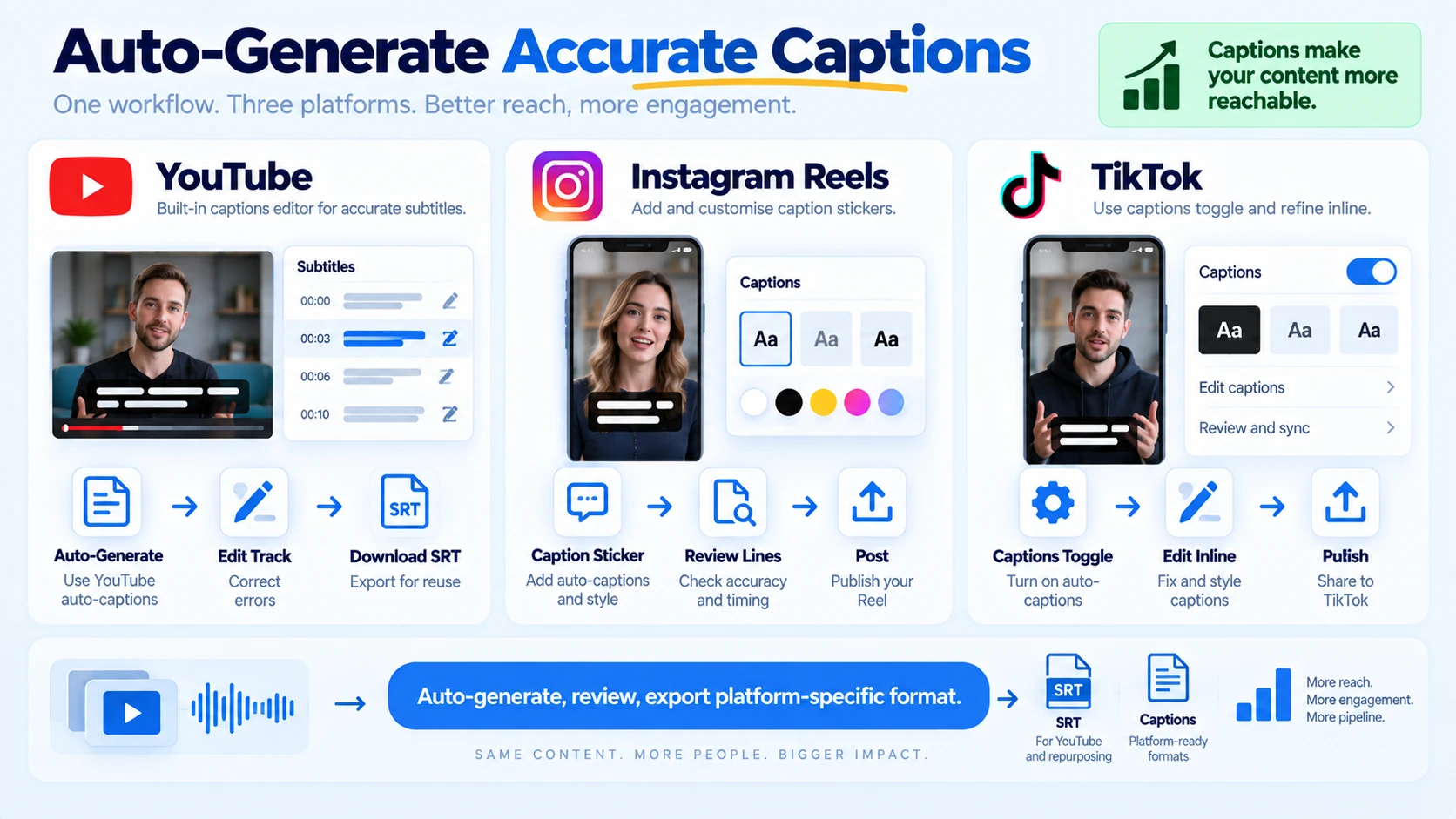
For YouTube:
- Upload your video to YouTube Studio.
- YouTube automatically generates captions for most videos using speech recognition, they appear in YouTube Studio a few hours after upload, and you do not need to do anything to enable them, as they are on by default for eligible languages.
- Go to Content, click the pencil icon next to the video, navigate to Subtitles, and edit the auto-generated track inline.
- Download the corrected SRT file to reuse on other platforms.
For Instagram Reels:
- In the Instagram app, tap the caption sticker after recording or uploading your Reel.
- Instagram's auto-caption tool generates text on-screen. Review every line for accuracy before posting.
- For branded, stylized captions with controlled fonts and colors, use Kapwing or Descript to generate an open-caption version before uploading.
For TikTok:
- Upload your video in the TikTok app, then toggle "Captions" during the post settings screen.
- The TikTok Caption Tool auto-generates and allows you to edit captions inline before publishing.
- For high-volume content, burn open captions directly into the video file via CapCut before uploading, this guarantees captions display consistently regardless of user settings.
More than 68% of content creators now use captioning and subtitling tools to increase reach and engagement, which means showing up without captions on any of these platforms is increasingly a visibility disadvantage, not just an accessibility gap. If your team produces short-form video content at volume—whether built from an existing content library or created completely from scratch through full production and scripting—building captions into the editing template rather than treating it as a final step is what separates teams producing at scale from those constantly catching up.
Conclusion
- Captions are not a post-production nicety. They are the mechanism that keeps buyers in your video long enough to receive your message.
- Use open captions for all social platforms where silent video consumption dominates, and closed captions in SubRip (SRT) format for YouTube and long-form content.
- Auto-generated captions from YouTube Studio, Kapwing, and Descript are production-ready starting points, but every auto-generated file needs a review pass for product names, technical terms, and timing accuracy.
- If you're producing founder-led content, product demos, or repurposed webinar clips—or building a video system entirely from scratch—build captions into the editing workflow from day one, not as a last step.
Need a video editing team that handles content creation both from scratch (research, scripting, production) and from existing content, alongside captions, formatting, and platform optimization? That's exactly what we do at Komet Media.
Frequently Asked Questions
Q1: Do subtitles actually help people watch videos longer?
Yes, directly. A study from Verizon and Publicis Media found up to 80% of viewers are more likely to finish a video with subtitles. The retention lift is consistent across short-form social clips and long-form educational content.
Q2: What is the difference between open captions and closed captions?
Open captions are permanently embedded into the video file and cannot be turned off. Closed captions are stored as a separate text track that viewers can toggle on or off. Open captions are best for social media; closed captions in SRT or WebVTT format are best for YouTube and SEO.
Q3: How do I add captions to a YouTube video for free?
Adding captions in YouTube Studio takes just a few steps: select the video from the Subtitles section, enable auto-generated captions for your language, review and edit the caption timing, then publish. No third-party tool or payment required.
Q4: What free tools can I use to add subtitles to social media videos?
Kapwing, Descript, and CapCut are the leading free options. As of 2025, accuracy rates reach 99% for premium tools and free tiers can generate captions in under 2 minutes for clips up to 30 seconds. Each exports SRT files compatible with YouTube and major social platforms.
Q5: Why do videos with captions perform better on social media algorithms?
Higher watch time and completion rates directly influence algorithmic promotion. For content creators focused on algorithmic performance, subtitle availability becomes a critical factor in content success because platforms reward content that holds viewer attention, and captions remove the primary dropout trigger for muted viewers.
Q6: How accurate do auto-generated captions need to be before I publish?
They need zero meaning errors. In 2026, captions AI can automatically generate a strong first draft, but "done" still needs a clear quality bar. Always review for product names, founder names, technical terms, and any sentence where an error would change what a viewer believes you said.

